
I’ve been playing Fortnite for years, and I know the struggle. You practice for hours, but your edits feel slow.
Your aim isn’t where it should be. And don’t even get me started on build battles. Well, your keybinds could be holding you back.
The right setup makes all the difference. It helps you react faster, build smarter, and land more shots. I’ve tested dozens of layouts to find what actually works.
In this blog, I’ll show you the best Fortnite keybinds that top players use. You’ll get practical setups for building, editing, and combat.
Plus, I’ll explain why each one works so you can adapt them to your playstyle.
Why the Fortnite Keybinds Are Essential for Aim and Mechanics
Your keybinds control everything you do in Fortnite. Think about it. When you’re in a build fight, you need to switch between building and shooting fast.
If your keybinds are all over your keyboard, you waste time. Your fingers travel too far. You lose the fight.
Good keybinds keep your fingers close to WASD. This means you can move, build, and shoot at the same time. Your aim stays steady because your hand isn’t jumping around.
I learned this the hard way. I used to have my edit key on G. My reaction time was terrible. I moved it closer, and suddenly I could edit twice as fast. My mechanics improved overnight.
The right keybinds don’t just help you. They completely understand how you play.
The Best Fortnite Keybinds for PC (Keyboard & Mouse)
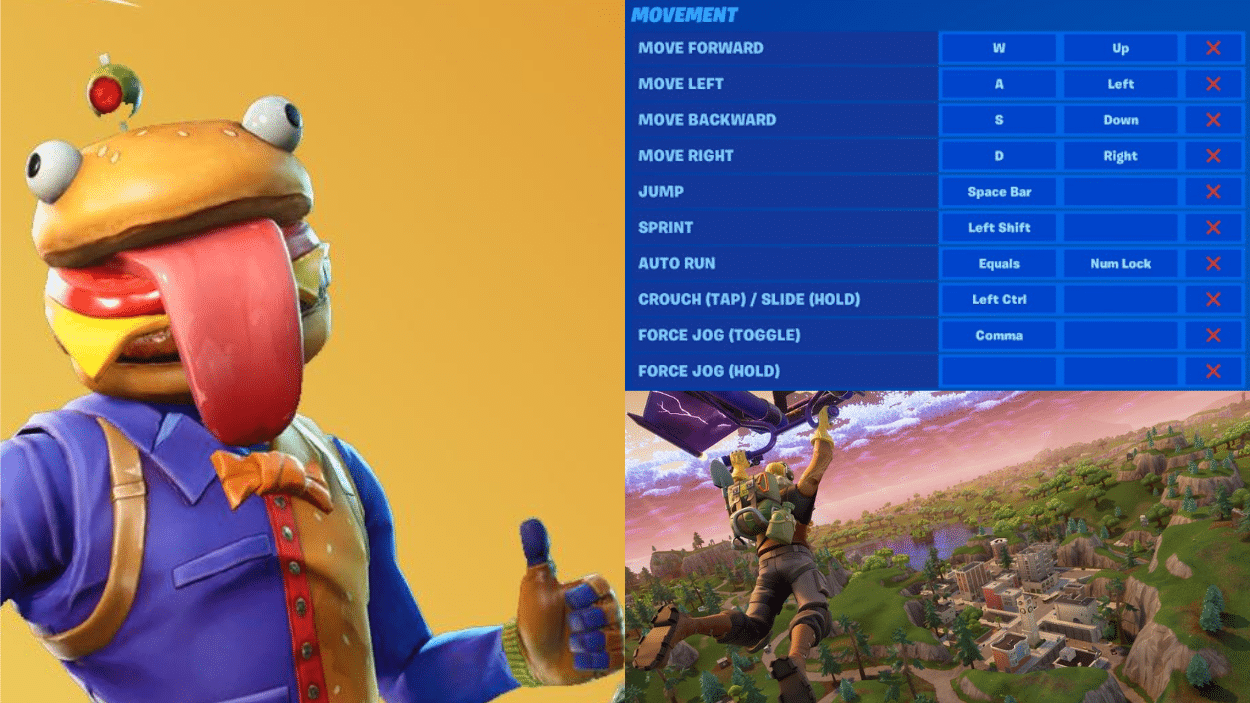
Let me share my keybind setup with you. I’ve refined these over hundreds of hours, and they’ve helped me improve my aim and building speed significantly.
Movement Keys
Keep your movement keys at WASD. Don’t change these. Your muscle memory already knows them, and they’re central to everything else.
I see players try to switch movement keys, and it never works out. WASD gives you the best reach to surrounding keys.
Your thumb sits on the spacebar. Your pinky can easily hit Shift and Ctrl. This standard setup lets you access building and weapon keys without stretching your fingers too far or losing control of your movement.
Building Keys
These keybinds keep my fingers close to WASD. Q and E are right next to my movement keys. I can press them without lifting my fingers off A and D.
The mouse buttons work great for the ramp and the cone because my thumb naturally rests there. I never have to reach across my keyboard during intense build fights.
My building keybinds:
- Wall: Q
- Floor: E
- Ramp: Mouse Button 4 (side button)
- Cone: Mouse Button 5 (side button)
Weapon Slots
I keep my close-range weapons on 1 and 2. These are easy to hit during fights. My AR goes on X because I use it less in close combat. X sits right under my index finger.
Heals and utility go on C and V. They’re accessible but out of the way since I don’t need them mid-fight.
Here’s how I organize my weapons:
- Slot 1: 1 (shotgun)
- Slot 2: 2 (SMG)
- Slot 3: X (AR)
- Slot 4: C (heals)
- Slot 5: V (utility)
Edit Key
F is my favorite edit key. It’s close to WASD, and my index finger naturally hits it. Some players use E, but I need that for floors. The right mouse button for reset makes editing faster.
I don’t have to reach for another keyboard key. This combo lets me edit, reset, and confirm in one smooth motion.
My edit setup:
- Edit: F
- Reset Edit: Right Mouse Button
- Confirm Edit: Left Mouse Button
Trap and Reload Keys
T works well for traps because I don’t place them often. It’s close enough to reach but won’t get pressed by accident. R for reload is standard, and it feels natural.
I keep using F along with edit. This doesn’t cause issues because you can’t edit and interact at the same time anyway.
Additional binds I use:
- Trap: T
- Reload: R
- Use: F (same as edit)
Best Mouse Sensitivity and DPI Settings to Supercharge Your Aim
Best Fortnite keybinds mean nothing if your mouse settings are wrong. Let me show you what works for most players.
DPI Settings
I use 800 DPI. Most pro players stick between 400 and 800. Higher DPI makes your cursor jumpy. Lower DPI gives you better control.
I recommend 800 because it balances speed and precision. You can flick quickly but still track targets smoothly.
In-Game Sensitivity
My in-game sens is 8%. This gives me an eDPI of 64 (800 x 0.08). Your eDPI should fall between 40 and 80. Anything higher makes aiming harder. Anything lower slows down your building.
Finding Your Perfect Settings
Test different settings in creative mode. Can you track a moving target? Can you comfortably do a full 360-degree turn? Adjust until both feel natural.
Don’t copy pros exactly. Find what fits your mouse pad size and play style.
Top Pro Player Fortnite Keybinds – Steal from the Best
Want to know what the pros use? Here’s a breakdown of keybinds from top Fortnite players. Study these and see what might work for you.
| Pro Player | Wall | Floor | Stairs | Edit | Unique Bind |
|---|---|---|---|---|---|
| Peterbot | T | Y | F | G | Fire – E |
| Clix | F | X | Q | G | Sprint – L-Ctrl |
| MrSavage | F | G | Mouse Button 4 | Y | Cone – F4 |
| Ninja | Mouse Button 4 | Q | Mouse Button 5 | F | Cone – L-Shift |
| Tfue | C | E | Mouse Button 4 | V | Wall – C |
Notice how most pros keep their building keys close to WASD. They use side mouse buttons for builds, too.
Each player has a unique set of best Fortnite keybinds that fit their style. Don’t copy them exactly. Instead, take ideas that make sense for your hand size and comfort level.
How to Change Keybinds in Fortnite – Step-by-Step Guide
Changing your keybinds is simple. Here’s exactly how to do it in Fortnite.
Step 1 – Open Settings. Launch Fortnite and click the menu icon in the top-right corner. Select the settings gear icon.
Step 2 – Go to Keyboard Controls: Click on the keyboard icon at the top. This shows all your current keybinds.
Step 3 – Find the Action You Want to Change: Scroll through the list. Look for building, editing, or weapon slots.
Step 4 – Click on the Current Keybind: Click the key shown next to the action. It will say, “Press any key.”
Step 5 – Press Your New Key: Hit the key you want to use. The game saves it automatically.
Step 6 – Test in Creative Mode: Load into creative and practice your new keybinds before jumping into real matches.
Wrapping it Up
Your keybinds shape how you perform in Fortnite. Period.
I’ve shown you the best Fortnite keybinds that work for top players and me. You’ve got the mouse settings, the pro setups, and step-by-step instructions to make changes.
Now it’s your turn. Jump into creative mode today. Test these keybinds. Adjust them to fit your hands and style. Give yourself a week to build muscle memory.
Remember, even small changes take time.
Stick with your new setup. Practice daily. Your aim will sharpen. Your edits will get faster. Your builds will flow more smoothly.
What keybinds are you trying first? Drop a comment below and let me know how they work for you.