

I’ve been gaming for years, and I know how frustrating it is when your mouse feels sluggish. You click, but there’s a tiny delay. Your crosshair doesn’t move smoothly. You miss shots you should’ve hit.
Well, fixing this might be simpler than you think. The answer often lies in something called the polling rate.
In this blog, I’ll explain what is polling rate on a mouse and show you exactly how to adjust it.
You’ll learn why it matters for your aim and how to pick the right setting for your setup. By the end, you’ll know how to make your mouse respond faster and your shots more accurate.
How Does Polling Rate Work?
Think of polling rate as how often your mouse checks in with your computer. It’s measured in Hertz (Hz). A 125 Hz mouse reports its position 125 times per second. A 1000 Hz mouse? That’s 1000 times per second.
Your mouse constantly sends signals to your PC. Every time it polls, it tells your computer where it is and what buttons you’re pressing.
Higher polling rates mean more frequent updates.
This creates smoother cursor movement and faster response times. The difference becomes noticeable during quick flicks or precision aiming.
Lower polling rates can cause visible stutter or delay, especially in fast-paced games.
What Is the Mouse Polling Rate?
So what is polling rate on a mouse exactly? It’s the frequency at which your mouse communicates with your computer. The rate determines how many times per second your mouse sends position and click data to your system.
Common polling rates include 125 Hz, 250 Hz, 500 Hz, and 1000 Hz. Most budget mice stick with 125 Hz or 250 Hz. Gaming mice typically offer 500 Hz or 1000 Hz options. Some newer models even reach 2000 Hz or higher.
The math is simple. A 1000 Hz polling rate means your mouse updates every 1 millisecond (1000 times per second).
A 125 Hz rate updates every 8 milliseconds. That 7-millisecond difference might seem tiny, but it matters when you’re tracking fast-moving targets or making split-second decisions.
Polling Rate vs. DPI and Other Mouse Specs
Polling Rate vs. DPI
DPI (dots per inch) measures how far your cursor moves when you physically move your mouse. Polling rate measures how often your mouse reports that movement. They’re different things entirely.
High DPI means more sensitivity. Your cursor travels farther with less hand movement. A high polling rate means smoother tracking. Your cursor updates more frequently as you move.
You need both working together for optimal performance.
Polling Rate vs. Sensor Quality
Your sensor quality determines accuracy. It tracks how precisely your mouse follows your hand movements. Polling rate determines how quickly those movements get reported.
A bad sensor with a high polling rate will report inaccurate data very quickly. A good sensor with a low polling rate will report accurate data, but with noticeable lag.
The best setup combines a quality sensor with a high polling rate.
Polling Rate vs. Response Time
Response time includes several factors: polling rate, sensor processing, and your computer’s input lag. Polling rate is just one piece of the puzzle.
Even with 1000 Hz polling, other bottlenecks can slow things down. Your USB port speed matters. Your system’s processing power matters too.
Lower polling rates always add delay, though. That’s unavoidable physics.
How Polling Rate Affects Gaming Performance
Different polling rates create noticeably different gaming experiences, especially in competitive titles.
| Polling Rate | Update Interval | Best For | Performance Impact |
|---|---|---|---|
| 125 Hz | Every 8ms | Office work, casual browsing | Minimal CPU usage, may feel sluggish in games |
| 500 Hz | Every 2ms | Casual gaming, general use | Balanced performance and responsiveness |
| 1000 Hz | Every 1ms | Competitive gaming, fast shooters | Smooth tracking, slight CPU increase |
| 2000 Hz+ | Every 0.5ms or less | Professional esports, extreme precision | Maximum responsiveness, higher system demands |
When you’re asking what is polling rate on a mouse and how it affects your games, this table shows the practical differences you’ll experience.
Pros and Cons of High Polling Rates
High polling rates aren’t always the best choice for everyone.
Pros:
- Smoother cursor movement with less visible stutter or jumpiness
- Reduced input lag between moving your mouse and seeing the result on screen
- Better tracking during fast flicks and quick directional changes
- More responsive click registration in competitive scenarios
- Improved accuracy when tracking moving targets in shooters
Cons:
- Increased CPU usage, which can affect performance on older systems
- Potential compatibility issues with some older computers or USB hubs
- Higher power consumption, which matters for wireless mice
- May cause stuttering on systems that can’t handle the extra polling load
- Overkill for non-gaming tasks like web browsing or document editing
How to Check and Change Your Mouse’s Polling Rate
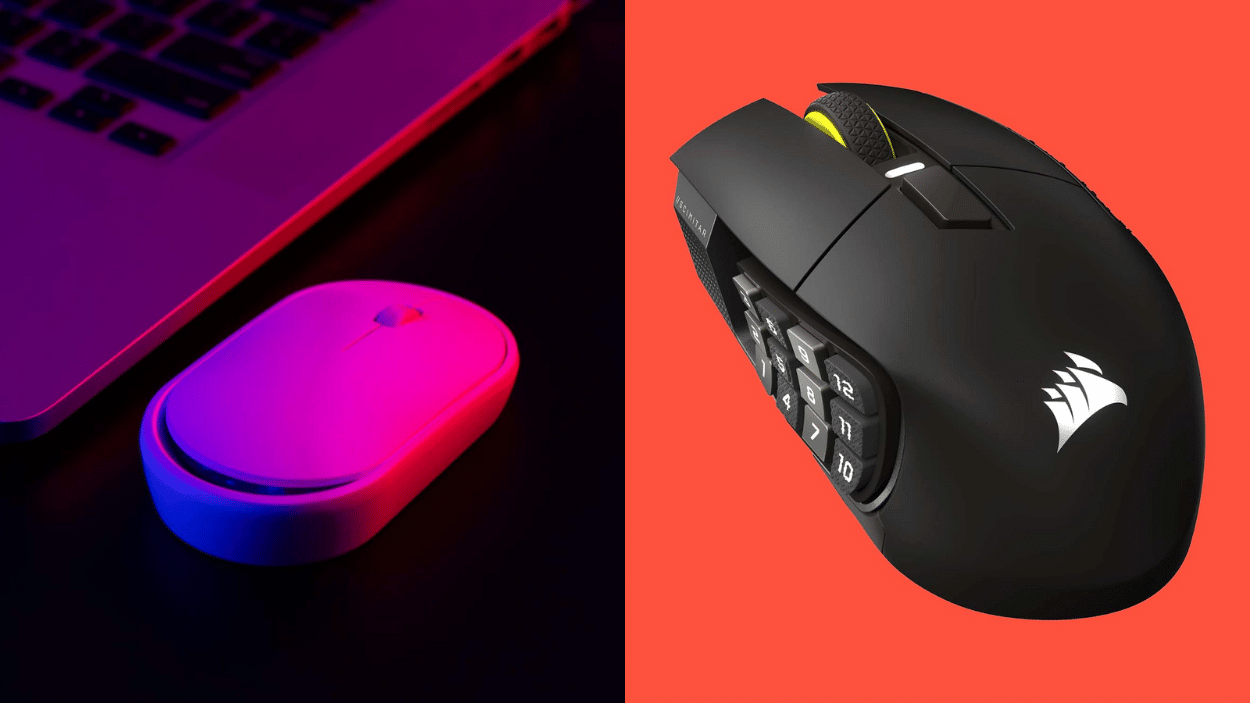
Most gaming mice let you adjust the polling rate through software or hardware switches. Here’s how to do it:
Check Your Current Polling Rate
Download a polling rate tester online. These free tools show your current Hz setting. Move your mouse around in the test window. The program displays your active polling rate in real-time.
Change Via Software
Install your mouse manufacturer’s software (e.g., Logitech G Hub, Razer Synapse). Open the settings menu and look for “polling rate” or “report rate.” Select your desired frequency from the dropdown menu.
Apply the changes and restart your computer.
Change Via Hardware Switch
Some mice have a physical switch on the bottom. Check your mouse’s underside for a small switch labeled with Hz values. Flip it to your preferred setting. No software needed.
Wrapping it Up
Now you understand what is polling rate on a mouse and how it shapes your gaming experience. I’ve shown you the differences between polling rates, how they compare to other specs, and the real impact on performance.
Start by checking your current settings. Try bumping it up to 500 Hz or 1000 Hz if your mouse supports it.
Test it in your favorite games and feel the difference yourself. Your aim will thank you for it.
Got questions about your specific mouse? Drop them in the comments below. I’m here to help you get the most out of your setup.