Your screen freezes mid-game, the colors glitch, and your first instinct is to reach for the power button. That instinct is usually wrong.
Windows has a built-in shortcut that can reset graphics card drivers in seconds, without closing your open apps or losing unsaved progress.
Most gamers never use it, because nobody tells them it exists. A graphics card does not get reset the way most people picture it, though.
What actually happens under the hood is more specific, and understanding it explains why some fixes work instantly while others barely help at all.
What “Resetting a Graphics Card” Actually Means
Resetting a graphics card almost always means restarting the display driver that connects Windows to your GPU, not resetting the physical hardware itself.
Windows can do this because of a built-in feature called Timeout Detection and Recovery, or TDR, which watches for a GPU that stalls for too long and resets the graphics card after a two-second timeout instead of letting the whole system hang.
In my experience testing this on both NVIDIA and AMD setups, that two-second window is exactly why a “frozen” screen during a heavy game often recovers on its own if you just wait instead of hitting the power button.
When you reset the graphics driver, Windows simply restarts the software controlling the GPU without changing hardware settings.
Use this as a quick fix when the display suddenly becomes unresponsive. If you only need it occasionally, there is usually little reason to worry.
However, if you are resetting the driver every day, the graphics driver itself may be outdated, corrupted, or unstable and should be checked.
How to Reset Graphics Card on Windows?
Work through these fixes in order of how invasive they are: the keyboard shortcut first, Device Manager next, PowerShell or a manufacturer control panel if you want more control, and a full driver reinstall only if the problem keeps coming back.
1. Keyboard Shortcut (Win + Ctrl + Shift + B)
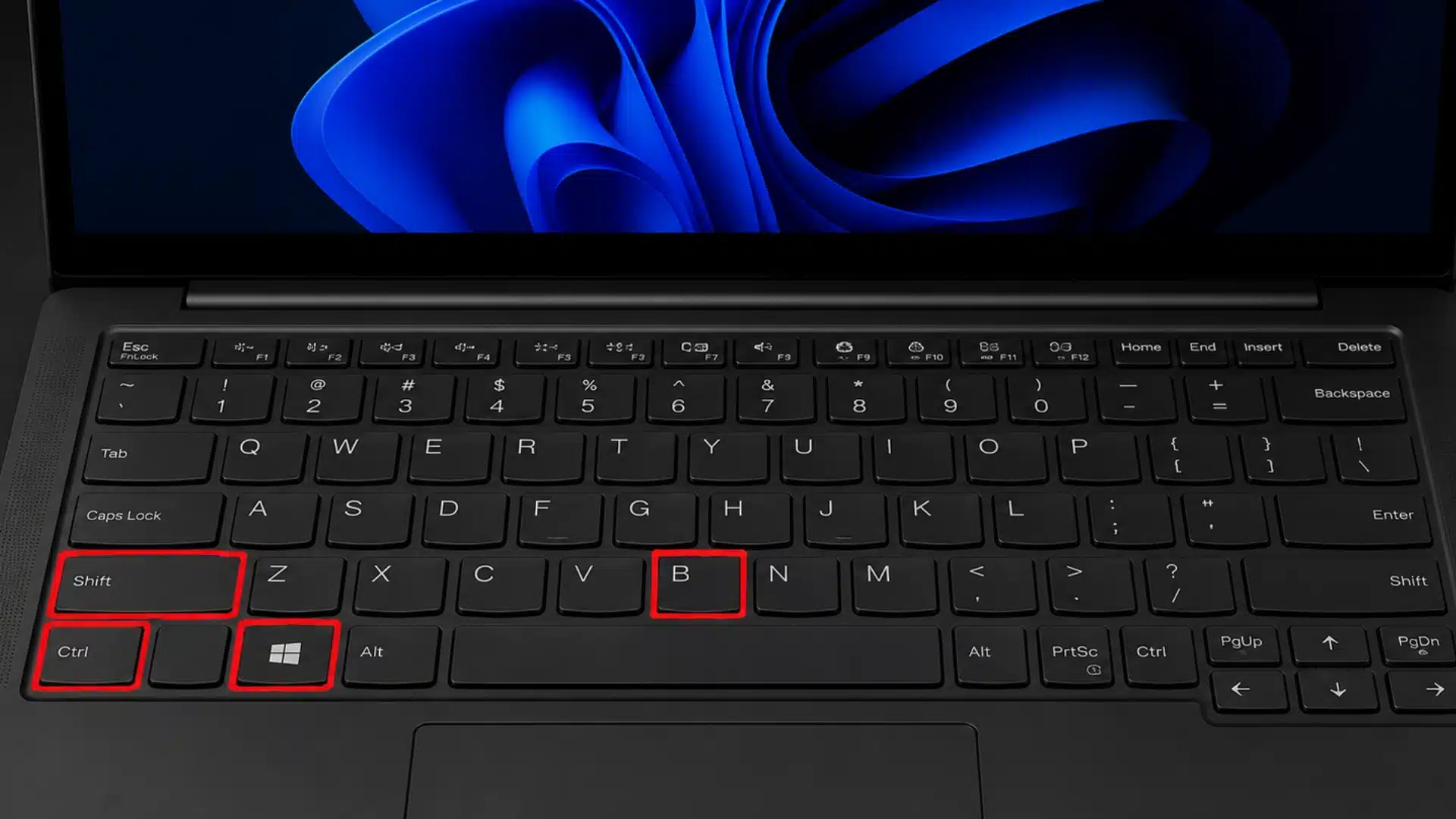
This shortcut restarts the Windows graphics driver without closing your apps, making it the fastest option for sudden black screens, freezes, or stuttering issues.
- Press Windows + Ctrl + Shift + B together.
- Wait as the screen briefly turns black.
- Listen for a short system beep.
- Give Windows a few seconds to restore the display.
- Check whether the frozen screen or stutter has disappeared.
If this shortcut becomes something you reach for every session, it is worth stepping back and running through a broader gaming PC tune-up to find what is actually causing the driver to stall in the first place.
2. Restart via Device Manager
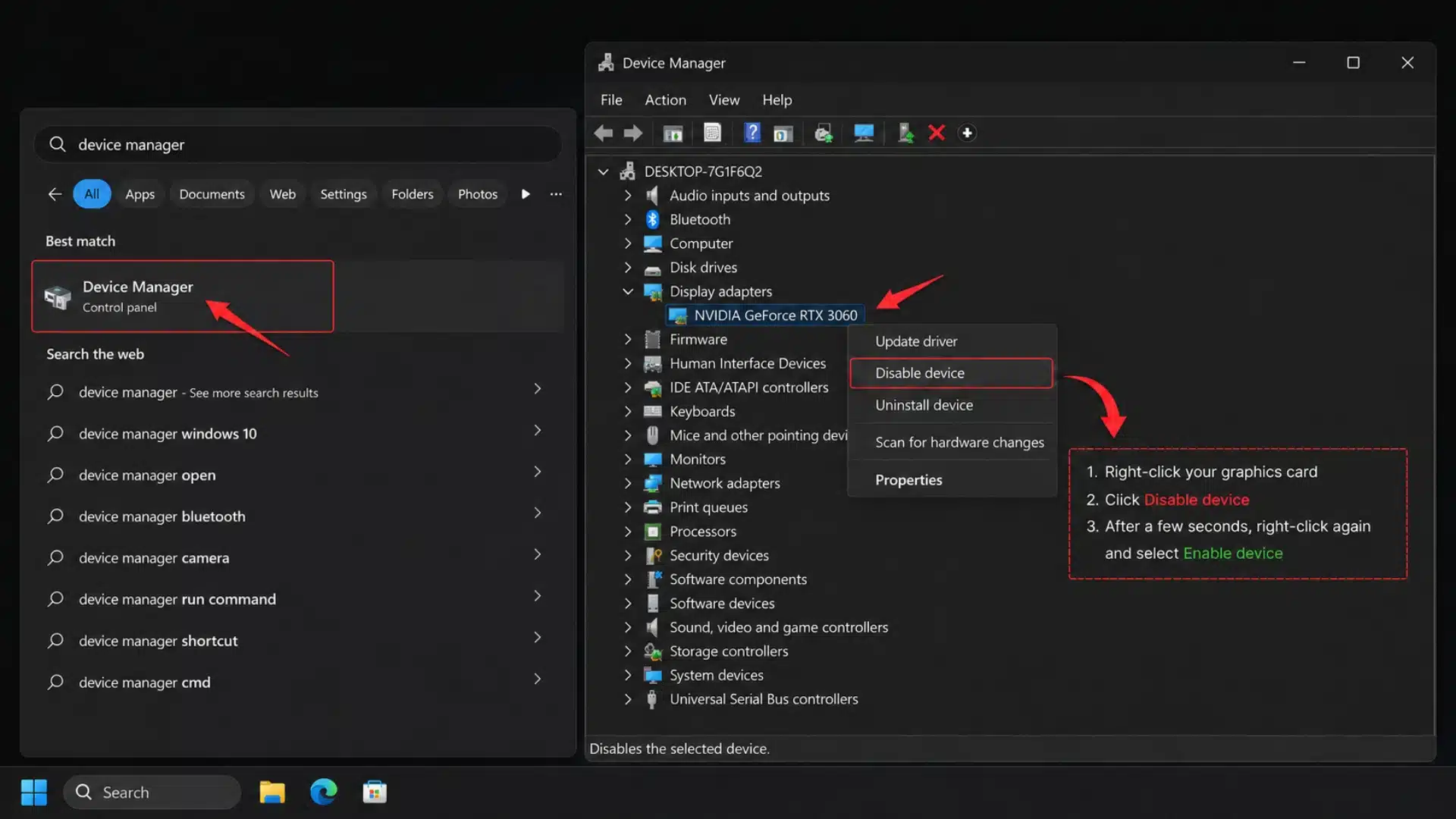
Device Manager lets you disable and re-enable the graphics adapter manually, creating a stronger driver restart when the keyboard shortcut fails to restore the display.
- Right-click Start and select Device Manager.
- Expand Display adapters and locate your graphics card.
- Right-click the GPU and select Disable device.
- Wait several seconds before right-clicking it again.
- Select Enable device and check the display.
3. Restart via PowerShell (Advanced)
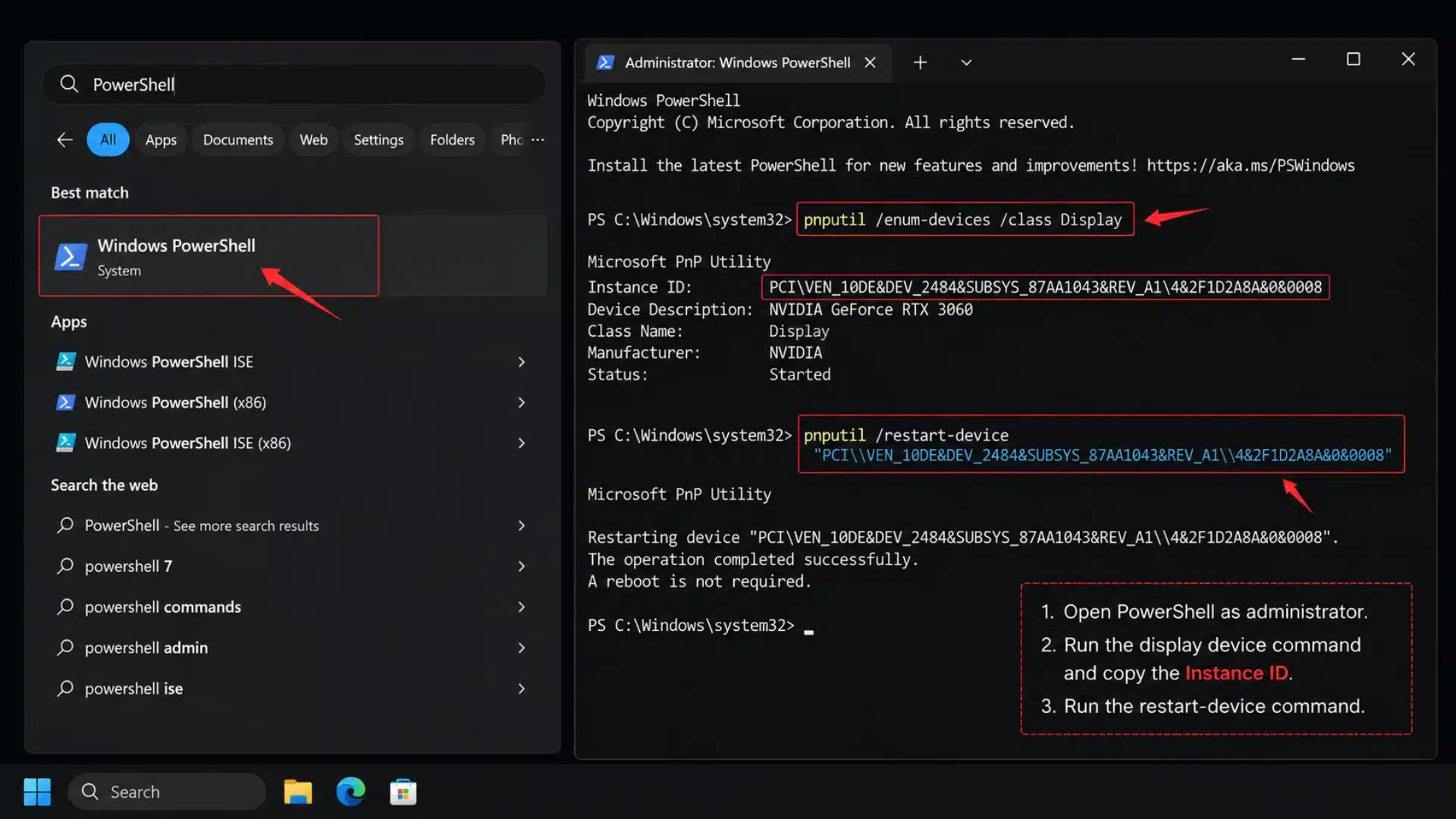
PowerShell can restart the graphics device directly through Windows commands, which is useful when Device Manager responds slowly, or you prefer a command-based troubleshooting method.
- Open PowerShell with administrator privileges.
- Enter “pnputil /enum-devices /class Display” and press Enter.
- Locate your GPU and copy its exact Instance ID.
- Enter pnputil /restart-device “YOUR-INSTANCE-ID” using the copied ID.
- Press Enter and wait for Windows to restart the device.
4. Reinstall or Clean-Install the Driver
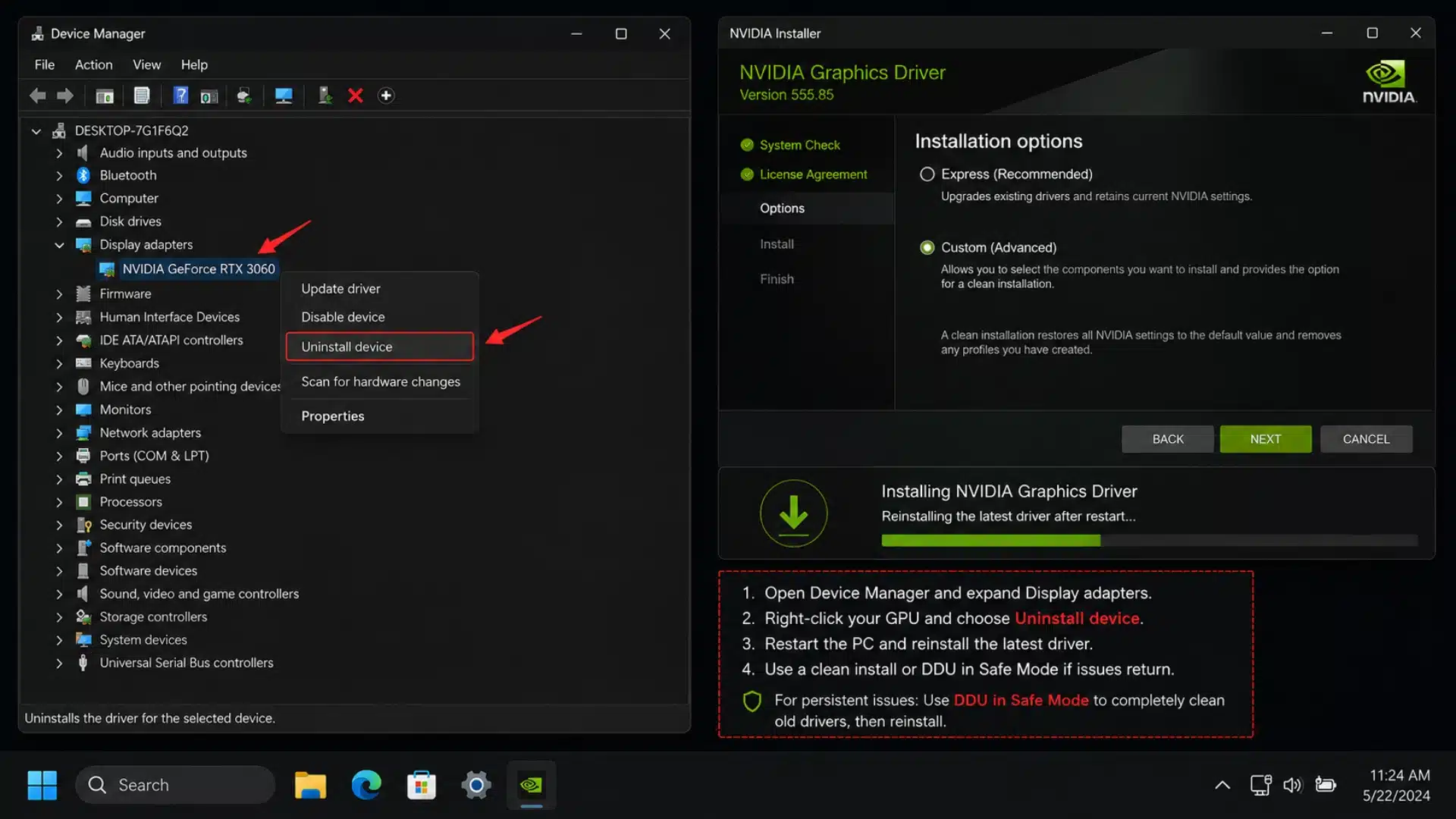
If resetting the driver only helps temporarily, reinstalling it can replace corrupted files, while a clean installation removes leftover driver components that may be causing repeated graphics problems.
- Open Device Manager and expand Display adapters.
- Right-click your GPU and select Uninstall device.
- Restart the PC so Windows can reinstall the graphics driver.
- If problems return, download the latest driver from your GPU manufacturer.
- Consider a clean installation or DDU in Safe Mode for persistent driver issues.
Work through these methods in order, stopping once your display behaves normally again. If crashes keep returning, investigate the driver, temperatures, power, or hardware next.
What If Resetting the Graphics Card Doesn’t Work?
If the graphics reset fails, move to Device Manager for a manual restart, or reinstall the driver if repeated blue screens appear.
A failed shortcut does not necessarily mean the feature itself is broken. Windows briefly pauses the display driver, resets it, and tries to bring it back online.
If the driver is corrupted, overloaded, or unstable, that process can fail and leave the screen frozen or trigger a blue screen instead.
A single failed reset is usually not a major concern. Repeated failures are different because they often point to a driver problem that needs more than a quick restart.
If the screen remains black or frozen, try disabling and re-enabling the GPU through Device Manager. If the shortcut repeatedly causes blue screens, skip repeated resets and move directly to a full graphics driver reinstall.
When You Should Stop Resetting the Graphics Driver
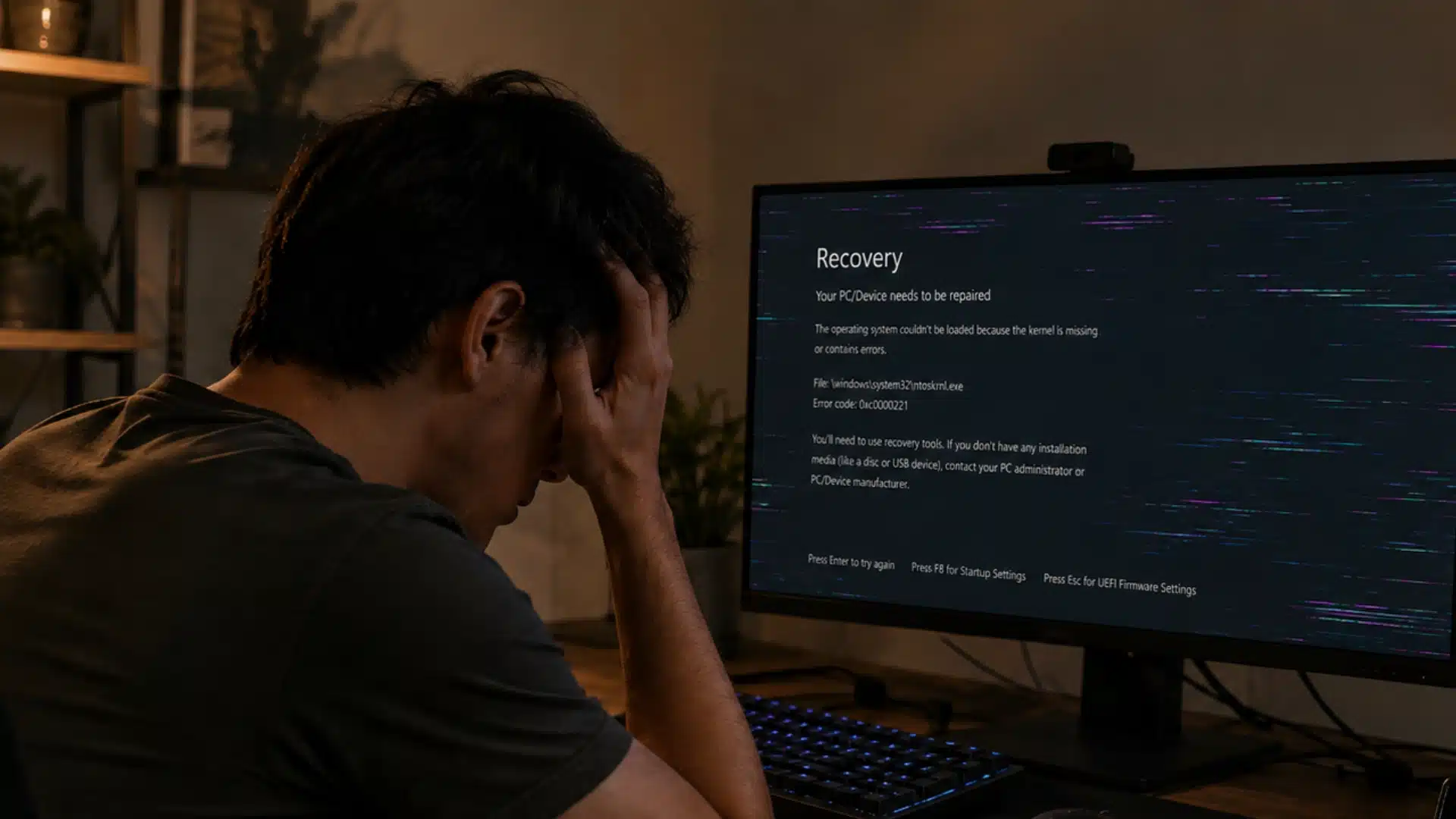
Resetting the graphics driver is useful for occasional glitches, but repeated problems usually mean something deeper is causing the display issue and needs proper troubleshooting.
If black screens, crashes, stuttering, or driver errors keep returning several times a day, stop relying on the reset shortcut as a permanent fix.
Check for an outdated or corrupted graphics driver first, then look at safe GPU temperature ranges, recent Windows updates, overclocking settings, and power delivery.
Persistent visual artifacts, colored lines, or distortion may also point to a hardware problem rather than a driver issue.
The reset shortcut is best used as a quick recovery tool. If you need it regularly, investigate the cause instead of repeatedly restarting the driver.
How to Confirm the Reset Worked?
You can confirm a graphics card reset worked by checking display stability, Device Manager status, Event Viewer logs, and performance in an actual game or video.
- Display Stability: Your screen should return to normal without flickering, freezing, going black, or causing previously opened programs to crash shortly afterward.
- Device Manager Status: Open Device Manager and check your graphics adapter. A healthy device should appear without a yellow warning icon beside its name.
- Event Viewer Logs: Open Event Viewer and check for repeated display driver errors, especially messages indicating that the display driver stopped responding or recovered.
- Normal Performance: Run a game, video, or graphics-heavy application briefly and check whether stuttering, lag spikes, freezes, or other previous symptoms return.
If these checks look normal, the reset worked. If errors return quickly, stop repeating the shortcut and move to a full driver reinstall instead.
Conclusion
Graphics issues can look serious, but Windows gives you several ways to recover without immediately restarting the entire PC.
Start with the keyboard shortcut, then move to Device Manager, PowerShell, or a clean driver reinstall only when the problem keeps returning.
I prefer working through these fixes in that order because it keeps troubleshooting simple and avoids unnecessary steps.
Once you know how to reset graphics card drivers properly and understand how to reset graphics card on PC when the shortcut fails, sudden display problems become much easier to handle.
Just remember that repeated crashes, blue screens, or artifacts can point to a deeper driver or hardware issue.
Have you tried any of these methods before? Share what worked for you in the comments.
Frequently Asked Questions
Is it safe to reset your graphics card?
Yes, restarting the driver this way is safe on most systems and built into Windows for this exact purpose. It only restarts the driver, not the hardware, so there’s no risk to the GPU itself. If it triggers a blue screen repeatedly, that points to a driver problem worth fixing, not an unsafe shortcut.
How do I factory reset my graphics card?
There’s no true factory reset for a graphics card at the OS level. What most people mean is restarting the driver, which the Win + Ctrl + Shift + B shortcut does instantly. For a deeper reset, uninstalling and reinstalling the driver, or using a clean-install tool, gets you the closest equivalent.
How do I fix a corrupted GPU driver?
Uninstall the driver through Device Manager, restart your PC, and let Windows reinstall a fresh copy automatically. If the problem keeps coming back, run a dedicated uninstaller in Safe Mode to clear leftover files before installing the latest driver from the manufacturer’s site.
How do I force restart a frozen GPU?
Press Win + Ctrl + Shift + B to trigger an instant driver restart without rebooting your PC. If the screen stays frozen or black, disable and re-enable the graphics adapter in Device Manager instead, which forces a harder restart.