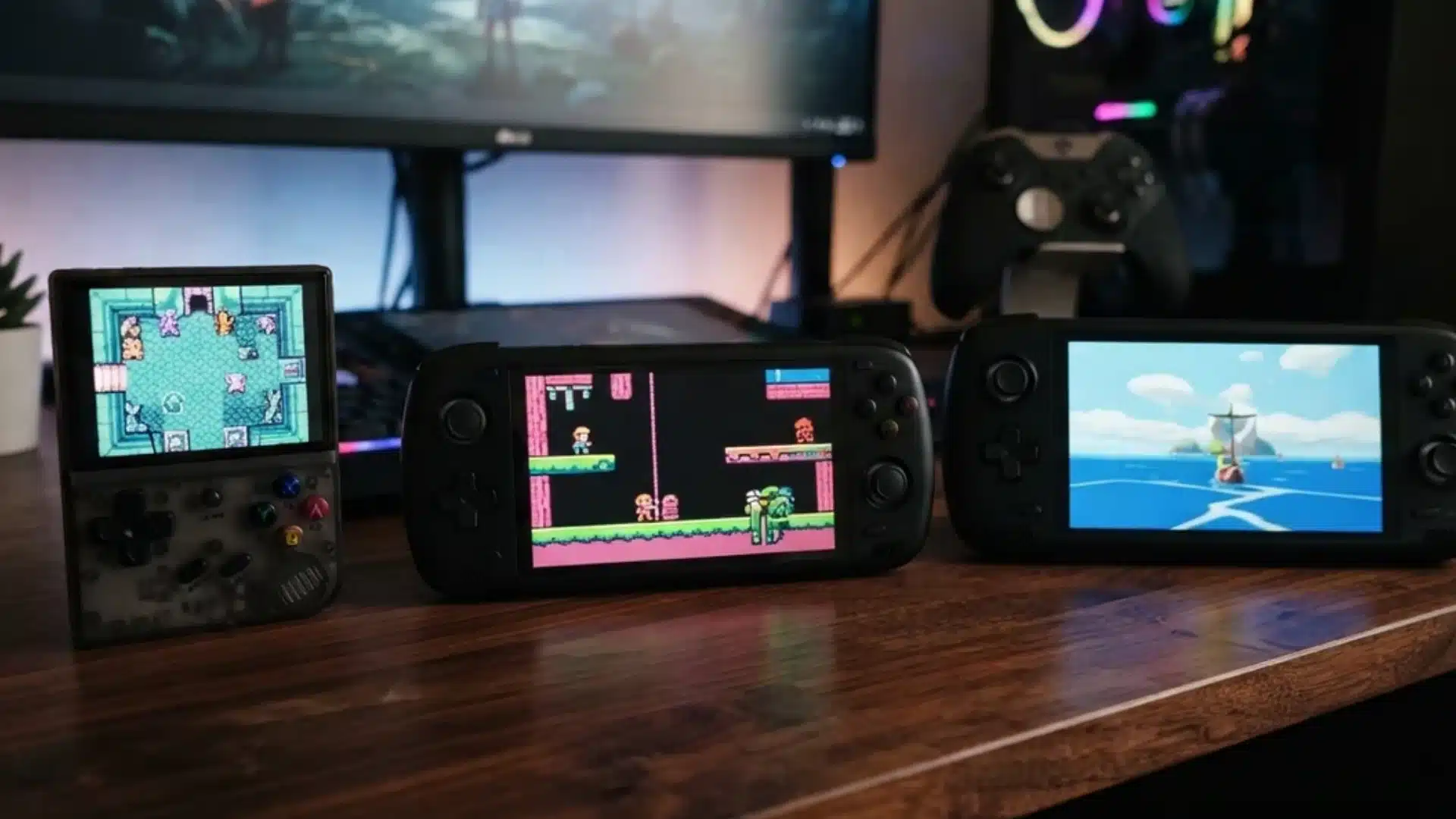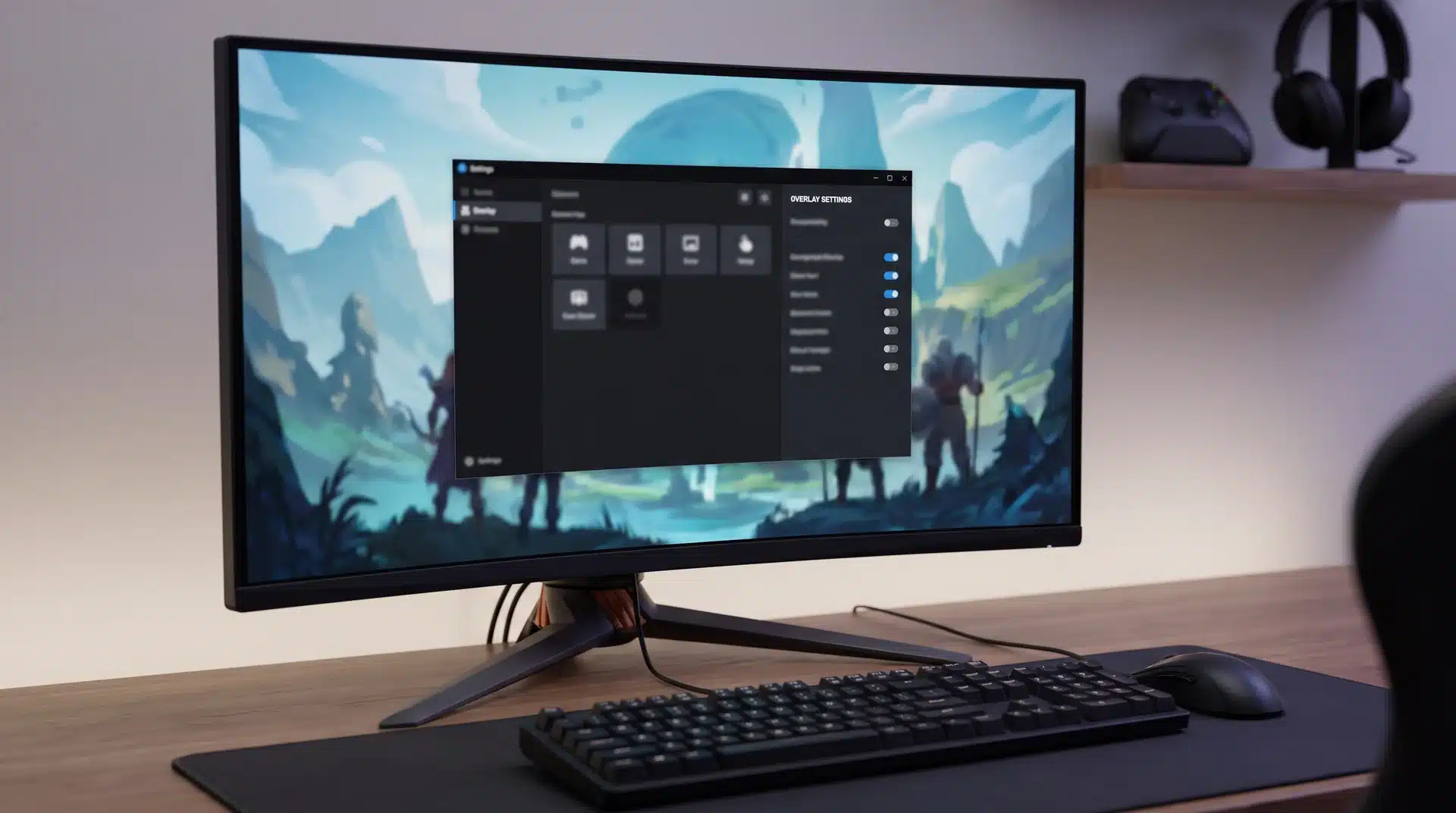
Your Switch collection does not have to stay locked to the console it came with.
Between free options, paid convenience, and a dozen forks with similar names, picking the right Switch emulator for PC can feel more confusing than the games themselves.
I have spent hours testing several of these builds on a mid-range Windows rig, and the gap between a smooth session and a stuttering mess almost always comes down to picking the wrong one for your hardware and getting the setup steps right.
Some emulators favor raw compatibility, others favor accuracy, and a few are still finding their footing. You will also need the right files, keys, and controller setup once it is installed.
Before ranking the options that actually deliver, it helps to know what a Switch emulator is doing under the hood.
What is a Switch Emulator for PC?
A Switch emulator for PC is software that recreates the Nintendo Switch environment so compatible Switch games can run directly on computer hardware.
Instead of streaming gameplay from a physical console, the emulator processes the game using your PC’s processor, graphics card, memory, and storage.
It reproduces key parts of the Switch system, including its hardware architecture, operating environment, graphics processing, controls, and save data handling.
That makes it different from a generic ROM player, which may support entirely different consoles and file formats.
It also shouldn’t be confused with a Switch 2 emulator, since Nintendo’s newer hardware has different technical requirements.
In short, the emulator acts as the software bridge between supported Switch game files and your Windows PC.
Best Switch Emulators for PC
The best Switch emulators for PC differ in compatibility, update frequency, platform support, and stability, so choosing carefully can save considerable troubleshooting.
1. Eden

Eden is free and open source, supports multiple desktop platforms, and offers strong compatibility with frequent updates for modern Switch titles.
Its biggest benefits are broad game support, performance tuning, resolution scaling, and active development, making it the strongest overall starting point.
2. Ryubing

Ryubing is free and open source, prioritizing accurate emulation, consistent rendering, and a familiar Ryujinx-style interface across supported desktop systems.
It generally needs stronger hardware than lighter forks, but regular stable builds and detailed compatibility tracking make troubleshooting easier for demanding games.
3. Citron

Citron was a free, open-source Switch emulator with Windows, Linux, Android, and other builds, but the original project was discontinued in February 2026 after its developer stepped away and took the project infrastructure offline.
A community continuation called Citron NEO is still being developed, with recent builds available for Windows, Linux, macOS, and Android.
Because the original Citron project has shut down, it should no longer be described as an actively developed secondary emulator.
4. Citron-Neo

After the discontinuation of Citron, it’s NEO version was developed recently.
Citron-Neo is free and actively developed, with Windows, Linux, macOS, and Android builds plus frequent nightly releases for experimental improvements.
Its strengths include faster shader work and CPU optimizations, though newer changes can introduce instability, making it better for experienced testers.
5. Kenji-NX
Kenji-NX is free and open source, combining Ryujinx foundations with additional interface features, compatibility improvements, and builds for several operating systems.
It suits users wanting a Ryujinx-style alternative without relying on discontinued legacy releases, while still receiving occasional builds and platform-specific fixes.
6. Sumi
Sumi is free and experimental, targeting Windows, Linux, macOS, and Android while emphasizing performance and a relatively simple multiplatform setup process.
Its shorter development history means compatibility remains less predictable, so it works better as a backup for testing than a primary emulator.
7. Suyu

Suyu is free and open source, continuing from Yuzu’s codebase with builds intended for Windows, Linux, and Android users seeking familiar controls.
Development has been less consistent than leading alternatives, making Suyu more useful for experimentation or preservation than as a first recommendation.
8. Sudachi

Sudachi is free and Yuzu-derived, offering a streamlined interface for legally obtained game dumps, controller mapping, saves, and graphics configuration on PC.
Its historical importance outweighs its current momentum, so most users will find newer forks more practical for ongoing compatibility improvements.
9. NxEmu
NxEmu is free and open source for Windows, built independently in C++ and making visible progress with increasingly playable commercial Switch titles.
Compatibility still trails mature projects, but its independent codebase makes it interesting for users who want alternatives beyond Yuzu and Ryujinx derivatives.
10. Ryujinx Legacy Builds

Legacy Ryujinx was a free and can still run many games, offering strong accuracy, mature settings, controller support, and extensive historical compatibility.
Official development ended in October 2024, so legacy builds receive no original-project fixes and are better kept for existing working setups.
You can not download a new version or the last developed version.
11. Yuzu

Legacy Yuzu builds were free and remain familiar to many users, with mature performance options, controller configuration, and broad historical game support.
Official development ended in March 2024 after a Nintendo settlement, making newer maintained forks a safer practical choice for current compatibility needs.
For most PC users, Eden, Ryubing, and Citron provide the best balance of active development, compatibility, usability, and ongoing fixes today.
What You Need Before You Start?
Every emulator on this list needs the same four things before it can launch a single game. Skipping any one of them is the most common reason setup fails.
- Prod keys: Decryption keys pulled from your own Switch console
- Firmware: The Switch’s system software, also pulled from your own console
- Game files: Your own games, dumped in .nsp or .xci format
- A controller: Most Xbox, PS5, Switch Pro, and 8BitDo controllers work out of the box
The keys and firmware have to come from a console you actually own. That’s not an arbitrary rule from the emulator developers. Keys generated for one console are tied to that hardware.
Downloading someone else’s dump means running Nintendo’s copyrighted firmware without a license for it.
Dumping your own is the only version of this process that stays clearly legal.
Controllers are the easy part. Plug one in, and most emulators pick it up automatically. Our guide to optimize your PC for gaming covers safe settings to start from.
How to Set Up a Switch Emulator on PC?
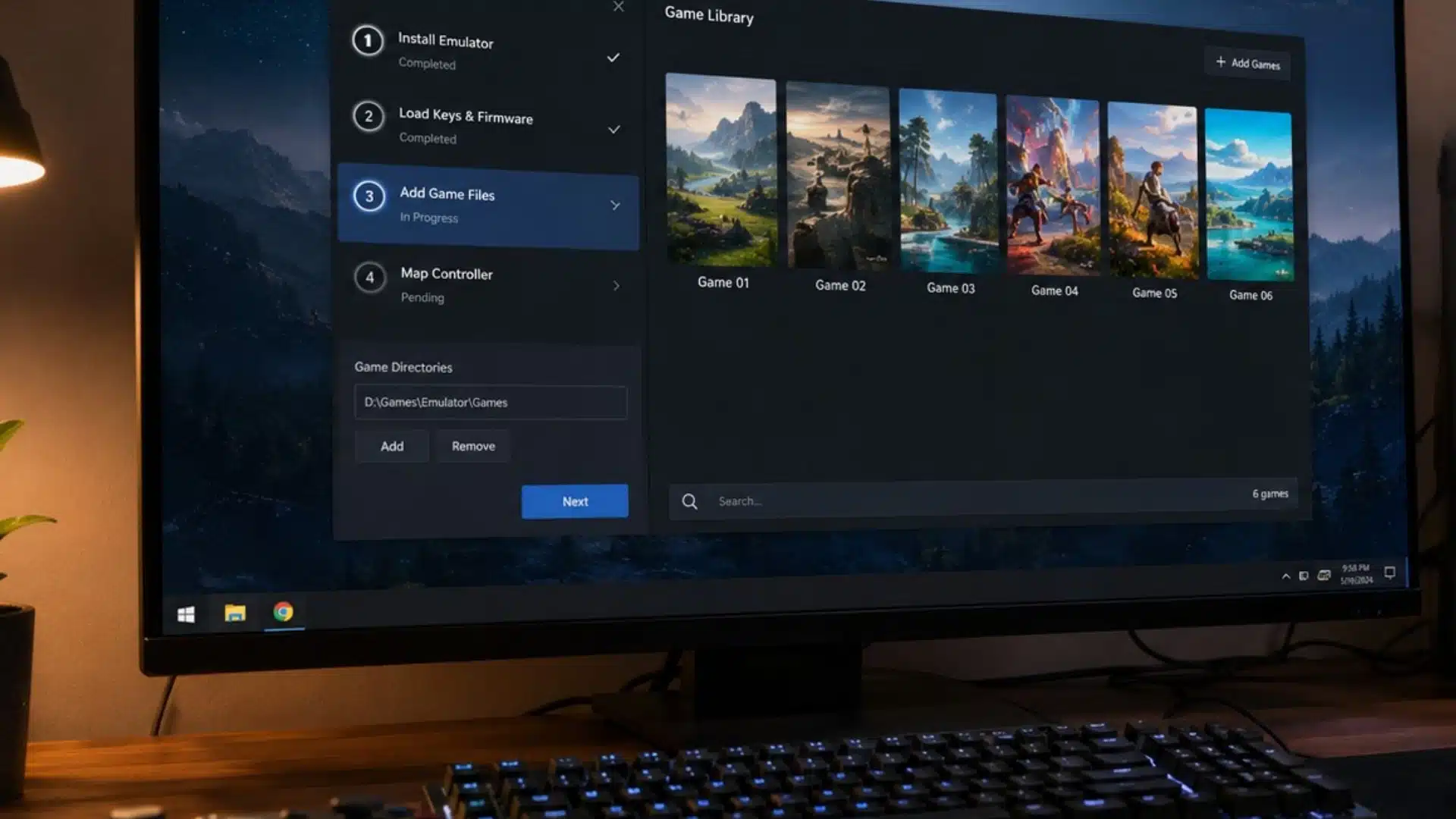
Setting up a Switch emulator is much easier when you have your emulator, firmware, keys, game files, and controller ready before you start configuring.
1. Install and Launch the Emulator
Start with the emulator’s official website or a verified repository to reduce security risks and ensure you get the latest build.
- Download the correct Windows version from the project’s official website or GitHub repository.
- Extract the downloaded archive or complete the installer if the emulator includes one.
- Open the emulator and let it create the required configuration folders.
- Confirm that the main interface loads correctly before adding any system or game files.
2. Load Your Prod Keys and Firmware
System keys and firmware allow the emulator to recognize and process supported Switch games, so both should come from your own console.
- Dump your prod. keys and required system files from a Switch you legally own.
- Open the emulator’s keys or system directory and place the required key files there.
- Install your dumped firmware through the emulator’s firmware or tools menu.
- Keep firmware and key versions compatible if games fail to launch or display errors.
3. Add Your Game Files
Adding your legally dumped game files creates the emulator library and lets you launch supported titles directly from its main interface.
- Store your NSP or XCI game dumps together inside an organized folder on your PC.
- Open the emulator’s game directory or library settings.
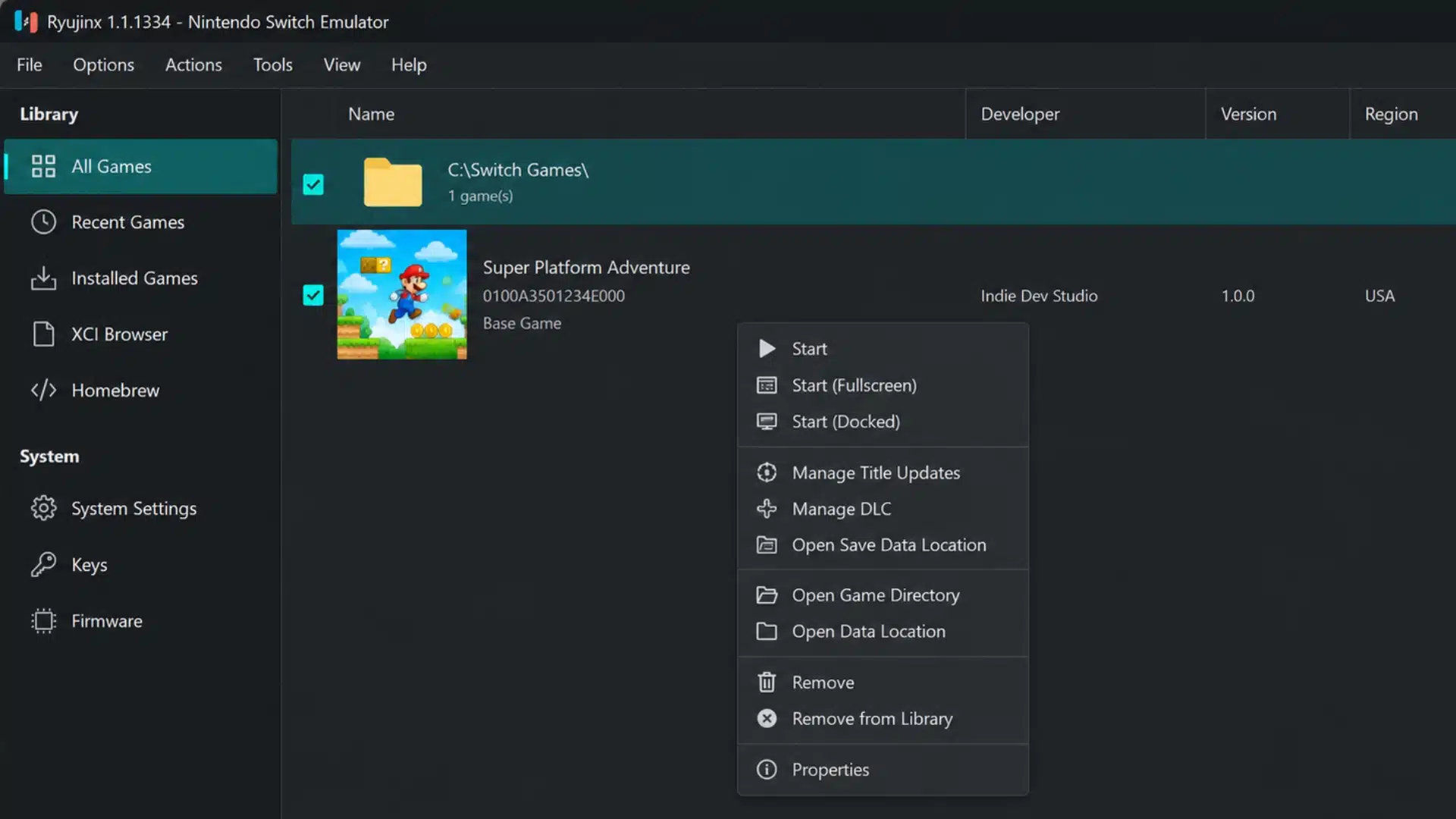
- Select the folder containing your dumped games and allow the emulator to scan it.
- Re-dump any game from your own cartridge or console if its file appears corrupted or incomplete.
4. Map Your Controller
Configuring a controller before playing gives you familiar Switch-style inputs and usually feels more natural than relying entirely on keyboard controls.
- Connect your controller through USB or Bluetooth before opening the emulator’s input settings.
- Select the detected controller and assign it to the correct player slot.
- Start with automatic mapping, then adjust buttons, sticks, triggers, or motion controls as needed, if you play competitive shooters, our guide to sensitivity and dead-zone tuning can help you translate settings you already trust.
- Test the controls inside a game before changing advanced sensitivity or dead-zone settings.
After completing these steps, launch a supported game, test performance, and adjust graphics or controller settings only when your system actually needs changes.
Is Emulating Switch Games on PC Legal?
Using a Switch emulator for PC is generally legal, but how you obtain the games, firmware, keys, and other protected files can create legal issues.
Emulator software itself does not automatically violate copyright law simply because it reproduces console functions through independently written code.
The risk increases when users download copyrighted Switch ROMs, firmware, encryption keys, or other Nintendo files from unauthorized sources.
Dumping files from hardware and games you personally own may reduce copyright concerns, but ownership does not automatically make every method of bypassing protection legal.
US law also restricts circumvention of certain technological protection measures, with only specific exemptions available.
Rules differ between countries, so use your own legally obtained files and treat this section as general information, not legal advice.
Conclusion
Picking a Switch emulator for PC comes down to matching the project’s strengths to your own hardware and the games you actually want to play.
Eden covers the widest range of titles with active support behind it, Ryubing leans into accuracy, and Citron works well as a backup when either one struggles.
Once your emulator, keys, firmware, and game files are all legally in place, the setup itself takes minutes, not hours.
Start with one option, get it running properly, and only reach for a second emulator when a specific game actually calls for it.
Which one has worked best on your setup? Tell us in the comments below.
Frequently Asked Questions
Is Ryujinx Illegal to Use?
No. Ryujinx itself is legal software, and it was reverse-engineered without any Nintendo code inside it. It was shut down over other legal disputes, not because running it was illegal. What can be illegal is how you obtain the firmware, keys, and game files it needs.
Can I Use a Switch Emulator on Mac or Linux?
Yes, several options in this list support macOS and Linux, including Eden, Citron, and Sumi. Citron-Neo and Kenji-NX also ship Linux and macOS builds. Windows generally sees the most consistent performance and troubleshooting support, so Mac and Linux users should expect to do a bit more manual configuration to match that experience.
Is Eden or Ryubing Better?
Eden is the more actively developed option today, with broader compatibility and ongoing updates. Ryubing tends to prioritize visual accuracy over raw compatibility. The better choice depends on what matters more to you.
Do I Need to Own a Physical Switch to Emulate Its Games?
Yes. Every emulator needs prod keys and firmware dumped from a Switch console you personally own, plus your own game dumps in NSP or XCI format. Downloading someone else’s keys, firmware, or ROMs uses Nintendo’s copyrighted files without a license, which is where most of the legal risk in emulation actually comes from.