
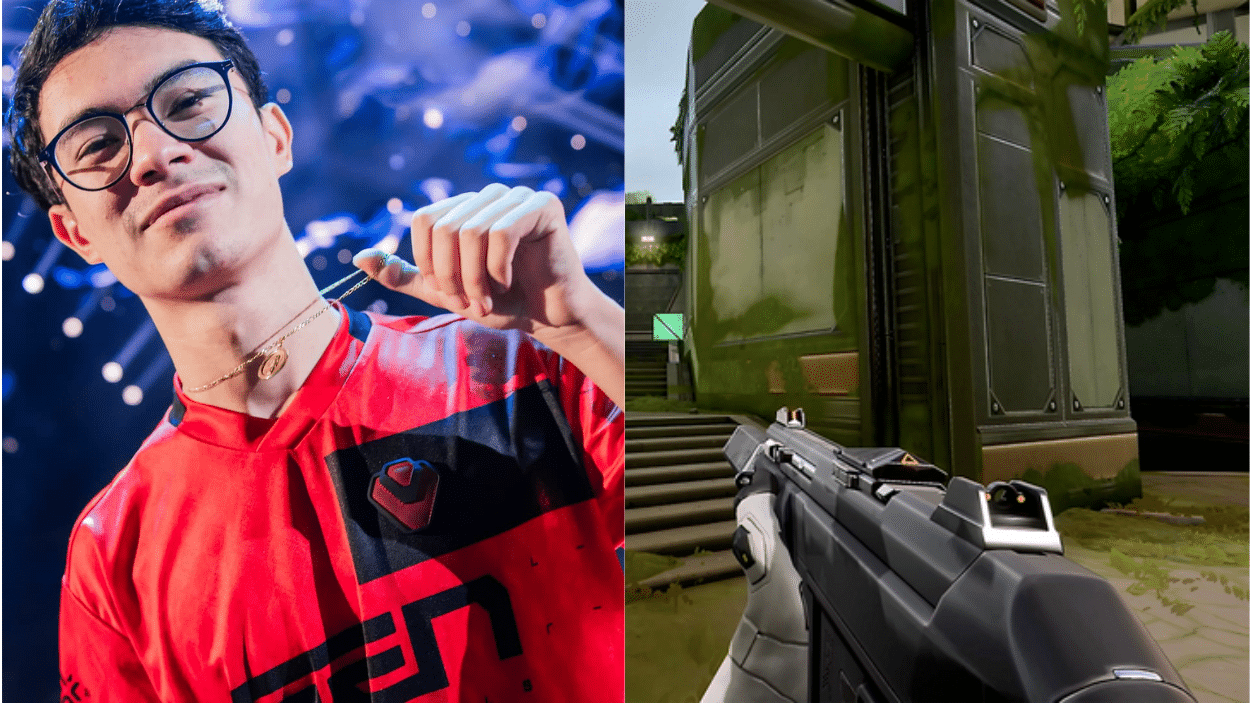
I’ve been watching Zekken dominate in Valorant, and I know you’re here because you want to play like him.
His aim is sharp. His crosshair placement is on point. And his sensitivity? It’s dialed in perfectly for those lightning-fast flicks and smooth tracking.
Copying pro settings won’t magically make you a better player. But understanding why Zekken uses these specific settings can help you fine-tune your own setup.
In this blog, I’ll break down Zekken’s complete configuration. You’ll get his exact crosshair codes, his mouse sensitivity breakdown, and the reasoning behind each choice.
By the end, you’ll know exactly how to test these zekken settings and adapt them to your playstyle.
Who is Zekken? Brief bio
Zekken, whose real name is Zachary Patrone, is one of the top Valorant players in North America. He currently plays for Sentinels, one of the most popular esports organizations in the world.
Before joining Sentinels, Zekken made a name for himself playing for XSET. His aggressive playstyle and insane aim caught everyone’s attention.
He’s known for his entry fragging abilities and clutch plays when his team needs them most.
What makes Zekken special? He can play multiple agents at a high level. You’ll see him on duelists like Jett and Raze, but he’s also comfortable on flex roles.
At just 18 years old, he’s already competing at the highest level. His dedication to practice and constant improvement show in every match he plays.
Zekken Settings for Valorant
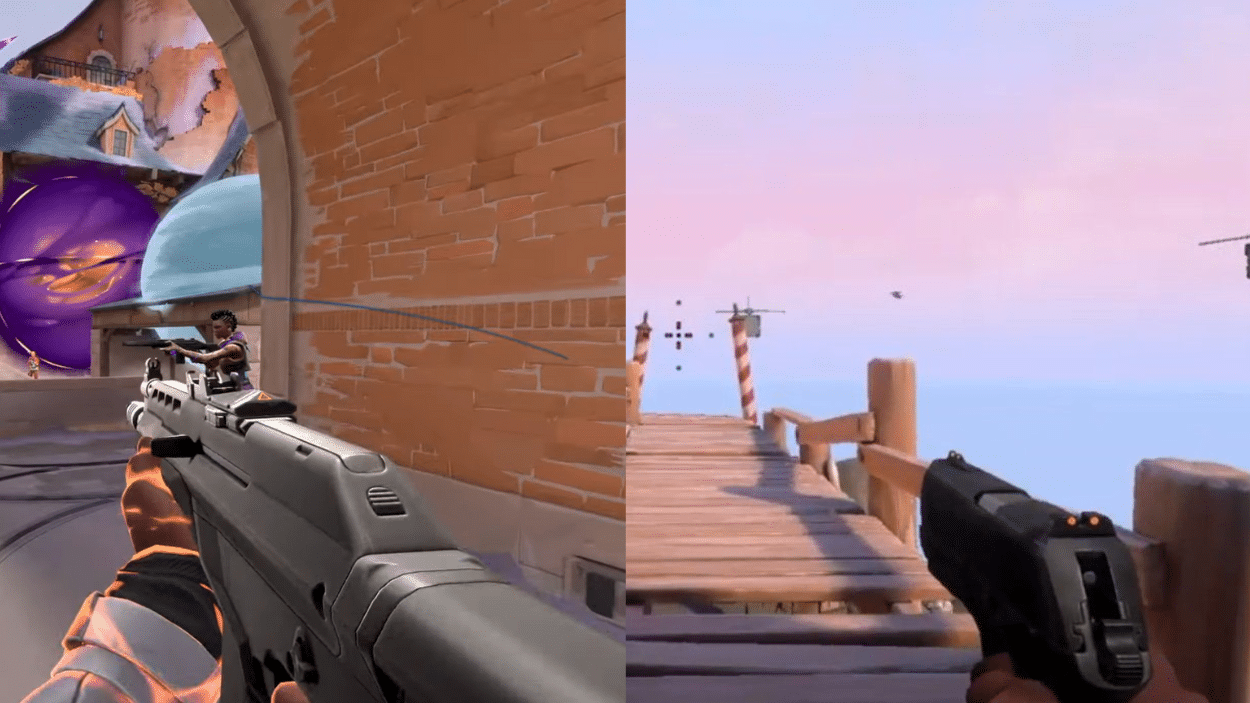
Zekken uses a minimalist dot-focused crosshair for quick headshot alignment. He picks green for better visibility on low graphics settings.
But here’s something interesting: he tweaks his crosshair often, so you’ll find multiple codes from his recent streams.
Primary Crosshair Code:0;s;1;P;c;1;t;2;o;1;d;1;0b;0;1b;0;S;b;1;c;8;s;0.823
Alternative Codes:
0;s;1;P;c;7;u;0072BBFF;h;0;f;0;0v;20;0o;0;0a;1;0f;0;1b;0;S;t;000000FF;o;0.78
(Blue, stream-verified)0;P;c;1;o;1;d;1;0b;0;1b;0(Ultra-minimal dot)
| Feature | Setting |
|---|---|
| Color | Green (#00ff00) or Custom Blue |
| Outlines | On (Opacity 1, Thickness 2) |
| Center Dot | On (Opacity 1, Thickness 2) |
| Inner Lines | Off |
| Outer Lines | Off |
Test these in the practice range first. Your monitor might need slight adjustments.
Zekken’s Sensitivity & Mouse Setup
Zekken plays with relatively low sensitivity, which helps him maintain control during high-pressure moments. His settings are built around precision over speed.
DPI: 800
In-Game Sensitivity: 0.314
eDPI: 251.2 (DPI × Sensitivity)
This eDPI sits on the lower end compared to other pros. It means he needs more mouse movement for a 360-degree turn, but he gets better accuracy in return.
Mouse: Logitech G Pro X Superlight
Mousepad: Artisan Hien Soft XL
The Superlight is his go-to because it’s incredibly light at 63 grams. Less weight means less fatigue during long practice sessions.
His mousepad choice matters too. The Artisan Hien offers a balanced surface that works for both fast flicks and controlled tracking.
Try starting with these settings, then adjust based on your arm length and desk space.
Gear & Peripherals
Getting the complete zekken settings means looking beyond just sensitivity and crosshair. His entire setup is optimized for competitive play.
His monitor is particularly important. That 360Hz refresh rate gives him more visual information per second.
Combined with his other gear, everything works together for peak performance.
| Category | Product | Why It Matters |
|---|---|---|
| Mouse | Logitech G Pro X Superlight | Weighs only 63g for quick movements |
| Mousepad | Artisan Hien Soft XL | Balanced surface for control and speed |
| Keyboard | Wooting 60HE | Rapid trigger technology for faster inputs |
| Monitor | ZOWIE XL2566K | 360Hz refresh rate for smooth visuals |
| Headset | Logitech G Pro X Wireless | Clear audio for hearing enemy footsteps |
| Microphone | Shure SM7B | Pro-grade comms for team coordination |
Tips to Master Zekken’s Setup
Copying settings is easy. Making them work for you takes practice. Here’s how to adapt Zekken’s configuration to match your own playstyle and improve your gameplay.
- Start in the Practice Range: Don’t jump into ranked immediately. Spend 15-20 minutes getting used to the new sensitivity and crosshair placement.
- Lower Your Sens Gradually: If you’re coming from a high-sensitivity state, don’t make the jump all at once. Drop it by 10% each week until you reach Zekken’s level.
- Adjust Your Arm Position: Low sensitivity requires more arm movement. Make sure your entire forearm rests comfortably on your desk.
- Test Different Crosshair Colors: Green works for Zekken, but your eyes might prefer cyan or white. Pick what stands out best on different maps.
- Give It Time: Your muscle memory needs at least two weeks to adjust. Don’t switch back after one bad game.
Wrapping it Up
So there you have it. Zekken’s complete setup broken down for you.
Remember, these zekken settings work for him because he’s spent thousands of hours refining them. Your ideal configuration might be slightly different based on your playstyle and physical setup.
Start with his settings as a baseline. Test them in deathmatch and unrated games. Pay attention to what feels comfortable and what doesn’t.
The key isn’t copying a pro player perfectly. It’s understanding why they use certain settings and adapting those principles to your own game.
Now get out there and practice. Your aim won’t improve on its own.
What’s your current sensitivity? Drop it in the comments below.