Most of the time, winning and losing in Fortnite isn’t just about luck or a bad connection. Your settings might be working against you. A lot of players overlook this, and it costs them big in-game.
The right Fortnite pro settings can completely change how you play. Better aim, smoother control, and faster reactions all start with your setup.
It’s not just about skill. It’s about giving yourself the best possible base to work from.
In this blog, I’ll walk you through the exact settings top pros use.
You’ll get the specifics on sensitivity, graphics, keybinds, and more. Ready to finally stop blaming the game and start winning?
How Fortnite Settings Actually Improve Aim and Control
Most people jump into Fortnite and never touch their settings. Big mistake!
The right settings can make a real difference in how well you aim and how fast you react. Think of it this way. Your mouse or controller is sending signals to the game.
If your sensitivity is too high, your aim shakes all over the place. Too low, and you can’t turn fast enough in a fight. Getting that balance right is what separates good players from great ones.
Your frame rate matters too. A higher FPS means the game feels smoother and your inputs register faster. Even your build controls play a role. Slow or awkward keybinds waste precious time during fights.
The pros know this. That’s why they spend time getting every setting just right before they ever drop into a match.
Fortnite Pro Settings for Mouse & Keyboard
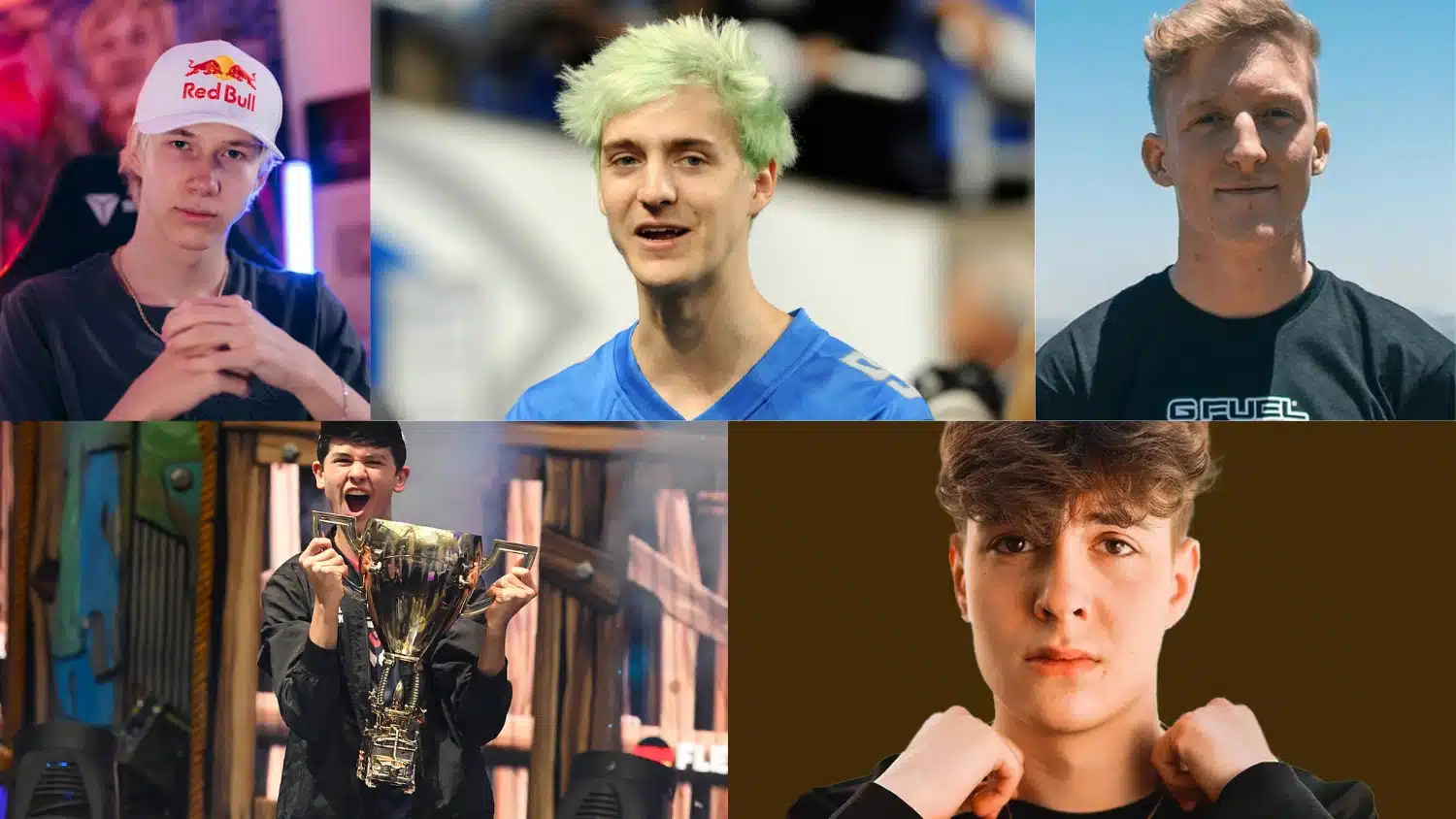
Top Fortnite mouse-and-keyboard players do not all chase the exact same feel. Some lean toward lower sensitivity for steadier tracking, others prefer faster edits and more aggressive binds.
Below is a cleaner version of your content, with a table for each player and a separate paragraph that adds context rather than repeating the table.
BUGHA
| Category | Settings |
|---|---|
| Keyboard | Wall: X; Floor: V; Stairs: C; Roof: L-Shift; Edit: F / Mouse Wheel Down |
| Mouse | 800 DPI; X/Y: 5.0%; Polling Rate: 1000 Hz; Targeting: 30.4%; Scope: 39.4% |
| Display | Fullscreen; 1920×1080; Frame Rate Limit: 360 FPS |
| Graphics | Brightness: 150%; Color Blind Mode: Off; View Distance: Medium; Shadows: Off; Anti-Aliasing: Off; Textures: Low; Effects: Low; Post Processing: Low |
| Other | Confirm Edit on Release: On; Sprint by Default: On; HUD Scale: 70%; Multithreaded Rendering: On |
Bugha’s setup reads like a tournament-first profile built around control and repeatability.
The binds are spread cleanly across strong fingers, and the visual settings strip out most distractions without pushing draw distance all the way down to the minimum.
TFUE
| Category | Settings |
|---|---|
| Keyboard | Wall: R; Floor: E; Stairs: Q; Roof: Mouse 5; Edit: Mouse 4 / V / Mouse Wheel Up |
| Mouse | 400 DPI; X/Y: 10.0%; Polling Rate: 1000 Hz; Targeting: 30.0%; Scope: 30.0% |
| Display | Fullscreen; 1920×1080; Frame Rate Limit: 240 FPS |
| Graphics | Brightness: 150%; Color Blind Mode: Deuteranope 10; View Distance: Near; Shadows: Off; Anti-Aliasing: Off; Textures: Low; Effects: Low; Post Processing: Low |
| Other | Confirm Edit on Release: Off; Sprint by Default: On; HUD Scale: 80%; Multithreaded Rendering: On |
Tfue’s Fortnite pro settings still feel like a classic competitive Fortnite setup: direct binds, mouse-assisted editing, and almost no visual fluff. It looks built for muscle memory and quick reactions rather than comfort-first experimentation.
NINJA
| Category | Settings |
|---|---|
| Keyboard | Wall: Mouse 4; Floor: Q; Stairs: Mouse 5; Roof: L-Shift; Edit: F |
| Mouse | 400 DPI; X-Axis: 16.0%; Y-Axis: 14.0%; Polling Rate: 1000 Hz; Targeting: 27.0%; Scope: 30.0% |
| Display | Fullscreen; 1920×1080; Frame Rate Limit: 240 FPS |
| Graphics | Brightness: 120%; Color Blind Mode: Off; View Distance: Epic; Shadows: Off; Anti-Aliasing: Off; Textures: Low; Effects: Low; Post Processing: Low |
| Other | Confirm Edit on Release: Off; Sprint by Default: On; HUD Scale: 100%; Multithreaded Rendering: On |
Ninja’s page shows a setup that leans heavily on mouse-side building to free up movement on the keyboard. Visually, it keeps most competitive low-settings habits in place while preserving a longer view distance for broader awareness.
MRSAVAGE
| Category | Settings |
|---|---|
| Keyboard | Wall: F; Floor: G; Stairs: T; Roof: L-Shift; Edit: R |
| Mouse | 1450 DPI; X/Y: 8.1%; Polling Rate: 1000 Hz; Targeting: 70.0%; Scope: 95.0% |
| Display | Fullscreen; 1920×1080; Frame Rate Limit: 237 FPS |
| Graphics | Brightness: 100%; Color Blind Mode: Off; View Distance: Near; Shadows: Off; Anti-Aliasing: Off; Textures: Low; Effects: Low; Post Processing: Low |
| Other | Confirm Edit on Release: Off; Sprint by Default: On; HUD Scale: 95%; Multithreaded Rendering: On |
MrSavage’s current fortnite.gg page stands out because the raw DPI is much higher than the number in your original draft.
Even so, the overall profile still looks unmistakably comp-focused, with fast edit access and a very clean visual presentation.
CLIX
| Category | Settings |
|---|---|
| Keyboard | Wall: F; Floor: X; Stairs: Q; Roof: V; Edit: G / Mouse Wheel Down |
| Mouse | 800 DPI; X-Axis: 8.7%; Y-Axis: 6.3%; Polling Rate: 500 Hz; Targeting: 90.9%; Scope: 82.7% |
| Display | Fullscreen; 1920×1080; Frame Rate Limit: 240 FPS |
| Graphics | Brightness: 100%; Color Blind Mode: Off; View Distance: Medium; Shadows: Off; Anti-Aliasing: Off; Textures: Low; Effects: Low; Post Processing: Low |
| Other | Confirm Edit on Release: Off; Sprint by Default: On; HUD Scale: 96%; Multithreaded Rendering: On |
Clix’s settings feel tuned for fast-pressure fighting. The bind layout keeps key actions close together, and the lighter visuals match a playstyle that depends on clean reads in cramped, edit-heavy engagements.
Best Fortnite Pro Settings for A Controller
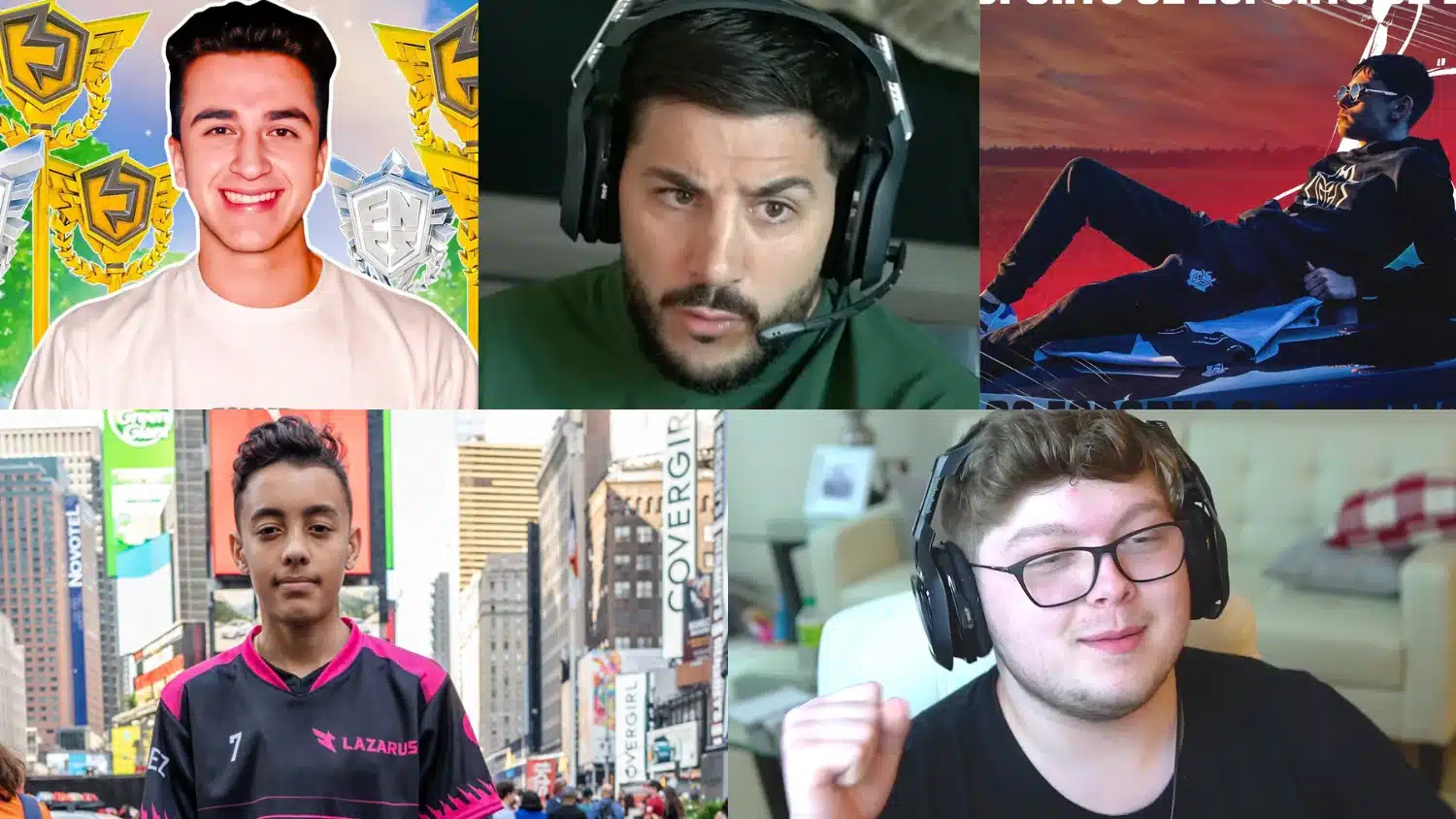
One thing worth changing from the original draft is the controller format.
EPIKWHALE
| Category | Settings |
|---|---|
| Controller | Astro C40 TR |
| Build & Edit | Build Mode Sens.: 2.5x; Edit Mode Sens.: 2.5x; Input Curve: Linear; Aim Assist Strength: 100% |
| Look & ADS | Look H/V: 42% / 42%; Turn H/V Boost: 0% / 0%; ADS Look H/V: 12% / 13%; ADS Turn H/V Boost: 6% / 5% |
| Timing & Deadzone | Turn Boost Time: 0; ADS Turn Boost Time: 0.00; Instant Boost: Off; Dampening Time: 0.00; Edit Hold Time: 0.184; Deadzone: 13% / 9%; Sprint by Default: On |
| Display | Fullscreen; 1920×1080; Frame Rate Limit: 240 FPS |
| Graphics | Brightness: 150%; Color Blind Mode: Protanope 10; View Distance: Near; Shadows: Off; Anti-Aliasing: Off; Textures: Low; Effects: Low; Post Processing: Low; Multithreaded Rendering: On |
EpikWhale’s setup looks built for direct stick response rather than artificial acceleration.
The stronger building multipliers and restrained boost values suggest a player who wants fast construction without making the aim feel unstable.
NICKMERCS
| Category | Settings |
|---|---|
| Controller | SCUF Infinity4PS PRO MFAM |
| Build & Edit | Build Mode Sens.: 1.7x; Edit Mode Sens.: 1.4x; Input Curve: Exponential; Confirm Edit on Release: On; Aim Assist Strength: 100% |
| Look & ADS | Look H/V: 47% / 44%; Turn H/V Boost: 0% / 0%; ADS Look H/V: 16% / 13%; ADS Turn H/V Boost: 0% / 0% |
| Timing & Deadzone | Turn Boost Time: 0; ADS Turn Boost Time: 0.00; Instant Boost: Off; Dampening Time: 0.00; Edit Hold Time: 0.114; Deadzone: 15% / 18%; Sprint by Default: On |
| Display | Fullscreen; 1920×1080; Frame Rate Limit: 240 FPS |
| Graphics | Brightness: 100%; Color Blind Mode: Tritanope 6; View Distance: Epic; Shadows: Off; Anti-Aliasing: Off; Textures: Low; Effects: Low; Post Processing: Low; Multithreaded Rendering: On |
Nickmercs Fortnite pro settings provide a more familiar controller feel than many of the faster linear players on this list.
The overall profile looks more comfort-and-consistency oriented, which fits a player who values control and stable tracking over hyper-aggressive tuning.
LETSHE
| Category | Settings |
|---|---|
| Controller | Astro C40 TR |
| Build & Edit | Build Mode Sens.: 2.1x; Edit Mode Sens.: 2.0x; Input Curve: Linear; Confirm Edit on Release: Off; Aim Assist Strength: 100% |
| Look & ADS | Look H/V: 56% / 63%; Turn H/V Boost: 0% / 0%; ADS Look H/V: 11% / 11%; ADS Turn H/V Boost: 0% / 0% |
| Timing & Deadzone | Turn Boost Time: 0; ADS Turn Boost Time: 0.00; Instant Boost: Off; Dampening Time: 0.00; Edit Hold Time: 0.100; Deadzone: 10% / 7%; Sprint by Default: On |
| Display | Fullscreen; 1798×1080; Frame Rate Limit: Unlimited |
| Graphics | Brightness: 100%; Color Blind Mode: Off; View Distance: Near; Shadows: Off; Anti-Aliasing: Off; Textures: Low; Effects: Low; Post Processing: Low; Multithreaded Rendering: On |
Letshe’s profile reads like a speed-focused controller setup with enough restraint to stay readable in stacked fights.
The non-standard resolution also makes this section feel more personalized and less like a generic copied comp preset.
WOLFIEZ
| Category | Settings |
|---|---|
| Controller | Astro C40 TR |
| Build & Edit | Build Mode Sens.: 2.7x; Edit Mode Sens.: 2.6x; Input Curve: Linear; Aim Assist Strength: 100% |
| Look & ADS | Look H/V: 45% / 43%; Turn H/V Boost: 0% / 0%; ADS Look H/V: 8% / 8%; ADS Turn H/V Boost: 0% / 0% |
| Timing & Deadzone | Turn Boost Time: 0; ADS Turn Boost Time: 0.00; Instant Boost: Off; Dampening Time: 0.00; Edit Hold Time: 0.100; Deadzone: 6% / 6%; Sprint by Default: On |
| Display | Fullscreen; 1920×1080 16:9; Frame Rate Limit: 240 FPS |
| Graphics | Brightness: 0.50 as listed; User Interface Contrast: 1.02x; Color Blind Mode: Tritanope 5; View Distance: Medium; Shadows: Off; Anti-Aliasing: Off; Textures: Low; Effects: Medium; Post Processing: Low; Multithreaded Rendering: On |
Wolfiez keeps the entire setup highly reactive.
The stronger build and edit multipliers, low deadzone, and stripped-back visuals all align with an aggressive controller style that prioritizes immediate movement and fast close-range pressure.
AYDAN
| Category | Settings |
|---|---|
| Controller | SCUF Infinity4PS PRO Black |
| Build & Edit | Build Mode Sens.: 1.9x; Edit Mode Sens.: 1.8x; Input Curve: Linear; Aim Assist Strength: 100% |
| Look & ADS | Look H/V: 44% / 42%; Turn H/V Boost: 0% / 0%; ADS Look H/V: 16% / 19%; ADS Turn H/V Boost: 0% / 0% |
| Timing & Deadzone | Turn Boost Time: 0.20; ADS Turn Boost Time: 0.20; Instant Boost: Off; Dampening Time: 0.00; Edit Hold Time: 0.100; Deadzone: 0.12 / 0.12 as listed; Sprint by Default: On |
| Display | Fullscreen; 1920×1080; Frame Rate Limit: 240 FPS |
| Graphics | Brightness: 115%; Color Blind Mode: Deuteranope 5; View Distance: Epic; Shadows: Off; Anti-Aliasing: Off; Textures: Low; Effects: Low; Post Processing: Low; Multithreaded Rendering: On |
Aydan’s Fortnite pro settings look like a measured controller setup rather than an extreme one.
It keeps the familiar performance-first visual approach, but the overall tuning still feels geared toward dependable tracking and cleaner long-range reads, not just frantic close-quarters speed.
Advanced Settings & Audio for Next-Level Control
Getting your advanced and audio settings right is just as important as everything else. Most players overlook this part, but the pros know that fine-tuning these pro settings can give you a real edge in close fights.
| Setting | Recommended Value | Why It Matters |
|---|---|---|
| Sprint by Default | On | Keeps you moving fast without extra button presses |
| Sprint Cancels Reloading | On | Saves time during fights |
| Auto Open Doors | On | Removes one less thing to think about |
| Turbo Building | On | Makes building faster under pressure |
| Edit Hold Time | 0.100 | Keeps edits feeling sharp and quick |
| Visualize Sound Effects | On | Shows enemy movement on screen |
| Sound Quality | High | Helps you hear footsteps clearly |
| Music Volume | 0 | Removes distractions during games |
| Sound FX Volume | 100% | Keeps all important audio sharp |
| Voice Chat | Off | Cuts out background noise in matches |
Expert Tips to Turn Pro Settings into Pro Aim
Having the right Fortnite pro settings is only half the job. You still need to put in the work to make those settings count.
- Practice in Creative Mode: Don’t jump straight into matches. Spend time in Creative Mode building muscle memory with your new settings before moving on.
- Stick to One Sensitivity: Changing sensitivity every day kills consistency. Pick a number and give it at least two weeks before judging it.
- Use Box Fight Maps: Box fighting trains your aim and editing under pressure better than any regular match can.
- Lower Your Sensitivity Gradually: If you’re missing shots, try dropping your sensitivity slightly every few days until it feels natural.
- Watch Your Own Replays: Reviewing your fights helps you spot exactly where your aim or building is breaking down.
- Warm Up Before Every Session: Even ten minutes of aim training before a match makes a noticeable difference in how you play.
Wrapping it Up
Getting better at Fortnite doesn’t always mean playing more hours. Sometimes it just means setting things up the right way. The pros aren’t hiding some big secret.
They’ve simply taken the time to dial in every setting so nothing gets in their way during a fight.
You can do the same thing. Start with one area, whether that’s graphics, sensitivity, or audio, and build from there. Small changes add up faster than you think.
So go ahead, apply what you’ve learned, and start testing your own Fortnite pro settings today. Your next win might be one setting change away.
Let others know about your setup in the comments below.