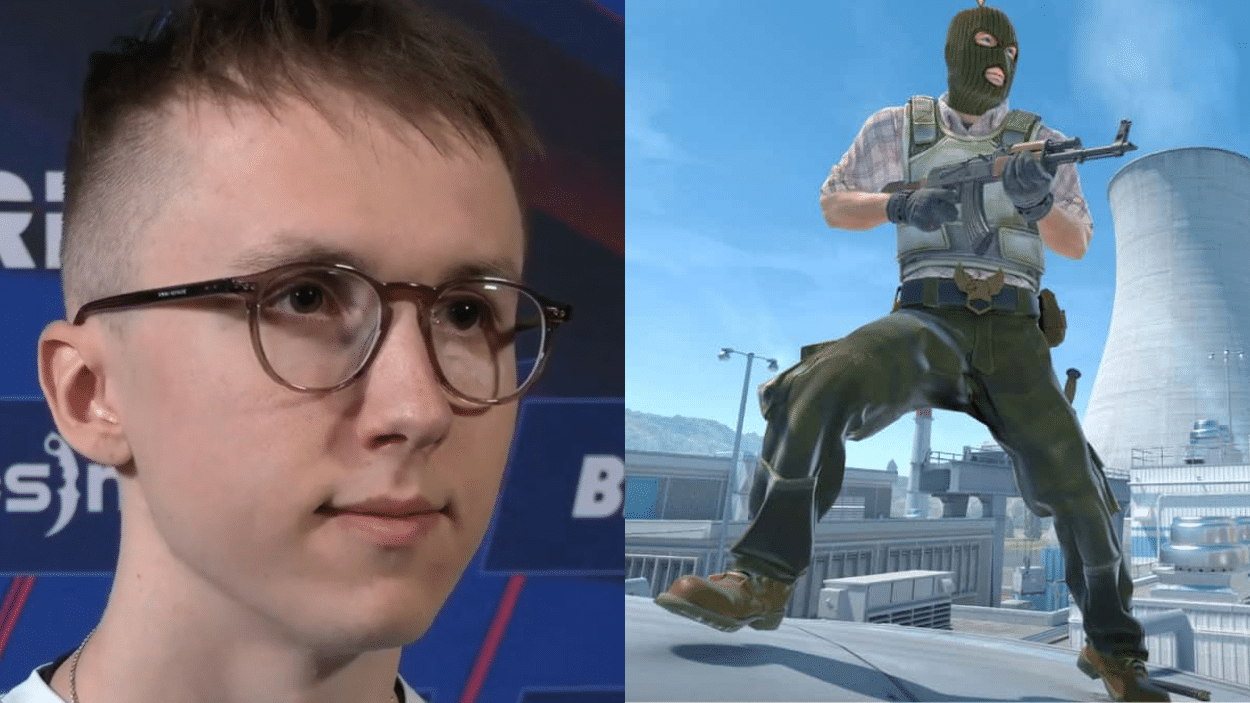
I’ve been watching Ropz dominate in CS2 lately, and his aim is just insane. The guy barely misses a shot. So I started wondering, what’s his secret? Turns out, it’s not magic. It’s his settings.
Smart players know that copying pro configurations can actually improve their game. And Ropz CS2 settings are some of the best out there.
His sensitivity, crosshair, and video options are all fine-tuned for maximum precision.
Want to shoot like a pro? I’m going to show you exactly what ropz uses. Every setting, every detail.
By the end of this post, you’ll have everything you need to set up your game just like his.
Who is Ropz?
Robin “Ropz” Kool is one of CS2’s top players right now. He’s from Estonia and was born on December 22, 1999.
Ropz currently plays for Vitality as their star rifler. He’s known for his smart positioning and deadly aim. Before Vitality, he played for FaZe Clan and mousesports. His career earnings from tournaments exceed $1.5 million.
Ropz won the PGL Major Antwerp 2022 with FaZe, which was huge. He’s consistently ranked among the world’s best players.
What makes him special? His game sense is incredible. He reads opponents like a book. Plus, his spray control is nearly perfect. I’ve studied his demos, and the guy rarely makes mistakes.
Ropz’s Gear and Peripherals
Let me break down the exact gear ropz uses. His mouse is the Logitech G Pro X Superlight. It’s super light and responsive, which helps with those quick flicks.
For his keyboard, he uses the Logitech G Pro X. It’s mechanical and built for speed. His mousepad is the Logitech G640. It’s cloth, so it gives him smooth control.
Ropz plays on a BenQ XL2546K monitor. That’s a 240Hz screen, so everything looks buttery smooth.
His headset is the Logitech G Pro X. Good audio matters in CS2, and this one delivers. All his peripherals are from Logitech because he’s sponsored by them.
Ropz CS2 Settings – Mouse and Crosshair
Here’s where things get interesting. Ropz uses specific mouse and crosshair settings that work perfectly for his playstyle. I’ve tested these myself, and they feel really good. Let me show you his exact configuration.
| Setting | Value |
|---|---|
| DPI | 400 |
| In-game Sensitivity | 1.70 |
| eDPI | 680 |
| Zoom Sensitivity | 1.0 |
| Crosshair Style | 4 (Classic Static) |
| Crosshair Size | 2 |
| Crosshair Gap | -3 |
| Crosshair Thickness | 0 |
| Crosshair Color | Cyan |
| Crosshair Outline | Yes |
| Outline Thickness | 1 |
Ropz’s Viewmodel, HUD, and Radar Settings
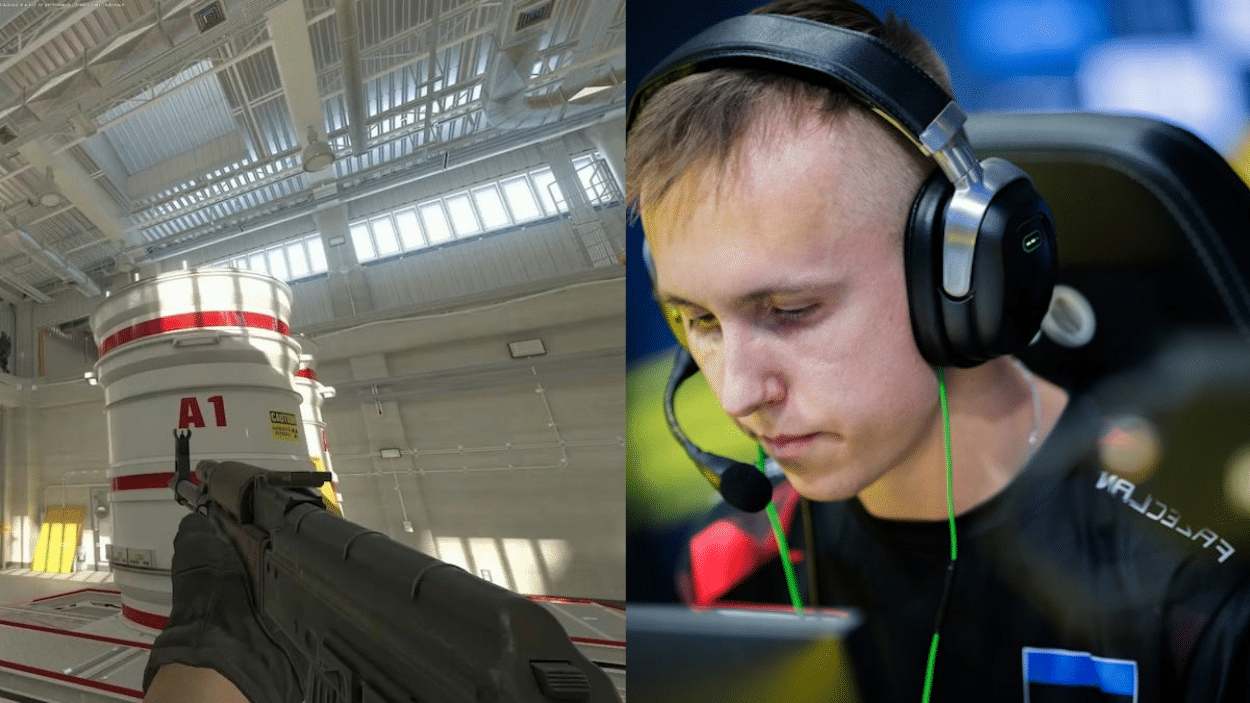
Ropz keeps his screen clean and simple. His viewmodel and HUD settings are all about visibility. Nothing fancy, just practical choices that help him focus on the game.
His viewmodel settings are:
- Viewmodel FOV: 68
- Viewmodel X: 2.5
- Viewmodel Y: 0
- Viewmodel Z: -1.5
For his HUD, he uses a standard setup with minimal clutter. His radar is set to zoom out more than the default.
This gives him better map awareness. The radar scale is 0.4, which shows more of the map at once. He also uses centered radar positioning. It’s closer to his crosshair, so he doesn’t have to look far.
These settings might seem small, but they make a big difference in matches.
How to Download and Install Ropz’s Config
Want to use ropz’s exact settings? It’s actually pretty simple. You can download his config file and install it in minutes. Let me walk you through the process.
1. Find a Reliable Config Source
Look for ropz’s config on trusted sites like ProSettings or HLTV. Make sure the file is up to date for CS2.
2. Download the Config File
Click the download button and save the .cfg file to your computer. Remember where you saved it.
3. Locate Your CS2 Config Folder
Open Steam, right-click CS2, go to Properties, then Browse Local Files. Find the cfg folder inside.
4. Copy the Config File
Drag the downloaded config into your cfg folder. Replace any existing files if asked.
5. Load the Config In-Game
Open the CS2 console and type “exec ropz.cfg” without quotes. Your settings will change instantly.
Wrapping it Up
So there you have it. Ropz CS2 settings are laid out completely for you. His low sensitivity, clean crosshair, and optimized viewmodel all work together.
I’ve shown you his exact gear and how to install his config, too. Now it’s your turn to try them out. Jump into a deathmatch server and test these settings. See how they feel for you.
Remember, pros spend years finding what works for them. You might need to tweak things slightly based on your playstyle. But this is a solid starting point.
Ready to improve your aim? Go download that config and start practicing. Your enemies won’t know what hit them.