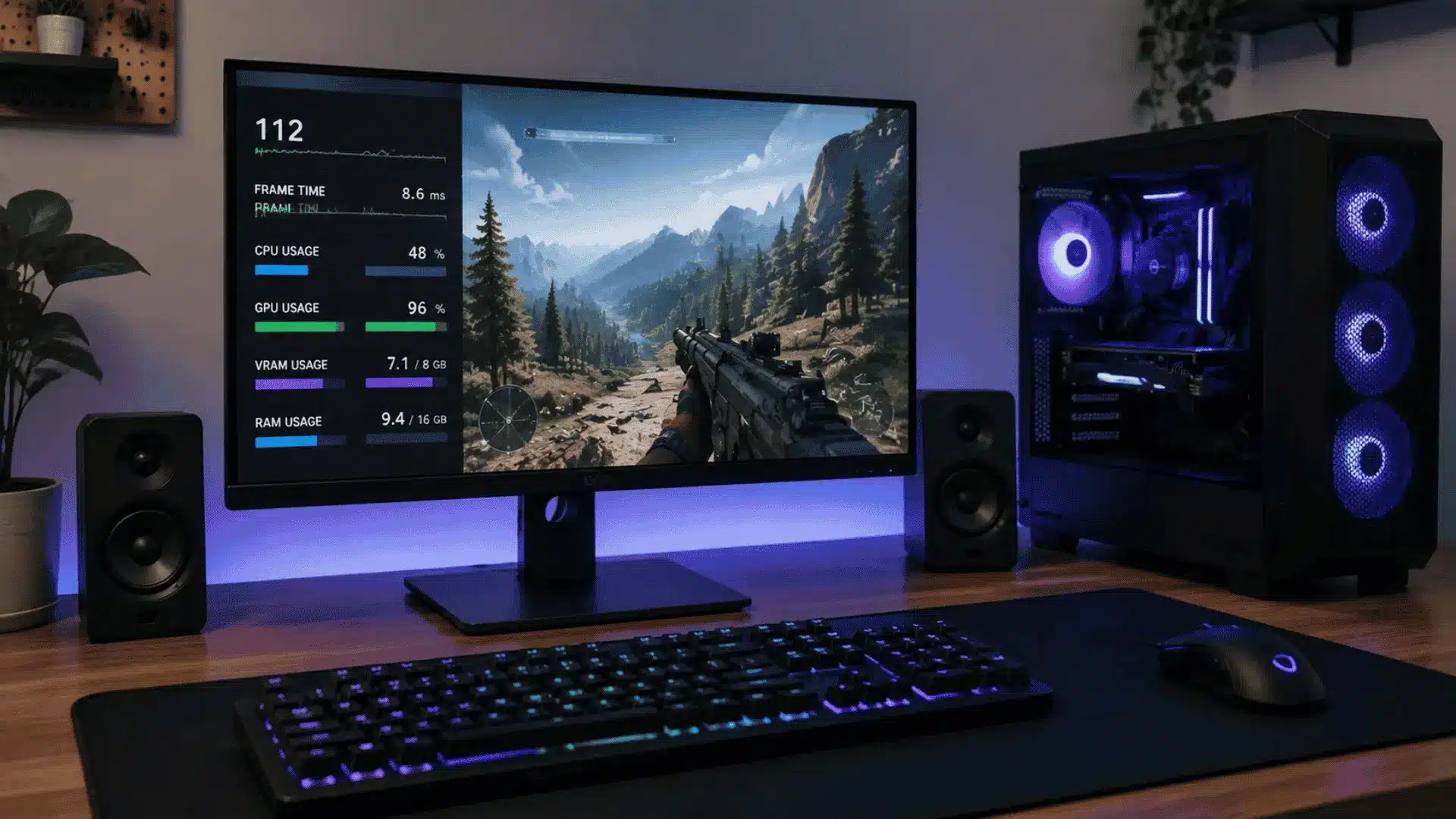
I used to think my CPU was overheating every time I saw the temperature climb during a game. After learning how processors actually work, I realized that not every high reading is a problem.
A normal CPU temp range depends on your workload, cooling system, room temperature, and even the processor you use.
Knowing what temperatures are expected can help you avoid unnecessary worry and spot real cooling issues before they affect performance.
A few simple checks can also help your PC run more smoothly and reduce the chance of slowdowns caused by excessive heat.
What Is a Normal CPU Temperature Range?
CPU temperature varies with workload, cooling efficiency, and ambient conditions. Idle systems and fully loaded systems have different baselines.
Short spikes are normal when opening programs or starting tasks, but sustained high readings indicate potential issues.
Thermal throttling reduces clock speed to prevent overheating, which can lower performance even before temperatures reach dangerous levels.
It’s worth keeping an eye on this any time a platform pushes your hardware harder than before, the same way returning players noticed after PlayMyWorld’s latest gaming updates added 4K rendering support.
1. Typical CPU Temperature Ranges by Workload
| Workload Type | Typical Temperature Range | Notes |
|---|---|---|
| Idle/Light Use | 30°C – 45°C | Slight short spikes are normal; sustained readings above 50°C indicate potential issues. |
| Gaming/Moderate Load | 60°C – 80°C | Briefly reaching 75°C–80°C is fine; sustained above 85°C can reduce performance. |
| Heavy Rendering/Stress Test | 80°C – 90°C (desktop) | Laptops usually run hotter; sustained above 95°C triggers throttling to prevent damage. |
2. Idle and Light-Use Temperatures
At idle or under light workloads, CPUs usually sit between 30°C and 45°C. Small, brief spikes occur when programs start, but sustained readings above 50°C often indicate issues.
Common causes include dust buildup, a poorly seated cooler, or background tasks consuming resources.
3. Gaming and Moderate-Load Temperatures
During gaming or moderate workloads, CPUs generally run between 60°C and 80°C. Temporary spikes near 75°C–80°C are safe, but sustained temperatures above 85°C can reduce performance.
Monitoring how long the CPU stays near the upper limit provides a better sense of system strain than a single reading.
4. Heavy Rendering and Stress-Test Temperatures
Under sustained high workloads, such as rendering or stress tests, desktop CPUs often reach 80°C–90°C. Laptops typically run hotter due to their compact cooling systems.
Prolonged readings above 95°C trigger throttling to protect the CPU.
How to Check Your CPU Temperature?
Checking your CPU temperature only takes a few minutes and helps you see how your system performs under different workloads. It’s best to check temperatures both at idle and while gaming or running demanding programs, since a single reading doesn’t show the full picture.
- Use a Monitoring Tool: Install a trusted program such as HWiNFO, Core Temp, or HWMonitor to view real-time CPU temperatures and other system metrics.
- Check Idle Temperature: Leave your PC idle for about 5–10 minutes after startup, then note the temperature. This gives you a baseline for normal operation.
- Monitor Under Load: Run a game, video-editing software, or a stress test, and watch how the temperature changes. Focus on sustained temperatures instead of brief spikes.
- Compare With Your CPU’s Limits: Look up your processor’s maximum operating temperature (TjMax) on the manufacturer’s website to see if your readings are within the safe range.
- Track Temperature Over Time: Check your CPU temperature periodically rather than relying on a single reading. Gradual increases over weeks or months can point to dust buildup, aging thermal paste, or cooling issues.
Regular temperature checks make it easier to spot cooling problems before they affect performance. If your CPU consistently runs hotter than expected, it’s a good idea to inspect your cooling system and airflow.
What CPU Temperature Range is Too Hot?
A CPU is considered too hot when it approaches or exceeds its maximum operating temperature (TjMax), at which point it begins reducing performance to protect itself.
For most desktop CPUs, temperatures above 90°C are worth checking, even if they remain within the manufacturer’s limits.
Laptops often run hotter because of their compact cooling systems, and some laptop CPUs are designed to safely reach 100°C–105°C under heavy workloads, depending on the processor model.
Brief temperature spikes are normal, but temperatures that remain high for extended periods usually indicate cooling problems, restricted airflow, or aging thermal paste.
Does CPU Temperature Vary by Brand and Model?
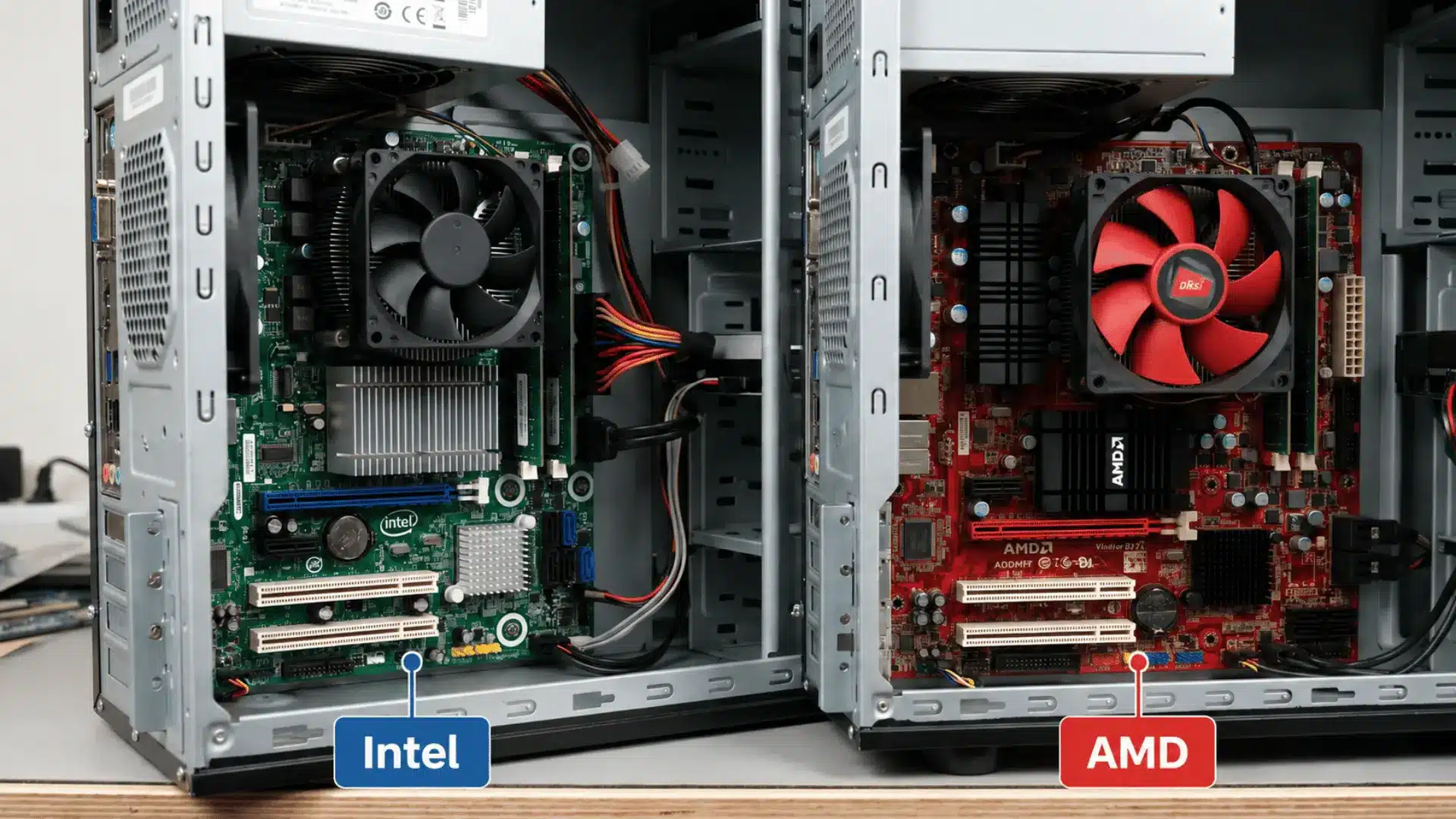
Intel and AMD set different maximum temperature limits for their processors. Desktop and laptop variants of the same chip also use different thresholds. A reading that’s safe on one CPU could trigger throttling on another.
Key differences:
- Intel CPUs: Newer models usually have Tjmax between 100°C and 105°C.
- AMD Desktop CPUs: Examples like the 5900X top out around 90°C.
- AMD Mobile CPUs: Chips such as the 5900HX can handle up to 105°C.
Because of these variations, advice like “anything under 95°C is fine” can be misleading. It doesn’t account for each processor’s specific limits.
The practical approach is to check your CPU’s manufacturer-specified Tjmax and treat that as the ceiling. Community averages are only rough references and shouldn’t replace the official guidance for your hardware.
Why Is My CPU Temperature Range Higher Than Normal?
A higher-than-normal CPU temperature range is usually caused by poor cooling, restricted airflow, or increased system load.
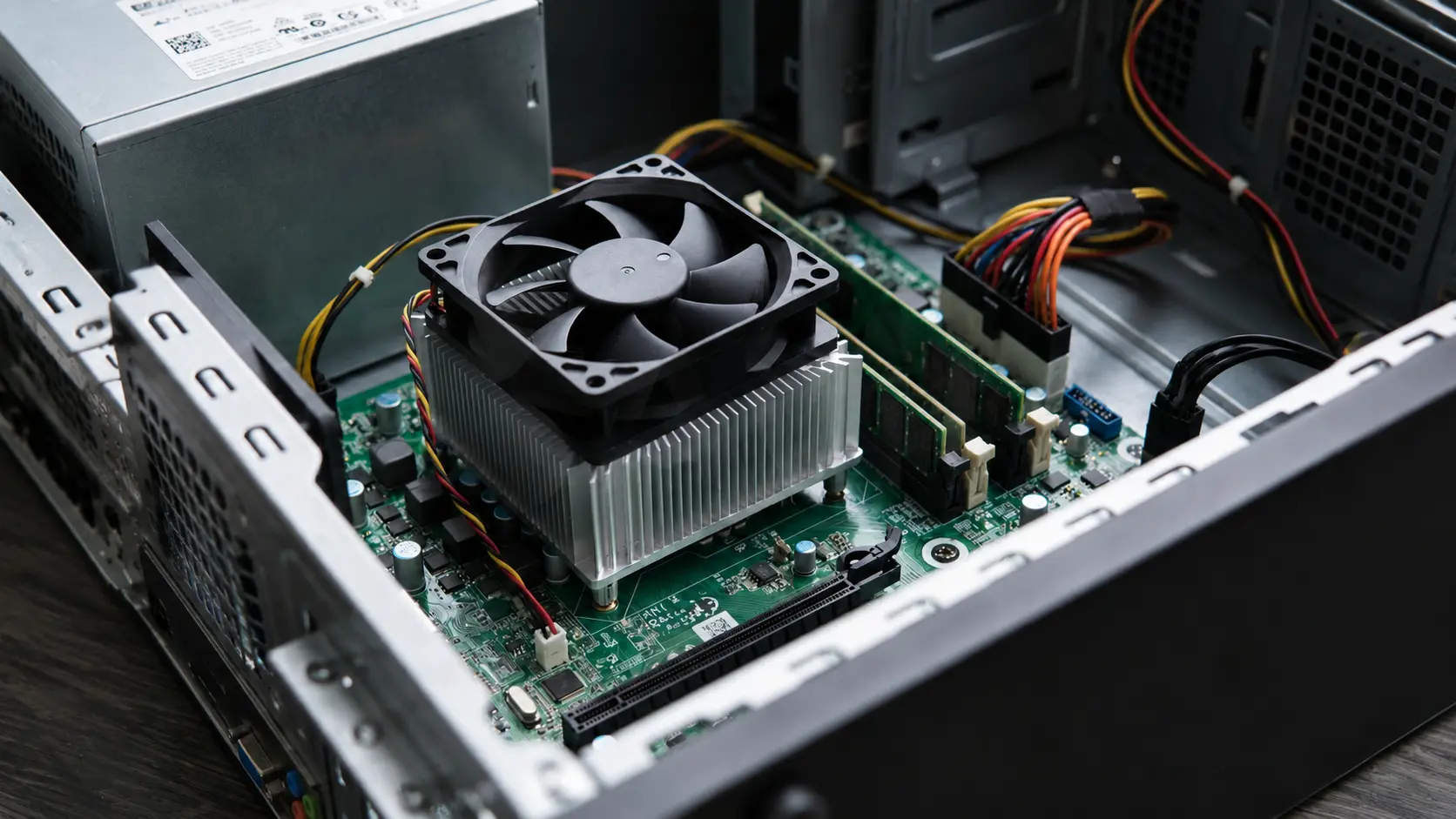
Dust inside the heatsink or case blocks airflow, while old thermal paste reduces heat transfer between the CPU and cooler. An undersized or failing cooler may also struggle to keep temperatures under control during demanding tasks.
Room temperature also affects CPU temperatures, as a warmer environment makes it harder for your system to stay cool. Overclocking, CPU boost features, and unnecessary background programs can also increase heat.
These factors are also common when optimizing a PC for gaming, as both performance and temperatures depend on how efficiently system resources are used.
How to Lower CPU Temperature?
If your CPU runs hotter than normal, a few simple changes can often bring temperatures back to a safer range. Start with the easiest fixes, then move on to hardware upgrades only if the problem persists.
- Clean Dust: Remove dust from fans, heatsinks, and air vents. Better airflow helps your CPU cooler remove heat more effectively.
- Improve Cooling: Make sure your CPU cooler is installed correctly and working properly. If temperatures stay high during heavy workloads, upgrading to a better air or liquid cooler may help.
- Replace Thermal Paste: Old or dried thermal paste reduces heat transfer between the CPU and cooler. Replacing it can improve cooling, especially in older systems.
- Reduce Heavy Background Tasks: Close unnecessary programs running in the background, and avoid overclocking if high temperatures are already a problem. Lower CPU usage usually means lower temperatures.
Keeping your PC clean and checking temperatures from time to time can help prevent overheating. If your CPU still runs unusually hot after these steps, it may be worth checking your airflow or having the cooling system inspected.
Wrapping Up
Knowing the right CPU temp range makes it easier to understand how your computer performs under different workloads. Small temperature spikes are usually normal, but temperatures that remain high for extended periods warrant attention.
Regular monitoring, good airflow, and basic maintenance can help keep your CPU running efficiently and reduce the risk of thermal throttling.
Every system is different, so always compare your readings against your processor’s recommended temperature limits rather than relying on a single number.
If you’ve noticed unusual CPU temperatures or have tips that worked for you, share them in the comments. I’d like to hear about your experience.
Frequently Asked Questions
What is the safest way to measure CPU temperature?
Use software that reads sensor data from your motherboard or CPU. Avoid relying on external thermometers, as they don’t reflect real CPU core temperatures.
Can high CPU temperatures permanently damage my processor?
Yes, sustained overheating can degrade silicon over time, shortening CPU lifespan, even if thermal throttling prevents immediate failure.
Do laptops need different monitoring strategies than desktops?
Yes, laptops run hotter due to their compact cooling systems. Checking temperatures under typical workloads is more important than just idle readings.
How often should thermal paste be replaced?
Every 3–5 years for desktops, or sooner if temperatures gradually rise without other causes. Laptops may need it less frequently but still benefit from inspection.