Ever wondered why copying a pro’s settings still leaves you missing shots? You paste the numbers in, load up a match, and something still feels off. The settings are right. The results are not.
I have tested more pro configs than I can count the exact same way: copy the numbers, load a match, and wonder why my aim still feels off two rounds in.
Ropz’s setup is one of the rare ones where the numbers only click once you understand why they are set that way.
He is one of the few players where every single value in his config has a reason behind it. He is not running 1920×1080 because it looked good.
He is not at eDPI 708 by accident. Every choice connects back to how he plays, where he plays, and what his role demands from him in a live round.
What you will find here is his complete setup broken down the way it actually makes sense, so you can take what fits your game and leave what does not.
Who is Ropz? The Pro Behind the Settings
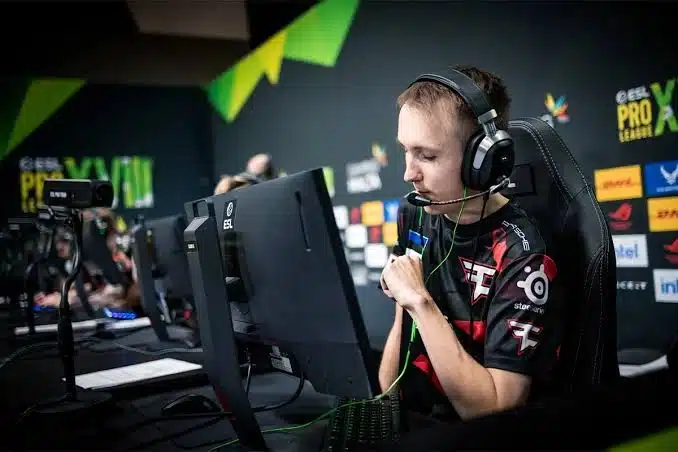
Robin “ropz” Kool is one of those players you watch and immediately understand why the pro scene talks about him differently.
Born on December 22, 1999, in Jõgeva, a small town in Estonia, he started playing Counter-Strike at age 7 on the 1.6 version, long before anyone was calling him a prodigy.
His path to the pro scene was anything but straightforward.
He spent time as a content creator in Call of Duty before falling back into CS, grinding FACEIT anonymously until his numbers got so good that pros accused him of cheating.
He flew to the FACEIT offices in London to prove himself under supervision, cleared his name, and walked out with a contract offer from MOUZ.
He built his early reputation with MOUZ, then spent close to 3 years at FaZe Clan.
Team Vitality signed him in January 2025, moving Lotan “Spinx” Giladi to the inactive roster to make room for him.
| Detail | Information |
|---|---|
| Full Name | Robin “ropz” Kool |
| Nationality | Estonian |
| Current Team | Team Vitality |
| Role | Lurker / Rifler |
| Career Highlights | 3 Majors, 3 ESL Grand Slams, HLTV Top 20 every year |
| Team History | MOUZ (2017-2021) > FaZe Clan (2022-2024) > Team Vitality (2025-present) |
What makes his settings worth studying is his role. A lurker operates alone, reading the map, gathering information, and closing rounds under pressure. Every setting he uses feeds that identity directly.
Ropz’s Video & Graphic Settings
When I first looked at Ropz’s video settings, the one thing that stood out immediately was the resolution.
While most pro players run stretched 4:3, he plays full native 1920×1080 at 16:9. That is a deliberate call, not a default he never changed.
Resolution and Display
These four settings define the base layer of how the game appears on screen. Get these right first; everything else builds on top of them.
| Setting | Value | Setting | Value |
|---|---|---|---|
| Resolution | 1920×1080 | Aspect Ratio | 16:9 |
| Scaling Mode | Native | Display Mode | Fullscreen |
| Brightness | 93% | V-Sync | Disabled |
| Max FPS | 999 | Nvidia Reflex | Enabled |
Reflex enabled and V-Sync disabled is a combination you will see on nearly every pro setup. Reflex cuts input delay; V-Sync adds it. Running both together entirely cancels the benefit of Reflex.
Advanced Graphics
These settings control how much visual detail the game renders. Ropz keeps almost everything low, but not everything for the same reason.
| Setting | Value | Setting | Value |
|---|---|---|---|
| Anti-Aliasing | 2x MSAA | Boost Player Contrast | Enabled |
| Shadow Quality | Low | Ambient Occlusion | Medium |
| Model / Texture Detail | Low | High Dynamic Range | Quality |
| Texture Filtering | Bilinear | Shader Detail | Low |
Low shadows might look like a pure performance choice, but it works alongside Boost Player Contrast, which sharpens enemy outlines against backgrounds.
Together, they do more for visibility than high shadows alone would.
Why He Plays 16:9 and What It Actually Means for You?

This is the setting people ask about most, and the real answer lives in his role.
A lurker does not play in a 5v5 cluster. He plays alone, reads angles, tracks rotations, and makes decisions based on what he can see before anyone else reacts.
Native 16:9 gives him the widest horizontal field of view available in CS2. He sees more of the map at any single moment than a player on a stretched 4:3 does.
Stretched resolution makes player models wider, which helps in close reactive fights. For an entry fragger, that trade makes sense.
For ropz, wider vision beats wider models every time. His positional reads come before the kill. He knows where you are before you know where he is, and the wider FOV feeds directly into that.
If you play aggressively at close range and rely on fast reactions, a stretched may still suit you better.
If you play patiently and value information over reaction speed, his setup is worth a serious trial before you rule it out.
Ropz’s Mouse Settings and DPI
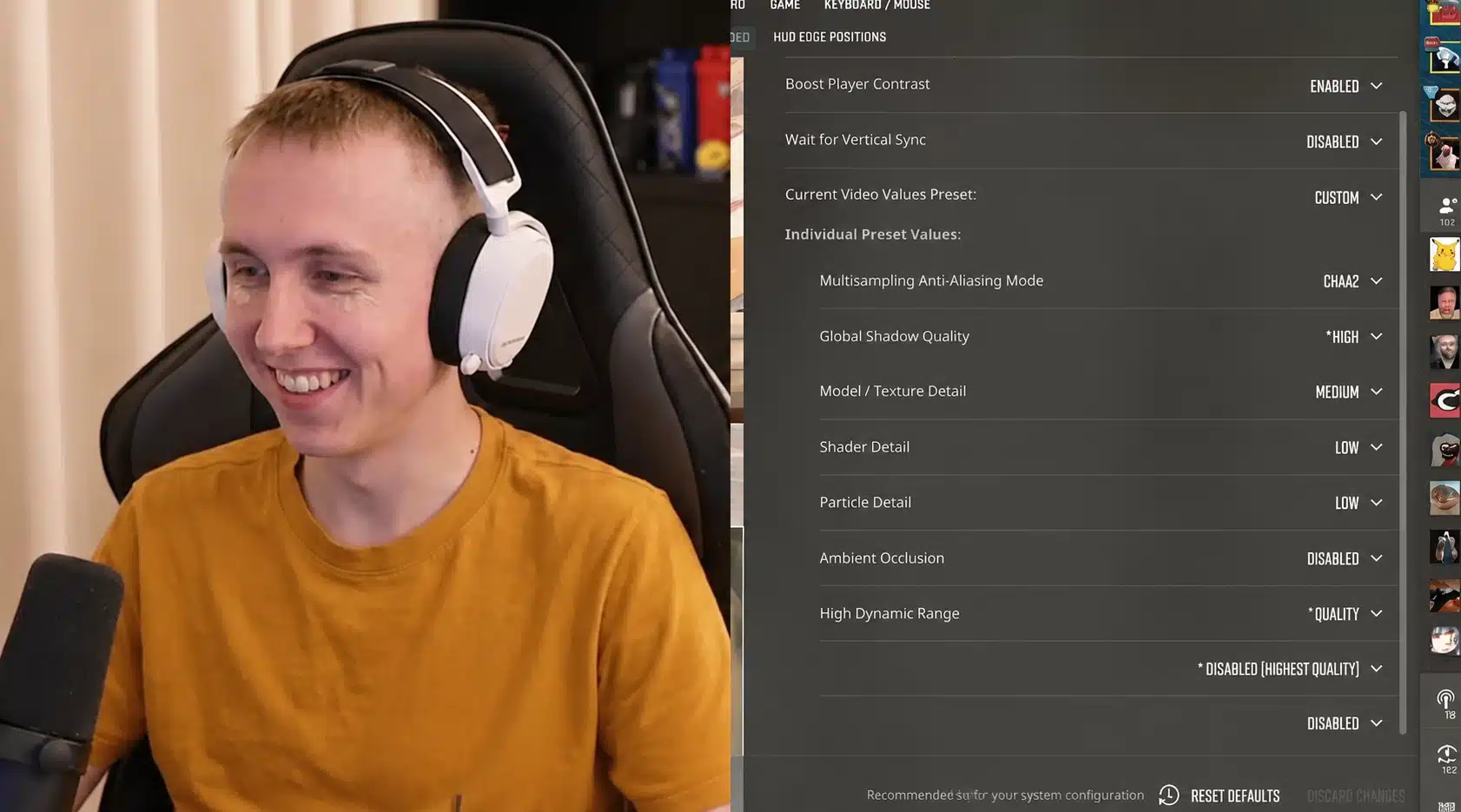
Mouse settings are where most people go wrong when copying a pro. They see the numbers, paste them in, and wonder why everything feels off.
The settings themselves are not the problem. Understanding what those numbers actually mean together is.
Ropz runs a controlled, deliberate setup built entirely around his lurker identity. Every value here reinforces the same thing: precision over speed.
| Setting | Value | Setting | Value |
|---|---|---|---|
| DPI | 400 | In-Game Sensitivity | 1.77 |
| eDPI | 708 | Zoom Sensitivity | 1 |
| Polling Rate | 2000 Hz | Windows Sensitivity | 6 |
What Does eDPI Actually Tell You?
DPI alone means nothing without the in-game sensitivity sitting next to it. eDPImultiplies both into one number you can compare across any mouse, any hardware, any player.
If you want to understand exactly how eDPI works and how to find your own ideal number, our complete guide to eDPI in CS2 walks through the full calculation and what ranges actually work at each rank.
Ropz’s eDPI of 708 falls within the controlled range most riflers and lurkers gravitate toward. Here is what each value is doing in practice:
- 400 DPI keeps hardware-level tracking clean and reduces pixel skipping at low speeds, which matters when you are placing a crosshair on a distant head rather than swinging wildly.
- 1.77 sensitivity pairs with 400 DPI to produce movement that requires real arm travel for large adjustments, training your muscle memory to be deliberate rather than reactive.
- A 2000 Hz polling rate means his mouse reports its position to the PC 2000 times per second, reducing the gap between hand movement and on-screen response to nearly nothing.
- Windows sensitivity at 6 is the default Windows setting, meaning no OS-level acceleration or speed multiplier interferes with the raw input from the game.
- Zoom sensitivity at 1 keeps scoped movement consistent with his unscoped sensitivity, so no adjustment is needed when switching between rifles and a scoped weapon mid-round.
For context, his own teammate ZywOo plays at a noticeably higher eDPI, closer to 800. Even on the same roster, role and playstyle shift this number more than raw mechanical skill does.
When I ran a similarly low sensitivity for a few weeks of testing, the hard part was not the flicks. It was retraining myself to trust wide arm swings instead of small wrist taps.
The number that should guide you here is 708, not 400 or 1.77 in isolation.
If your mouse runs at 800 DPI, set your in-game sensitivity to 0.885, and you will be at the same effective sensitivity as ropz on any hardware, at zero cost.
Ropz’s Crosshair and Viewmodel Settings
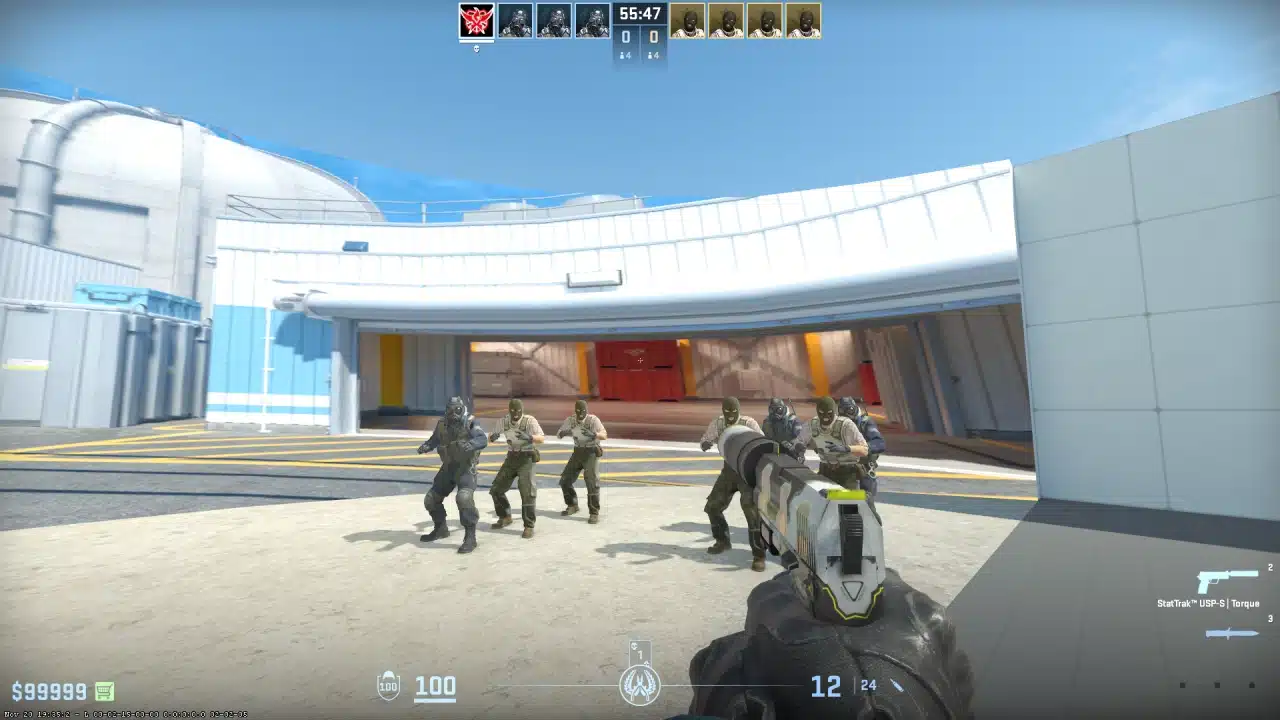
Applying ropz’s exact crosshair takes under a minute and requires no console knowledge at all. CS2 lets you import any crosshair through a shareable code, so what took pros years to refine lands on your screen in a few clicks.
Open CS2 > Settings > Crosshair > Import Code > Paste > Apply > Verify in Server
- Open CS2 and go to Settings, then navigate to Game and click the Crosshair tab, where you will find a share or import icon that looks like an arrow pointing inward.
- Paste the codeCSGO-nCfX7-54ue9-aC5eV-6Womf-Q6izO into the input field and hit Apply; your crosshair updates instantly without touching a single console command manually.
- Verify it looks correct by jumping into a practice server or an offline match, and check that the green static crosshair with gap -3 and length 2 appears exactly as ropz runs it in tournaments.
- If the import fails, open your developer console with the tilde key and enter the raw commands manually: cl_crosshairstyle 4, cl_crosshaircolor 1, cl_crosshairsize 2, cl_crosshairgap -3, cl_crosshairthickness 0.5 to replicate it precisely.
I have imported crosshair codes before without checking the console values behind them.
It is worth doing once, since two trackers can hand you slightly different codes for what turns out to be the exact same crosshair.
Once it is in, resist the urge to tweak it immediately. Give it at least a week of real matches before deciding if the size or color needs adjusting for your eyes.
You can preview the code rendered across multiple maps before committing to it.
Crosshair Settings
Ropz uses a Classic Static crosshair in green that stays fixed regardless of movement or shooting. The gap sits at -3, pulling the four lines inward until they nearly meet at the center.
Length is 2 and thickness is 0.5, keeping it small enough to sit precisely on a distant head without covering the target. Follow Recoil and Outline are both off.
Viewmodel Settings
His viewmodel FOV is set to 68 with Offset X at 2.5, Offset Y at 0, and Offset Z at -1.5 using Presetpos 2. Bob is disabled, meaning the weapon stays completely still while moving.
The gun sits low and to the side, keeping as much screen space open as possible for a lurker reading angles every round.
Ropz’s Gear, Peripherals, and Budget Alternatives
Every piece of hardware Ropz uses connects directly to a decision you already saw in his config.
Nothing here is random, and understanding what each piece does makes the settings section land differently.
| Category | Peripheral / Component | Model | Budget Alternative |
|---|---|---|---|
| Mouse | Razer DeathAdder V3 HyperSpeed | 55g wireless, 2000Hz via HyperPolling Dongle | Logitech G203 Lightsync |
| Keyboard | ASUS ROG Falchion Ace 75 HE | 75% layout, magnetic switches, rapid trigger | Redragon K552 Kumara |
| Headset | SteelSeries Arctis Nova Pro Wireless | Closed-back, wireless, noise-canceling | HyperX Cloud II Wired |
| Mousepad | Razer Gigantus V2 | Control surface, medium resistance, 47x39cm | SteelSeries QcK Medium |
| Monitor | ZOWIE XL2586X+ | 24″, 600Hz, TN panel, DyAc 2 | ASUS TUF VG249QM1A (240 Hz) |
| GPU | NVIDIA GeForce RTX 4090 | Pairs with 999 FPS cap and Reflex enabled | RTX 4060 Ti handles CS2 at 999 FPS |
| CPU | AMD Ryzen 9950X3D | High L3 cache, stable frametimes in CS2 | Ryzen 5 7600X, stable CS2 frametimes |
| Chair | Secretlab Titan Evo Vitality Edition | Team Vitality edition, ergonomic long session build | Secretlab Titan Evo Standard |
The 2000 Hz polling rate on a wireless mouse is only possible with the HyperPolling Wireless Dongle; without it, the hardware caps out at lower rates.
The VAXEE PA Black adds just enough surface resistance to stop precisely on targets at eDPI 708.
His 600Hz monitor pairs directly with the 999 FPS cap and Reflex-enabled setup, shrinking the gap between hand movement and on-screen response.
You do not need his exact hardware to run his config well. The settings do the heavy lifting, and the gear just needs to be good enough not to get in the way.
Every budget alternative above keeps the things that actually matter for CS2: consistent mouse tracking, a fast enough refresh rate, clean audio for footsteps, and a stable surface for your arm.
None of them will hold you back at any rank below the pro scene.
How to Adapt Ropz’s Settings and Make Them Your Own
Copying every number exactly is the wrong move. His settings are built around his hands, his mousepad, his thousands of hours of muscle memory.
What you can take is the logic behind each choice, and that costs nothing.
The Free Changes to Make First
Before spending anything on new gear, these four settings changes will do more for your consistency than most hardware upgrades ever will.
They take under five minutes, cost nothing, and every single pro in the world has them applied before they load into a match.
- Disable Mouse Acceleration: Go to Windows Mouse Settings, open Pointer Options, and uncheck Enhance Pointer Precision. Your crosshair will now travel the exact same distance every time you move your mouse, meaning the muscle memory you build in one session actually carries over to the next.
- Enable Raw Input: Open CS2 Settings, navigate to Mouse, and switch Raw Input on so the game reads directly from your hardware. You immediately cut out the Windows processing layer, and your aim starts feeling tighter and more predictable within the first few minutes.
- Set Nvidia Reflex to Enabled: Go to CS2 Advanced Video and enable Reflex. The delay between your hand movement and what appears on screen shrinks noticeably, which means the shot you think you took is the shot that actually registers.
- Disable V-Sync: Find it in CS2 Advanced Video and turn it off completely. Every frame of input lag V-Sync adds works directly against Reflex, and removing it makes the entire game feel sharper and more responsive immediately.
These four changes together are the closest thing to a free aim upgrade that actually exists in CS2.
Adjusting Sensitivity Without His Exact Hardware
You do not need a 400 DPI mouse to match his feel. eDPI is the only number that matters, and you can hit 708 from any hardware.
| Your DPI | Target In-Game Sensitivity | Result eDPI |
|---|---|---|
| 400 | 1.77 | 708 |
| 800 | 0.89 | 712 |
| 1600 | 0.44 | 704 |
Pick the row that matches your mouse’s DPI and set your in-game sensitivity accordingly. The feel will be close enough to build real muscle memory on, which is the actual goal.
Personalizing by Playstyle
His eDPI of 708 is tuned for patience and precision. If your playstyle sits somewhere different, here is how to shift from his base without losing the logic behind it.
- An aggressive entry fragger who pushes angles quickly and wins reactive duels benefits from nudging eDPI toward 850-950, keeping his video and crosshair settings intact while gaining the flick speed that closer-range play demands.
- All-round rifler playing a mix of holding and pushing sits comfortably at 708 to 800, close enough to his setup that the transition requires minimal adjustment time.
- Support or passive player reading the game from a distance and holding pre-aimed angles can go slightly lower than 708, around 650 to 700, where crosshair placement becomes even more deliberate and spray control feels more manageable.
The crosshair and video settings transfer directly to any playstyle without adjustment. Start there, lock in your eDPI based on how you actually play, and give it thirty days before you change anything again.
Conclusion
Ropz CS2 settings make more sense when you stop treating them as random numbers and start seeing the role behind them.
His native resolution, lower eDPI, clean crosshair, and simple video setup all support patient map reading and precise aim.
I would copy the free changes first, then adjust sensitivity around your own role instead of forcing his exact feel.
Entry players may need more speed, while passive riflers may enjoy his control. Test one change at a time so you know what actually helps.
Would you use Ropz’s full setup, or only borrow his crosshair and eDPI logic? Tell us, share with us in comments below.
Frequently Asked Questions
What Sensitivity and DPI does Ropz use in CS2?
Ropz plays at 400 DPI with an in-game sensitivity of 1.77, giving an eDPI of 708.
His polling rate runs at 2000 Hz with Windows sensitivity set to 6. eDPI is the only number worth comparing across different mice and hardware setups.
Why Does Ropz Use 16:9 Instead of Stretched Resolution?
Native 16:9 at 1080p gives Ropz a wider field of view, which suits his lurker role perfectly. Seeing more of the map at once helps him read angles and track rotations before committing to any move.
Does Ropz Still Play CS2?
Yes, Ropz is actively competing for Team Vitality as of mid-2026.
He won his record-third ESL Grand Slam at IEM Rio 2026 and continues to perform at an elite level. Check the date stamp above for the latest settings verification.
Can I Use Ropz’s Settings without Buying His Exact Mouse?
Absolutely. His eDPI of 708 works on any mouse.
At 800 DPI, set your in-game sensitivity to 0.89, and you land at the same effective feel. His video and crosshair settings copy across with zero hardware requirements at all.