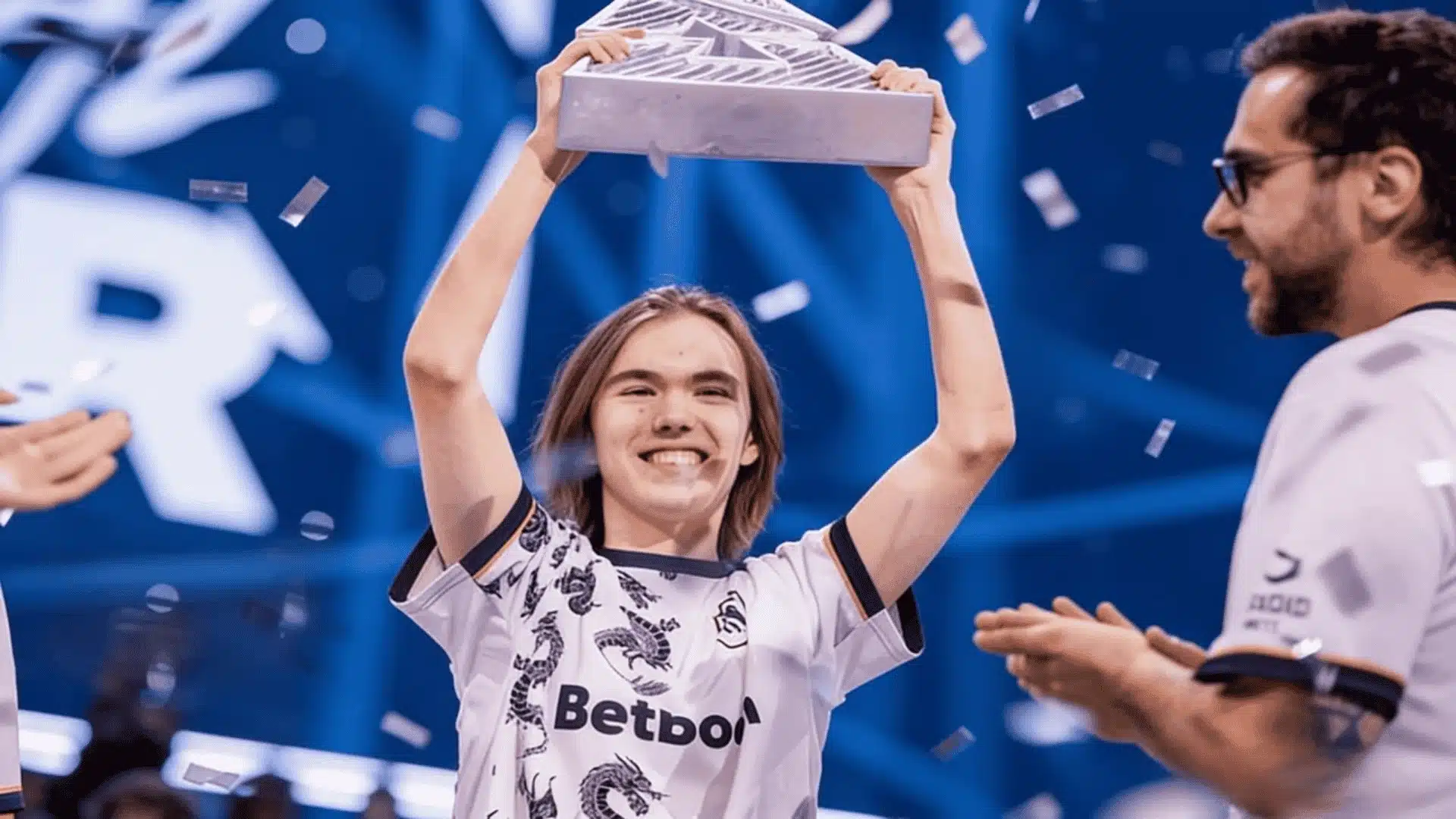
Donk’s rise in CS2 has made his settings one of the most searched setups in competitive Counter-Strike. Every number tells you something about how he plays and wins.
From his mouse sensitivity to his crosshair color, Donk’s CS2 settings reveal a config built around speed and precision. Every choice supports split-second decisions under pressure.
I’ve pulled apart enough pro configs to know which numbers actually matter. Donk’s setup holds up under that kind of scrutiny.
Curious players keep asking what actually makes his aim and setup so effective in high-pressure rounds. The answers sit in the details below.
Copy his exact numbers or just borrow the logic behind them. Either way, understanding Donk CS2 settings gives you a real foundation for your own competitive improvement.
Who is Donk?
Danil “Donk” Kryshkovets was born on January 25, 2007, in Tomsk, Russia. He plays as an entry rifler for Team Spirit and is widely regarded as the best player in CS2 right now.
His older brother introduced him to Counter-Strike at age five.
He later competed in local Tomsk tournaments before earning his spot in Spirit Academy, which is where everything started clicking at a serious level.
I’ve spent enough hours benchmarking pro configs to know real work from spec-sheet noise. Donk’s crosshair, eDPI, and video settings all point the same way: fewer distractions, faster information.
Donk’s Mouse Settings and eDPI
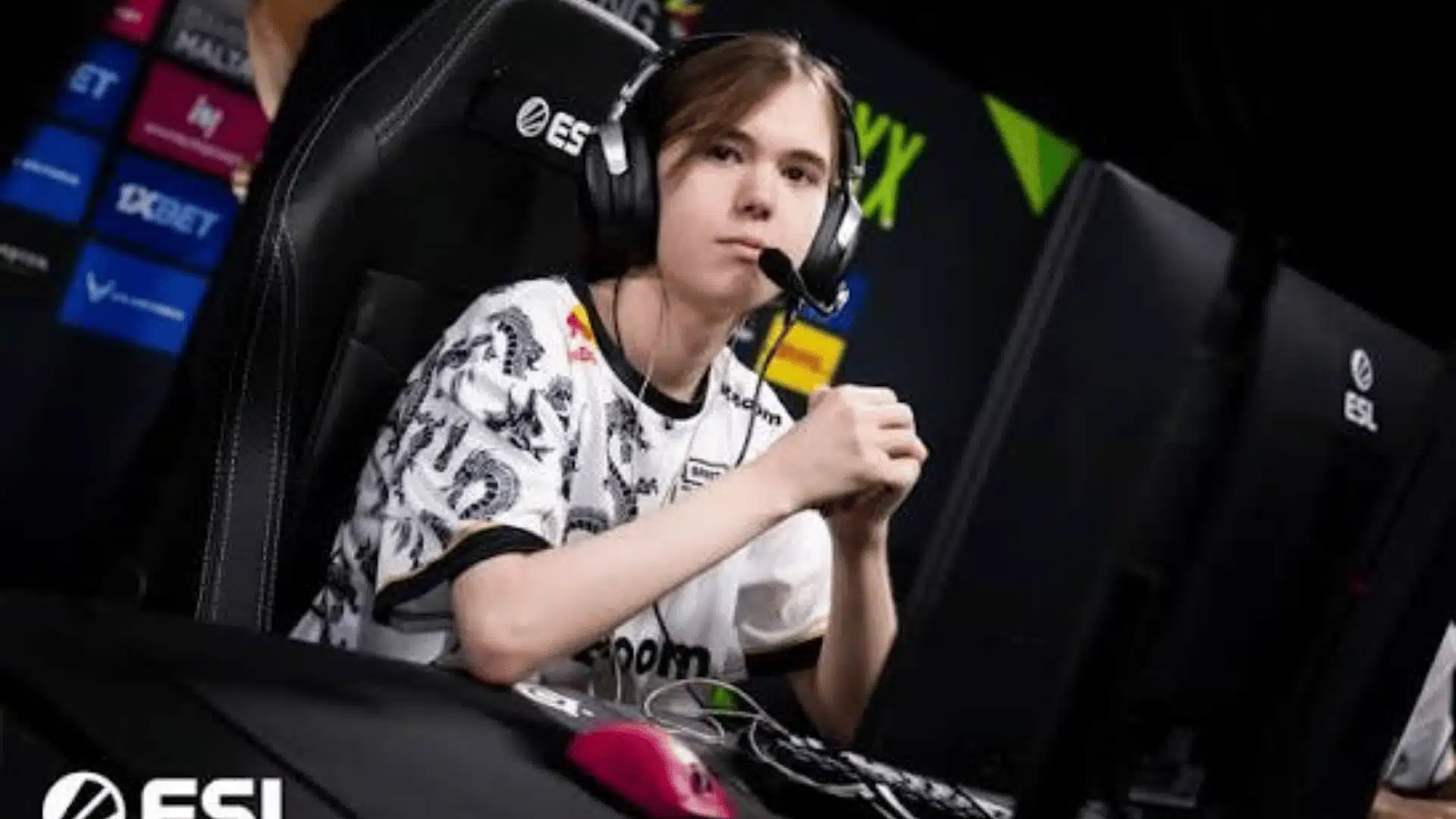
Donk’s mouse settings are one of the first things people copy when they start studying his config. The numbers are simple, but the reasoning behind each one is worth understanding properly.
- Mouse and DPI: Donk runs 800 DPI paired with 1.25 in-game sensitivity. His current mouse is the unreleased ZOWIE x Donk signature model, built specifically around how he plays.
- Zoom Sensitivity and Polling Rate: Donk keeps his zoom sensitivity at 1 and runs 1000Hz polling. Neither number is exciting on its own, but both keep his aim consistent whether he’s holding an angle or swapping to scope in.
- Why 1000 eDPI: His 1000 eDPI sits higher than most pro riflers run. That number demands serious wrist control but gives him the speed to snap across multiple angles without resetting his mouse position.
- Raw Input and Why It Matters: Raw input must stay on for these numbers to hold up. Without it, Windows quietly adds its own acceleration curve, and the consistency Donk’s muscle memory is built around breaks down completely.
What eDPI Actually Means?
eDPI is simply DPI multiplied by in-game sensitivity. It’s the only reliable way to compare sensitivities across players running completely different hardware.
Donk’s math is 800 times 1.25, which equals 1000. Get the full breakdown of what eDPI actually means before you copy anyone’s numbers.
The Logic Behind His Sensitivity
Higher eDPI means less physical movement needed per degree of rotation.
For an aggressive entry player checking two or three angles every second, that speed advantage genuinely matters over a full match.
Donk’s mouse settings are not random. Every value connects directly to how he plays, how fast he needs to move, and how much precision his role demands every single round.
Donk’s Crosshair Settings
Donk runs a classic static crosshair in cyan (RGB: 0, 255, 255), clean and minimal with a center dot. No movement, no T-style, no outline cluttering the target.
Crosshair Share Code: CSGO-SND6x-vhZ87-XDCPz-BycJh-aK6FP
To import: CS2 → Settings → Game → Crosshair → Import Crosshair Code → paste the code.
Once imported it applies instantly with no restart needed. Donk has mentioned he changes his crosshair fairly often after rough sessions, so if you see a slightly different code elsewhere, that is completely normal for him.
| Setting | Value |
|---|---|
| Style | Classic Static |
| Color (RGB) | 0 / 255 / 255 |
| Gap | -4 |
| Length | 1 |
| Thickness | 1 |
| Center Dot | Yes |
| Outline / T-Style | Off |
Pro Tip: Cyan is one of the smartest crosshair choices in CS2. It stays sharp on bright maps like Mirage mid and Inferno B site, where green crosshairs blend into surfaces and cost you that split-second visual lock.
Want to Build Your Own?
Donk’s crosshair is built for pre-aiming tight angles aggressively. If you react more than you pre-aim, try pushing the gap to minus 2 for a wider reference point.
- DatHost CS Crosshair Generator: Preview any crosshair live before touching your config.
- ProSettings Crosshair Generator: Compare Donk’s setup against other top riflers.
- CS2 Share Code Decoder: Break any share code into its raw individual values.
Start with Donk’s code and give it real deathmatch time. Only change something once you can name exactly what is bothering you rather than reacting to one bad session.
Inside Donk’s Gear Setup: What He Actually Plays On?
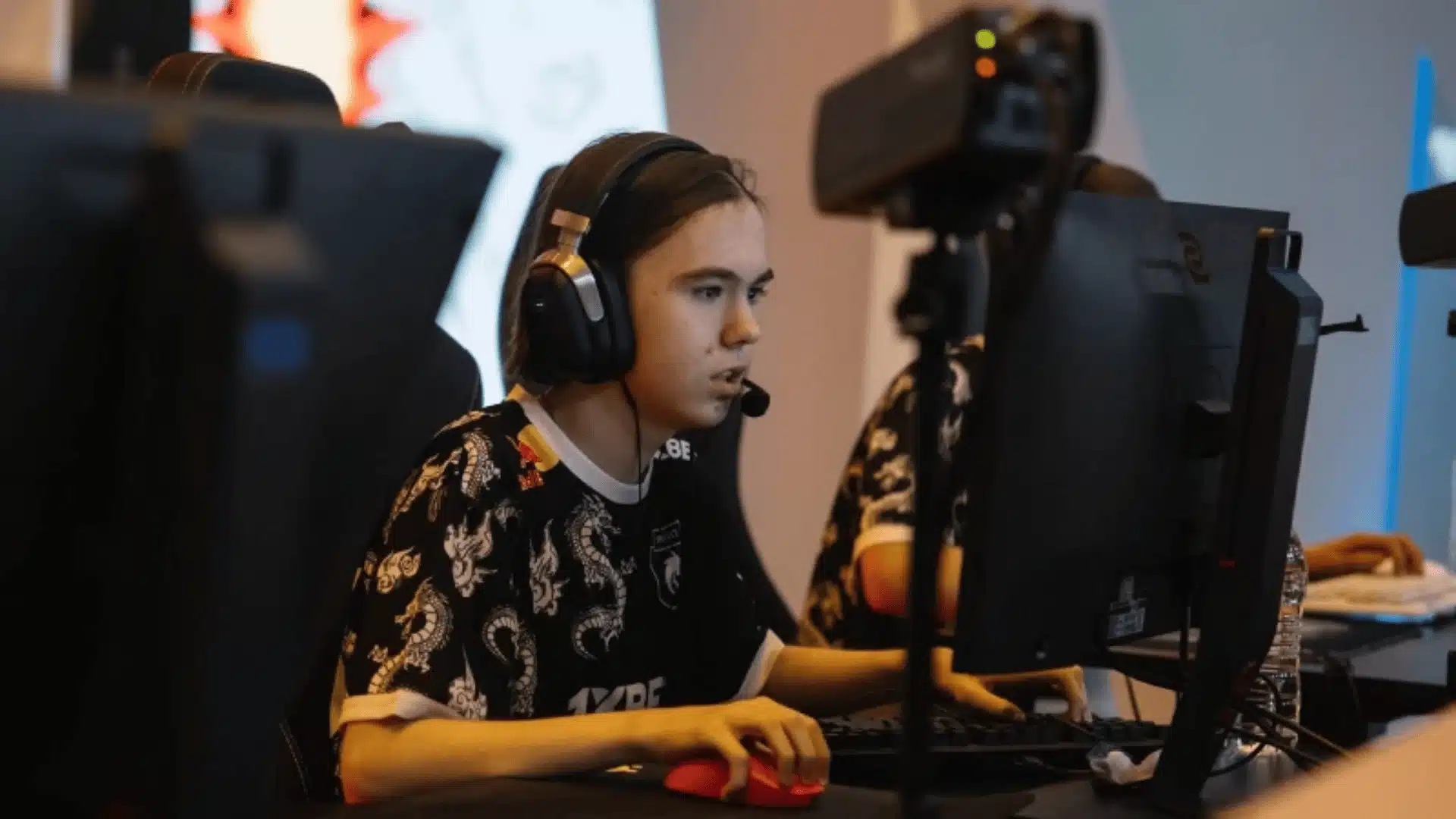
Donk’s gear isn’t random. Every piece supports the same aggressive, fast-twitch playstyle he’s known for. Here’s a breakdown of what he’s actually running heading into the back half of 2026.
1. Mouse
Donk’s current mouse is the unreleased ZOWIE x Donk signature model, built entirely around his grip style. Check ZOWIE’s official site for release updates.
Fans have been chasing release timing on this one for months now. No public shelf date yet, so it remains strictly tournament gear for the moment.
Some sources hint at custom actuation settings around 1.5, with a 0.4 rapid-trigger response. Nothing confirmed until ZOWIE officially announces it.
2. Mousepad
Donk runs the SteelSeries QcK+ mousepad, and honestly it makes perfect sense for his playstyle. Smooth, wide swings need a consistent surface underneath them.
The QcK+ handles his 1000 eDPI without forcing awkward repositioning mid-swing. You can also grab it on Amazon if that works better for you.
It is not the flashiest pad out there, but that is the whole point. Stability beats aesthetics for entry fraggers, and Best Buy carries it too.
3. Monitor
Donk plays on the ZOWIE XL2586X+, and it pairs perfectly with his stretched resolution for bigger, clearer player models on screen.
The high refresh rate keeps everything sharp during fast peeks. If you want to grab one, Amazon has it available right now.
It trades raw visual beauty for pure competitive function, which suits Donk perfectly. Best Buy also stocks it if you prefer in-store pickup.
4. Keyboard
Donk uses the Logitech G Pro X with GX Blue Clicky switches. I’ve clicked through my share of switch types on the bench.
That tactile bump on GX Blue confirms an input fast, with no mid-round second-guessing.
Fast, reliable actuation with zero hesitation is the priority here. Amazon has the G Pro X ready to ship, and Target carries it if you prefer shopping local.
5. Headset
Donk runs the HyperX Cloud II, and positional audio is the entire reason. Knowing where footsteps are coming from wins duels before crosshairs even meet.
It is practical and no-nonsense, which fits the rest of his setup perfectly. Grab it on Amazon if you want it delivered fast.
Function always wins over flashy branding in his world. Best Buy also carries it with same-day pickup options depending on your location.
Nothing in Donk’s setup is accidental. Mouse, pad, monitor, keyboard, and headset all point toward one goal: faster information, faster reactions, and zero friction between instinct and execution.
6. PC
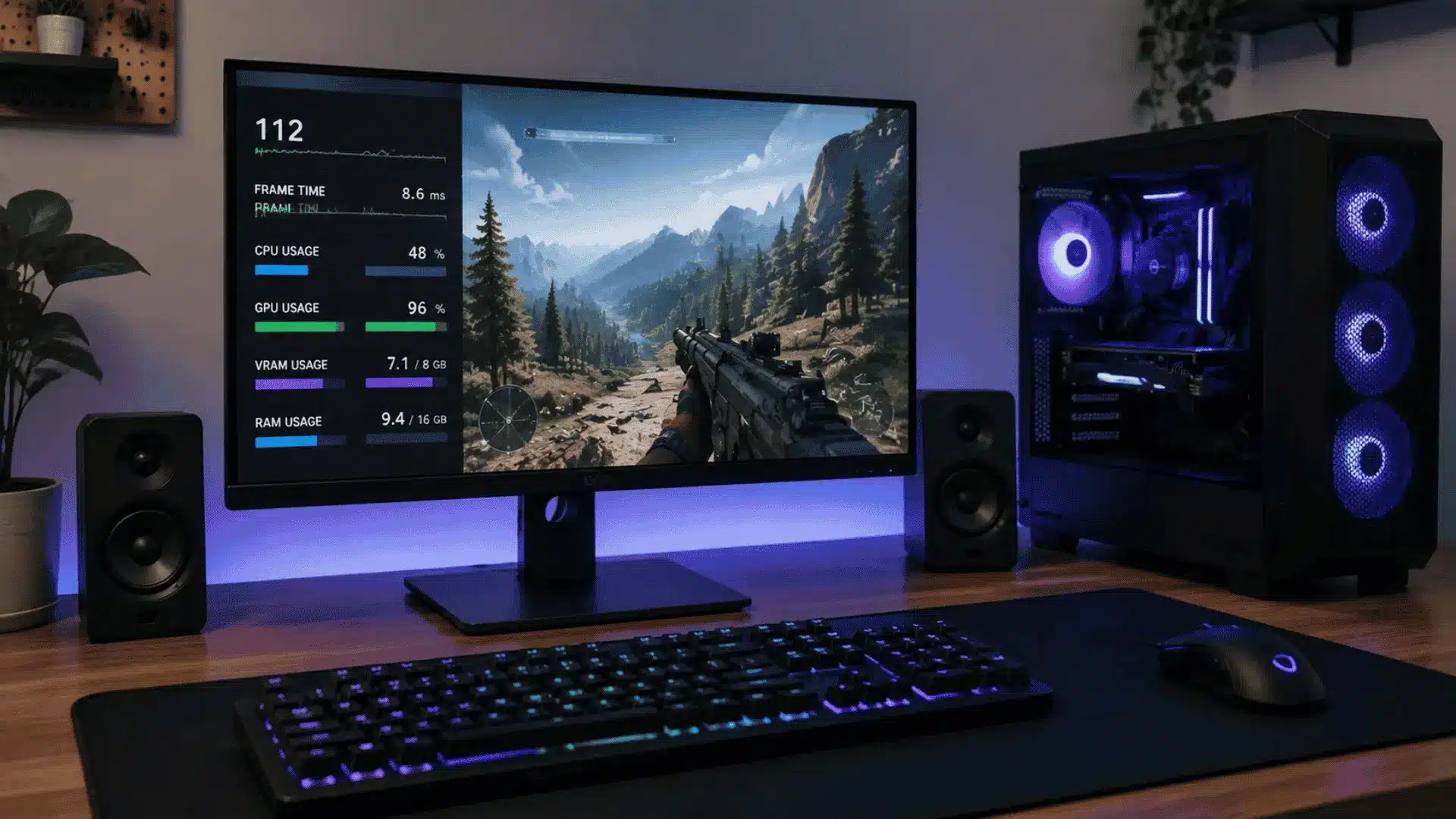
Behind the peripherals, Donk runs an Intel Core i9-13900K paired with an NVIDIA GeForce RTX 4080 Super.
That combination keeps frame rates high and stable, even with shadows up and everything else turned down. Consistency matters more here than any benchmark number.
7. Chair
He also plays from a Blacklyte Kraken Pro. It’s not the flashiest gear here, but hours of scrims make chair support a real factor, not an afterthought.
Nothing in Donk’s setup is accidental. Mouse, pad, monitor, keyboard, headset, PC, and chair point toward one goal: faster reactions, zero friction between instinct and execution.
The Screen Behind the Aim: Donk’s Display and Video Config
Donk runs a stretched 4:3 setup instead of native widescreen, a common pro habit built around bigger, more visible player models. Every video option below is tuned for clarity over eye candy.
| Setting | Value |
|---|---|
| Resolution | 1280×960 (4:3 Stretched) |
| Anti-Aliasing | 8x MSAA |
| Texture Filtering | Trilinear |
| Shadow Quality | High |
| Model/Texture/Shader Detail | Low |
| Brightness | 93% |
| Ambient Occlusion | Disabled |
The stretched resolution isn’t a visual downgrade by accident; it inflates enemy hitboxes on screen, making heads and bodies noticeably easier to track during fast, close-range duels and peeks.
Shadow quality staying high while everything else drops low isn’t random either.
They help read enemy positions and rotations early, while low textures and particles keep frame rates stable under pressure.
Turning ambient occlusion off removes unnecessary shading detail that adds zero competitive value.
Every setting here serves one purpose only, maximum visibility with minimum distraction during high-stakes, split-second engagements.
Making Donk’s Setup Work for You, Not Just Copying It
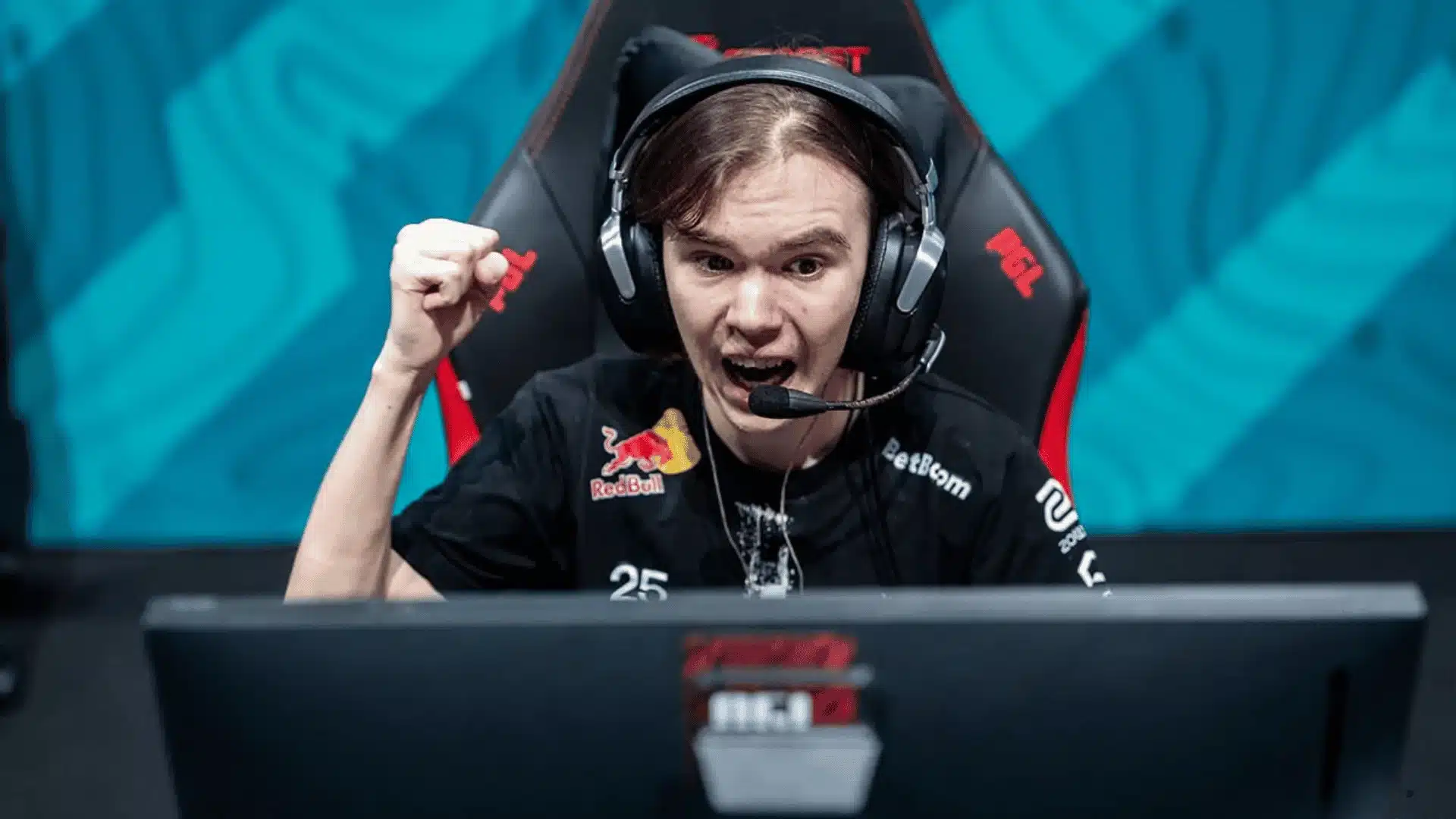
Copying Donk’s settings exactly rarely works out of the box. His numbers are tuned around years of muscle memory and an aggressive entry role, so adapting them the right way matters more than blind copying.
- Sensitivity Calibration: Start with his 1000 eDPI as a reference point, not a rule. If your flicks feel shaky or you constantly overshoot targets, lower it slightly until tracking feels controlled again.
- Crosshair Adjustments: His minus 4 gap works for pre-aiming tight angles aggressively. If you play more reactively, widen the gap slightly and add length for a bigger, easier reference point.
- Resolution Onboarding: Jumping straight into 4:3 stretched can feel disorienting at first. Spend time in deathmatch adjusting to bigger models before taking it into ranked or competitive matches.
- Video Setting Tradeoffs: High shadows paired with low textures prioritize visibility over graphics quality. If your PC struggles with frame drops, lower shadow quality first before touching resolution settings.
Adapting Donk’s setup isn’t about replicating every number exactly. It’s about understanding why each choice works for him, then adjusting the same logic until it genuinely fits your own instincts.
Customizing Donk’s Config to Fit You
Donk’s config is a strong starting point, not a finished product for everyone. Building your own version means keeping what works and reshaping the rest around your actual role and comfort.
If you play AWP or support roles instead of entry, drop his eDPI slightly for steadier long-range flicks. Entry fraggers pushing tight angles can keep it closer to his original 1000 eDPI setup.
Crosshair choice should follow your instincts, not his exact code. Pre-aimers can keep the tight minus 4 gap, while reactive players benefit from a slightly wider gap and added length for visibility.
An autoexec file keeps your settings locked in permanently instead of resetting between sessions.
Copy Donk’s base commands into your own config folder, then adjust sensitivity and crosshair values without touching anything else.
Test everything in deathmatch before taking it into ranked or competitive matches. Give each change real reps rather than judging it off one round, since muscle memory takes longer to adjust than expectations.
What Comes Next for Donk’s Setup?
The one open question in this setup is the ZOWIE x Donk mouse. It’s been listed as unreleased for months, with no public shelf date confirmed yet.
Once it ships, expect his mouse settings, and maybe the eDPI math behind them, to get a fresh look. Until then, treat the rest of this config as the stable part, and the mouse as the piece still in motion.
Conclusion
Donk CS2 settings work because they match his role, speed, and aim style instead of chasing random pro numbers.
His eDPI, cyan crosshair, stretched resolution, and low distraction video setup all support faster reads in busy rounds.
I would use his config as a starting point, not a final answer, because your own grip, role, screen size, and aim habits still matter.
Copy the base setup first, test it in deathmatch, then change only one setting at a time. That makes each adjustment easier to judge.
Would you copy Donk’s full setup or only use his crosshair and sensitivity? Tell us, share with us in comments below.
Frequently Asked Questions
Does Donk Use Any Launch Options in CS2?
Donk does not use any custom launch options in his current setup. He relies on CS2’s default engine performance instead of manually forcing extra parameters through Steam’s launch settings.
What are Donk’s Viewmodel and FOV settings?
Donk plays with a viewmodel FOV of 68, offset X at 2.5, offset Y at 0, and offset Z at -1.5, using preset position 1 for a compact, screen-clearing view.
What is Donk’s Polling Rate and Windows Sensitivity?
Donk runs his mouse at a 1000Hz polling rate alongside a Windows sensitivity of 4. Both settings work together with his in-game config to keep raw input consistent and free of added acceleration.
Is Stretched Resolution Like Donk’s Still Allowed in Competitive CS2?
Yes, stretched resolution remains fully legal in CS2 competitive and matchmaking play. It is a display setting, not a gameplay exploit, and many professional players use it for larger visual targets.