Windows buries some of its most useful settings behind vague names, and Hardware-Accelerated GPU Scheduling is a prime example.
The name promises a speed boost, but what it actually changes depends on your graphics card, drivers, and the games you play.
If you’ve searched what is hardware-accelerated GPU scheduling, you already suspect the answer isn’t simple.
I’ve tested this setting across different PCs and games instead of just trusting the name, and the results vary more than you’d expect.
Some systems feel smoother. Others show no change at all. Here’s what the feature really does, starting with a plain answer.
What is Hardware-Accelerated GPU Scheduling?
Hardware-Accelerated GPU Scheduling, or HAGS, is a Windows feature that lets your GPU handle part of the scheduling work normally managed by the CPU.
Instead of having the main processor constantly manage video memory and decide when graphics tasks should be processed, HAGS shifts that responsibility to a dedicated scheduling processor inside the GPU.
The change happens at the operating system level, meaning it can affect supported games and applications across your PC rather than being controlled by one specific program.
However, HAGS does not make your graphics card more powerful or suddenly increase its rendering capabilities.
I find it easier to think of it as a change in how the workload is managed, the same way rerouting traffic doesn’t add more lanes to the road.
The same GPU still handles the graphics, but the way those tasks are organized and sent for processing is different.
How Does Hardware-Accelerated GPU Scheduling Work?
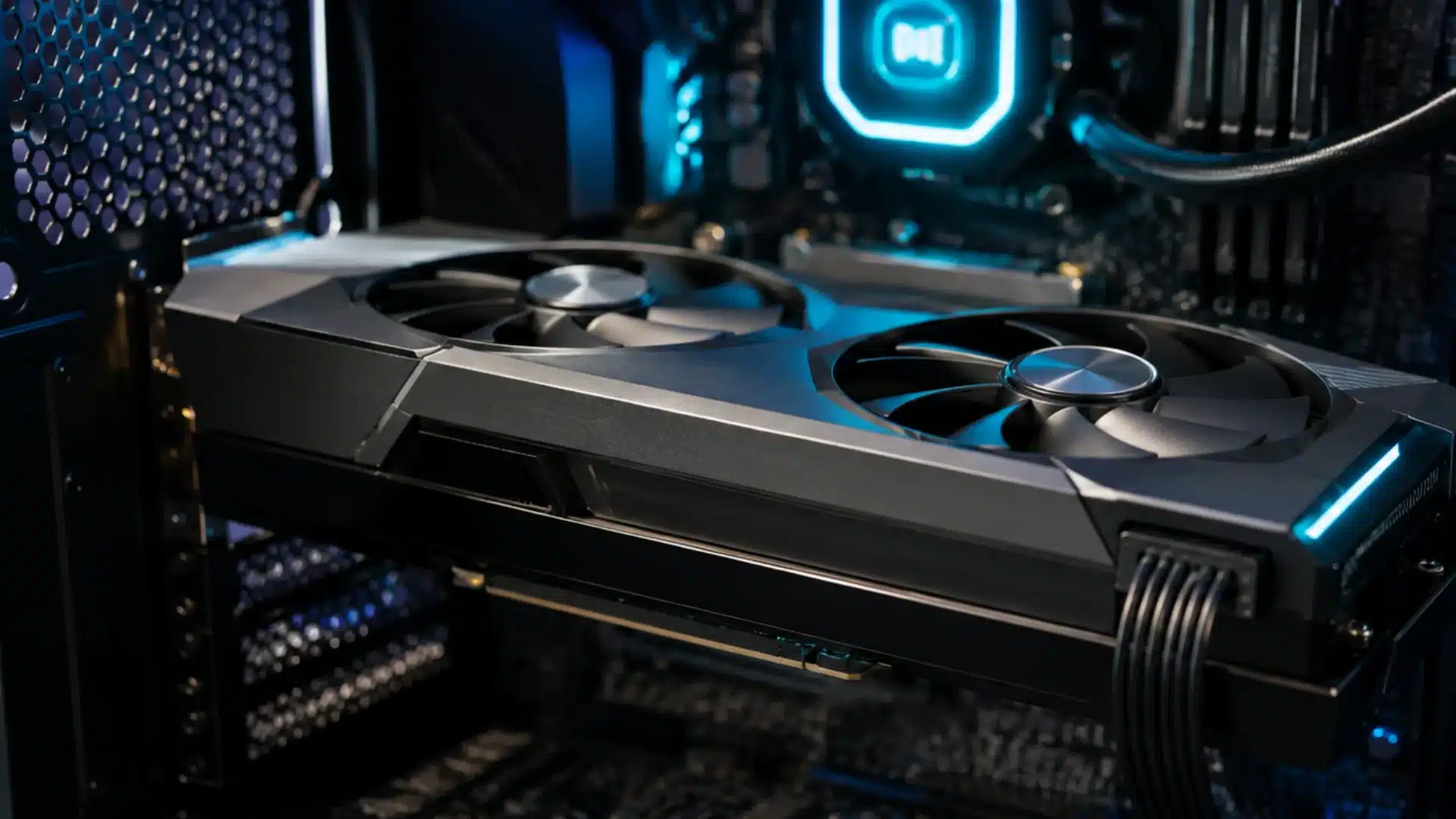
Hardware-Accelerated GPU Scheduling changes how Windows organizes graphics tasks by moving part of the scheduling process from the CPU directly onto supported GPU hardware itself.
- Task Scheduling: The GPU’s dedicated scheduler takes greater control over deciding when graphics commands should be processed instead of relying primarily on the CPU.
- CPU Workload: By shifting scheduling duties toward the GPU, HAGS can reduce some of the CPU involvement required to coordinate graphics-related tasks.
- Video Memory Management: The GPU also takes greater responsibility for managing its video memory, reducing the amount of scheduling coordination handled through Windows and the CPU.
- Graphics Processing: Once tasks are scheduled, the GPU renders them normally. HAGS changes how work reaches the GPU rather than increasing its actual rendering capability.
Because HAGS changes task management rather than rendering power, its effect depends heavily on your hardware, drivers, workloads, and how efficiently Windows schedules graphics tasks.
Pairing HAGS with a wider pass to optimize your PC for gaming tends to matter more for overall smoothness than this one toggle on its own.
What Hardware-Accelerated GPU Scheduling Does Not Do?
Hardware-Accelerated GPU Scheduling does not increase your GPU’s raw rendering power or guarantee higher FPS in games.
Despite the name, HAGS is mainly about changing how graphics-related scheduling tasks are managed between the CPU, Windows, and the GPU.
It does not make your graphics card faster, add extra processing capability, or automatically improve every game’s performance.
Results can vary depending on your GPU, drivers, game engine, and overall system configuration.
HAGS is also a different setting from the monitor overdrive setting you’ll find in your display’s on-screen menu, even though both get lumped into the same “vague toggle” category.
Those settings usually move specific workloads, such as video decoding or interface rendering, onto the GPU. HAGS instead changes how Windows handles the graphics scheduling queue.
So, if you enable it expecting an obvious frame-rate increase, you may notice little or no difference at all.
Hardware and Software Requirements for HAGS
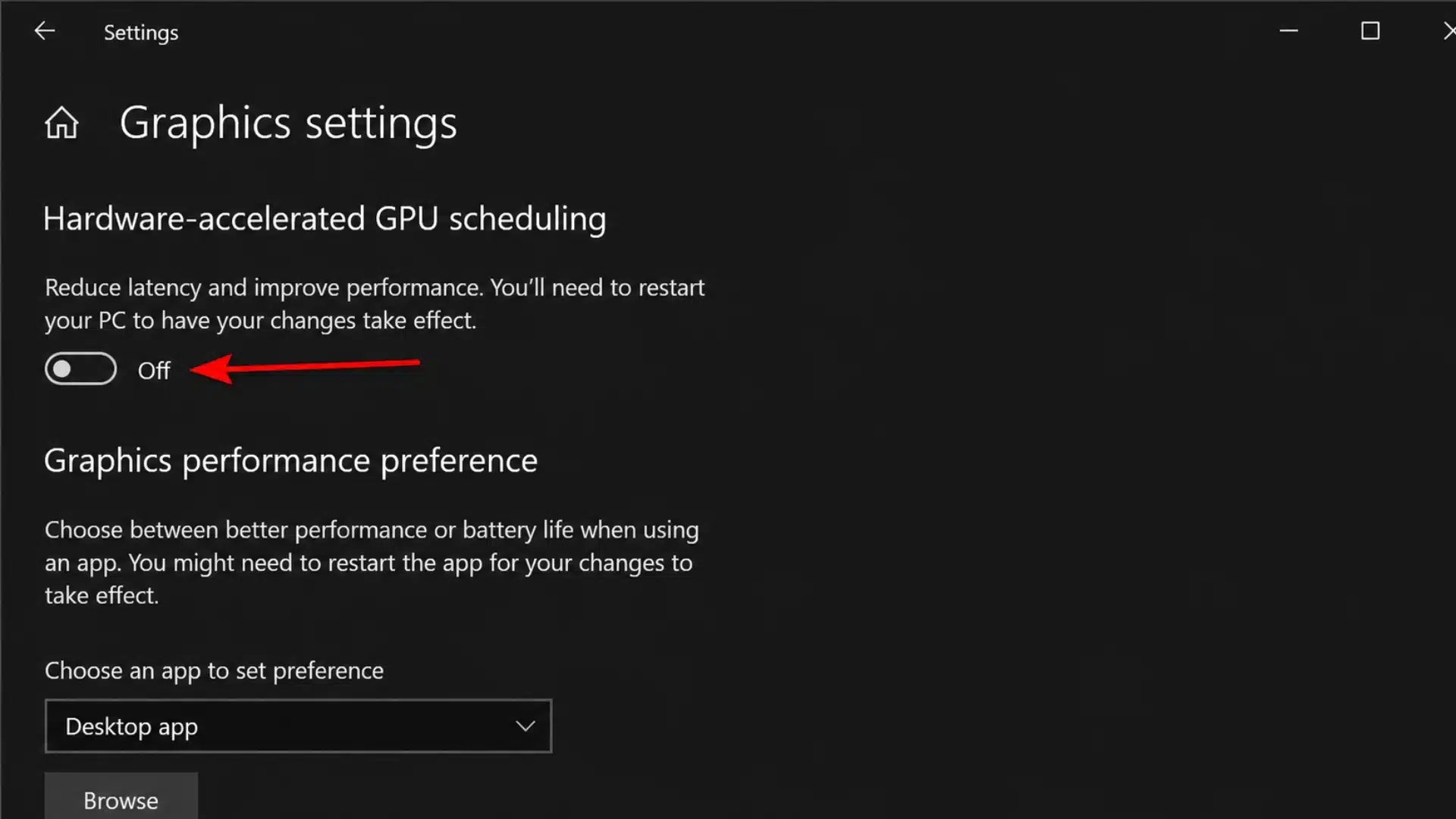
HAGS only appears when Windows detects compatible graphics hardware and drivers, so your operating system, GPU, and display driver must all support the feature properly.
Microsoft introduced the feature with the Windows 10 May 2020 Update, and the requirements below decide whether your system can actually turn it on.
| Requirement | What You Need |
|---|---|
| Windows Version | Windows 10 version 2004 or later, or a supported version of Windows 11. HAGS first arrived with the Windows 10 May 2020 Update. |
| Compatible GPU | Your graphics card must include hardware capable of handling GPU scheduling. Unsupported GPUs will not expose the HAGS option. |
| WDDM Support | The graphics driver must support Windows Display Driver Model 2.7 or newer, which introduced capabilities for hardware-accelerated GPU scheduling. |
| Compatible Driver | Your GPU manufacturer must provide a driver that enables HAGS support for your particular graphics hardware. |
| Windows Graphics Settings | When all requirements are met, Windows makes the Hardware-Accelerated GPU Scheduling toggle available within its graphics settings. |
If the HAGS option is missing entirely, checking your Windows version, GPU compatibility, and installed graphics driver is usually the best place to start troubleshooting.
Is Hardware-Accelerated GPU Scheduling Good?
Hardware-Accelerated GPU Scheduling can improve performance in certain setups, but its real value depends on whether your CPU, GPU, drivers, and games benefit from it.
It does not add rendering power, so it will not turn a weak GPU into a strong one.
What it can do is reduce how much scheduling work your CPU has to handle, which matters most when your CPU is the bottleneck.
- CPU Bottlenecks: If your CPU struggles to keep up with a stronger GPU, HAGS can reduce some scheduling work and potentially improve overall responsiveness. Worth checking your safe CPU temperature range here too, since thermal throttling can look like a scheduling problem when it isn’t.
- GPU Bottlenecks: When the GPU is already running near its limits, giving it additional scheduling responsibilities may offer little benefit and can sometimes affect smoothness.
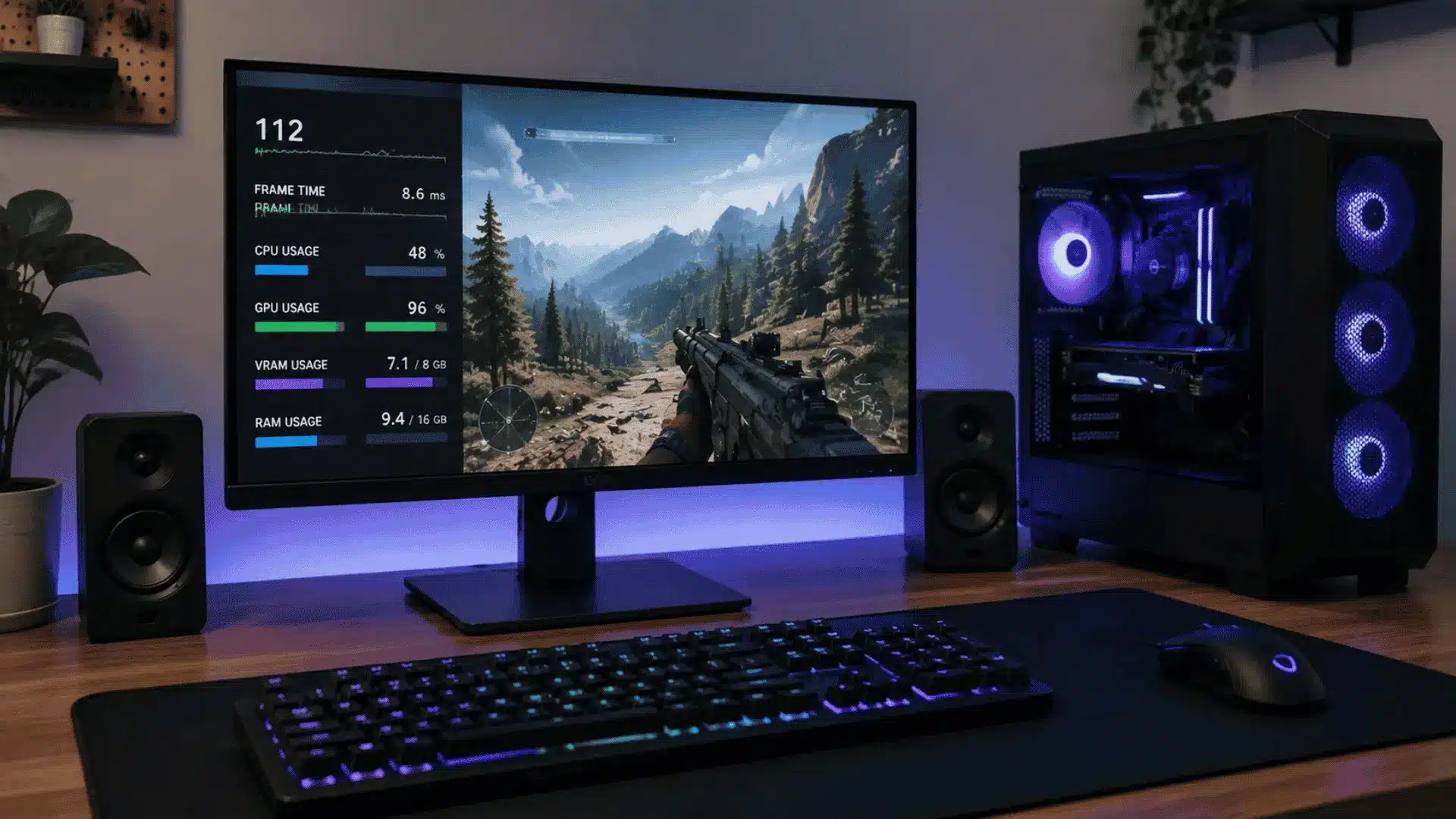
- Frame-Time Stability: HAGS may help produce smoother frame delivery on some systems, but other setups can experience stuttering or inconsistent frame times after enabling it.
- Driver Compatibility: Graphics drivers play an important role in how well HAGS works. Older or problematic driver versions can lead to inconsistent performance in certain games.
- Game and VR Compatibility: Some older games and VR applications may behave differently with HAGS enabled, making individual testing more useful than following a universal recommendation.
In my own testing across a handful of competitive shooters on a CPU-bound rig, HAGS shaved a small but consistent amount off frame-time spikes without touching average FPS.
On a GPU-bound build, I couldn’t tell the difference in blind runs.
It’s also worth knowing that NVIDIA requires HAGS for DLSS Frame Generation to function on GeForce RTX 40 and 50 series cards, so turning HAGS off can quietly break a feature you’re expecting to work.
Overall, HAGS is good when your hardware and software handle it properly, but testing your usual games remains the most reliable way to judge it for your own setup.
Should You Turn Hardware-Accelerated GPU Scheduling ON or OFF?
For most modern systems with supported GPUs and updated drivers, turning Hardware-Accelerated GPU Scheduling on is worth trying.
It can reduce some CPU scheduling work and may improve responsiveness or frame consistency in certain games.
You should be more cautious if you use an older GPU, outdated drivers, VR applications, or games that already show stuttering.
In those cases, HAGS may provide no benefit or could make frame times less consistent.
I prefer treating it as a system-specific setting rather than a universal recommendation. Enable HAGS, test a few games you regularly play, and compare performance and smoothness.
If everything runs well, leave it enabled. If you notice new stutters, instability, or worse frame pacing, turn it off and test again.
When Should You Turn HAGS Off?
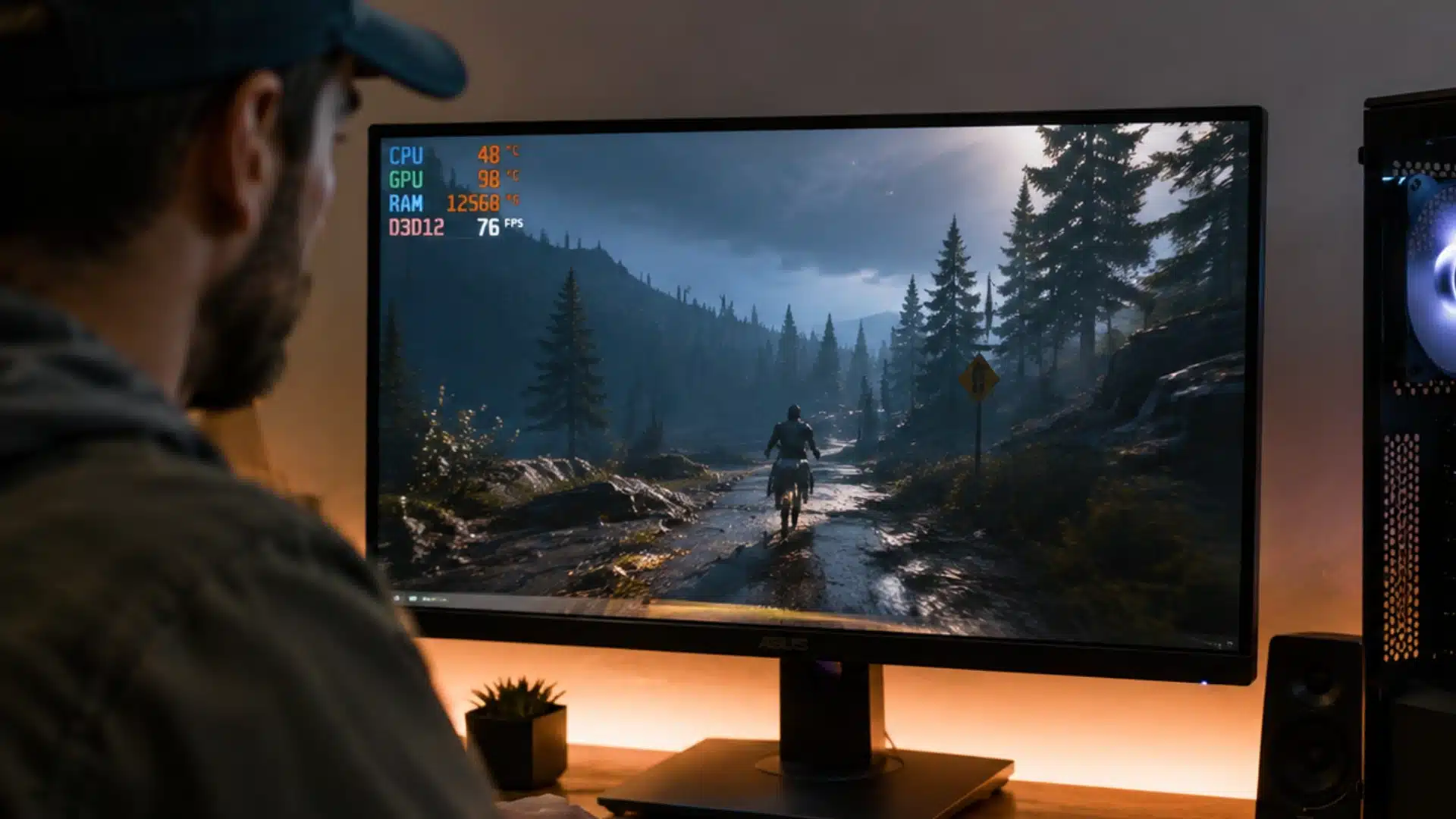
You should consider turning HAGS off when enabling it causes noticeable performance problems, compatibility issues, or instability that were not present on your system before.
- New Stuttering: Turn HAGS off if games begin showing frequent stutters, uneven frame pacing, or sudden frame-time spikes after you enable the setting.
- VR Problems: Some VR setups can behave inconsistently with HAGS enabled, so disabling it may help if you experience latency, hitching, or unstable performance.
- Older Games: Legacy titles may not benefit from newer scheduling behavior and can occasionally perform more smoothly when Windows handles graphics scheduling traditionally.
- Driver Issues: If problems appear after a graphics driver update, testing HAGS in the off position can help determine whether scheduling compatibility is involved.
- System Instability: Disable HAGS if you notice crashes, freezes, display problems, or other unusual behavior that consistently disappears once the setting is turned off.
If disabling HAGS fixes the problem without removing a feature you need, leaving it off is a reasonable choice until your drivers or software change.
Conclusion
Hardware-accelerated GPU scheduling is not a guaranteed performance upgrade, so treating it that way only leads to disappointment.
What it actually does is shift scheduling work from your CPU to your GPU, and whether that helps depends on your hardware, drivers, and the games you play.
The smartest move is testing it yourself: turn it on, run your usual games, and watch for smoother frame times or new stutters.
Keep it enabled if your system runs better. Switch it back and check your drivers first if something feels off instead.
Try toggling the setting on your own rig this week, then share your GPU, CPU, and results in the comments below.
Frequently Asked Questions
Does Hardware-Accelerated GPU Scheduling Increase FPS?
Not directly. HAGS shifts scheduling work from the CPU to the GPU rather than adding rendering power, so a large FPS jump on its own is unlikely. Some CPU-bound systems see smoother frame pacing, while others notice no real difference.
Should I Turn On HAGS For Gaming?
It depends on your hardware balance. If your CPU tends to bottleneck a stronger GPU, turning it on can help. If your system is already GPU-bound or running older drivers, it may cause stutter, so testing with your specific games is the safest approach.
Can Hardware-Accelerated GPU Scheduling Cause Stuttering?
Yes, in some cases. Certain older games, VR applications, and specific driver versions have documented issues with HAGS, leading to frame-time spikes for some users, even though many others see no problems at all.
Is Hardware-Accelerated GPU Scheduling Required For DLSS Frame Generation?
Yes. DLSS Frame Generation and similar frame-generation tools require HAGS as a baseline setting, so it needs to stay on for those features to function, regardless of whether it helps your system elsewhere.