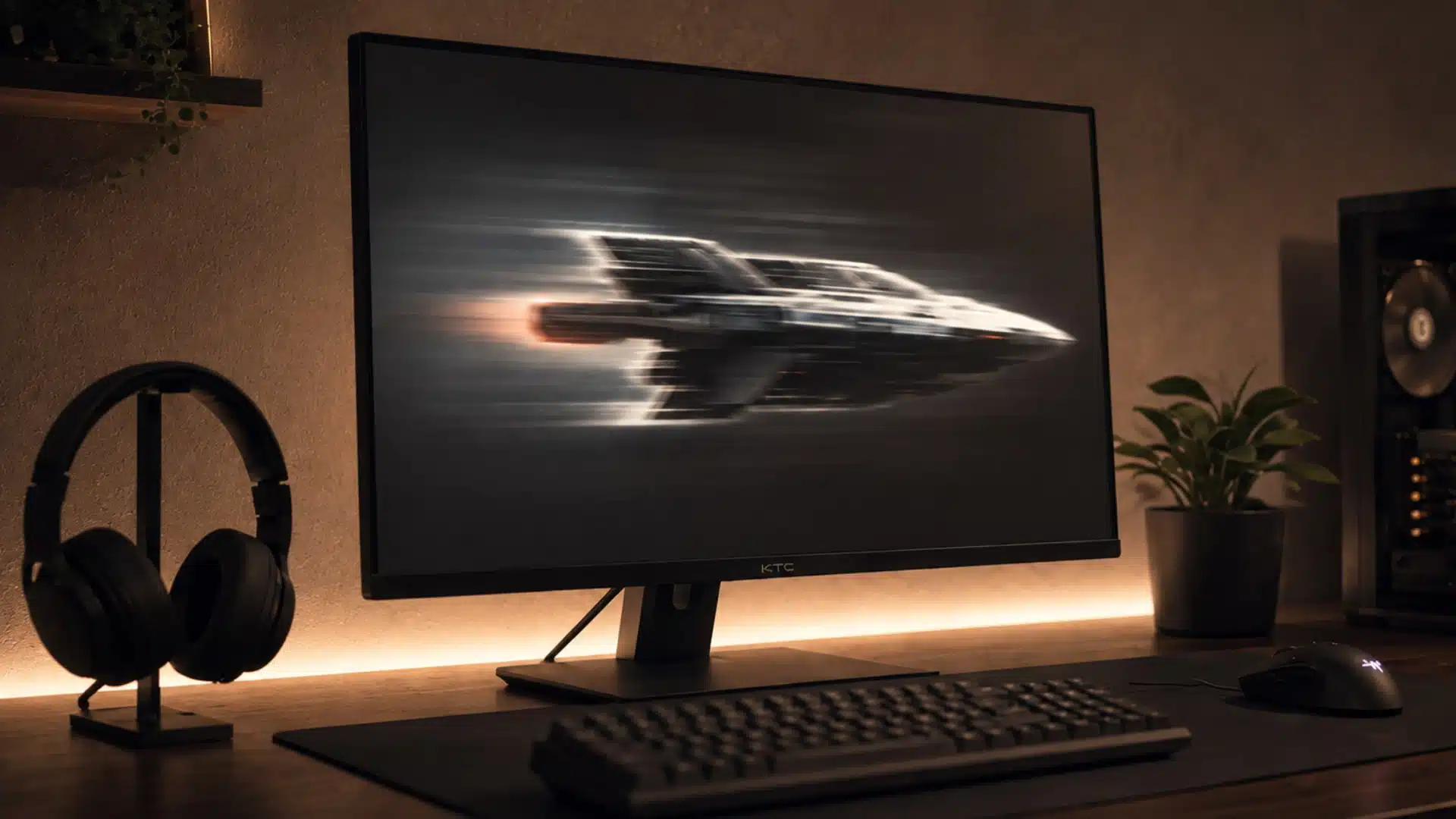
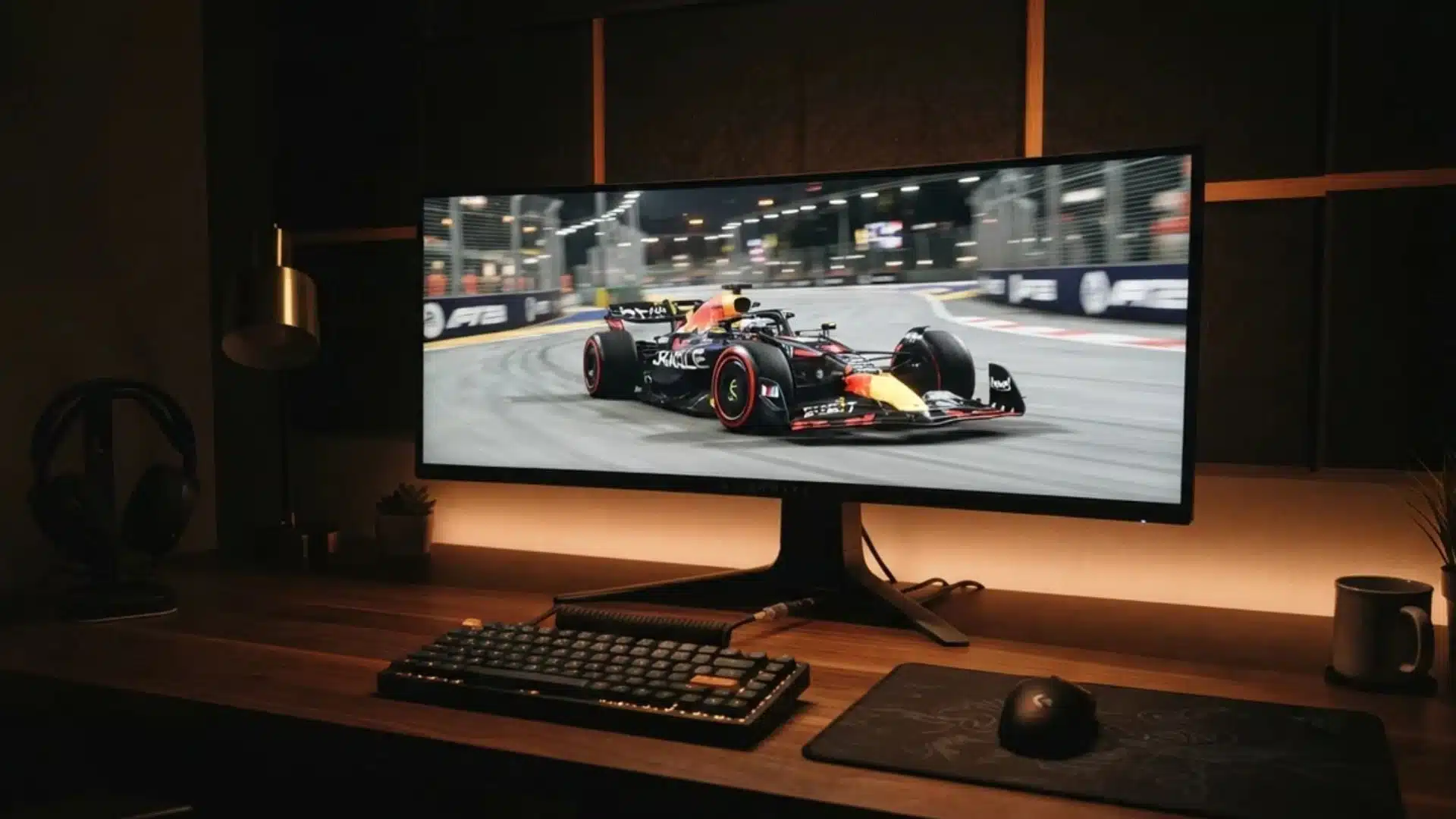
Fast motion can make a great monitor feel surprisingly messy when the response settings are not tuned well.
I usually prefer a balanced setup that keeps movement sharp without adding bright trails or strange halos around objects. That is where overdrive becomes useful.
If you are wondering what is overdrive on a monitor, it is a setting designed to speed up pixel transitions and reduce ghosting.
Understanding what overdrive does on a monitor also helps you avoid pushing it too far, since aggressive levels can create inverse ghosting instead.
Here I’ll break down how overdrive works, what each setting can change, and how to choose the right level for gaming, everyday use, and smoother on-screen motion.
What is Overdrive on a Monitor?
Overdrive on a monitor is a setting that speeds up how quickly pixels change from one color to another, helping reduce motion blur and ghosting.
It works by sending extra voltage to the pixels so they reach the required color faster. This can make moving objects look clearer, especially in fast-paced games.
Manufacturers rarely put the word “overdrive” on the box, though.
You will find the same feature sold as Response Time Compensation, RTC, TraceFree, or AMA depending on the brand, but each one pushes pixels the same way.
However, stronger overdrive is not always better. If the setting pushes pixels too hard, they can go past the intended color before settling.
This creates overshoot, which may appear as bright or dark trails around moving objects. The ideal overdrive level depends on the monitor panel and refresh rate.
Fast panels often need little overdrive, while slower panels usually benefit more from a moderate setting to improve pixel response times.
What Does Overdrive Do on a Monitor?
Overdrive improves motion clarity by helping monitor pixels change faster, reducing visible trails behind moving objects during fast on-screen action.
- Motion Blur Reduction: Overdrive speeds up pixel transitions, helping moving objects appear clearer and reducing the faint trails commonly known as ghosting.
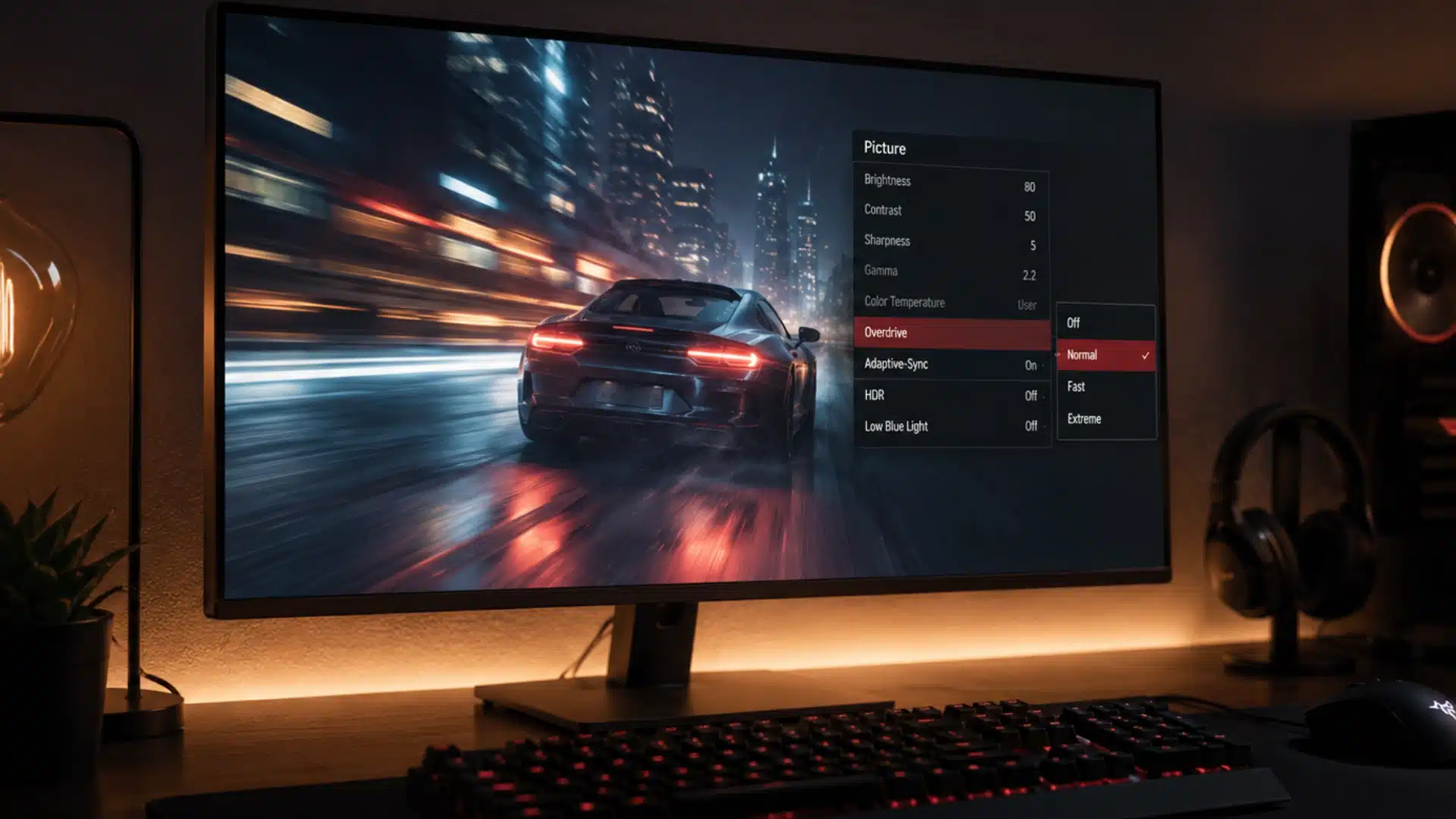
- Overdrive Levels: Most monitors include settings such as Off, Normal, and Extreme, while some brands use names like Trace Free or OD.
- Stronger Pixel Push: Increasing the overdrive level applies more voltage to pixels, allowing them to reach their target colors more quickly.
- Overshoot Risk: Excessive overdrive can push pixels beyond the intended color, creating bright or dark halos around fast-moving objects.
- Finding Balance: The best setting reduces ghosting without introducing noticeable overshoot, so stronger overdrive does not always produce better motion clarity.
My rule after years of cycling through OSD menus on review units: if you cannot tell overdrive is on during a slow camera pan, it is set correctly. The moment you can see it working, it is set too high.
What Overdrive Does Not Affect on a Monitor?
Overdrive does not increase FPS, change your refresh rate, or replace your monitor’s response time specification.
It only adjusts how aggressively pixels are pushed to complete color transitions faster.
Response time is a measured specification, usually shown in milliseconds, that tells you how quickly pixels can change from one shade to another.
Overdrive is the setting used to influence that transition speed. It also does not affect frame rate.
FPS depends mainly on your graphics card, game settings, and system performance, while refresh rate determines how often your monitor can display a new image.
Higher overdrive is not automatically better either. Pushing it too far can cause overshoot and visible halos, so the best setting is the one that reduces ghosting without creating new motion artifacts.
How to Enable Overdrive on Different Monitor Brands
Enabling overdrive is usually simple, but the setting may have a different name depending on your monitor brand. In most cases, you can find it inside the monitor’s OSD menu under gaming, picture, or response-related settings.
- LG: Open the OSD menu and look for Response Time. Depending on the model, you may see options such as Off, Normal, Fast, or Faster. LG describes Response Time as a setting that adjusts how quickly displayed images respond.
- ASUS: Open the OSD and look for Trace Free or Variable Overdrive. Trace Free adjusts monitor response time, while supported ASUS gaming monitors can automatically change overdrive strength as frame rates fluctuate.
- BenQ/ZOWIE: Look for AMA in the monitor menu. BenQ identifies AMA as its overdrive or Response Time Compensation feature on supported models.
- Dell: Look for a Response Time option in the Display or Gaming section. The exact labels and available levels depend on the monitor model.
The menu path can vary, so check your monitor manual if you cannot find the setting.
How to Decide on Your Overdrive Setting?
This setting matters most when you are watching or playing something with a lot of fast motion, like an action game or live sports.
On slower content like reading or browsing, the difference is barely noticeable either way. The right level also depends on your panel type.
VA panels often benefit from stronger overdrive, while faster IPS and TN panels usually need less to avoid unnecessary overshoot.
That panel difference is also why serious competitive setups lean toward fast IPS competitive panels in the first place, since a fast panel gives overdrive less work to do. Here is a simple way to find your setting:
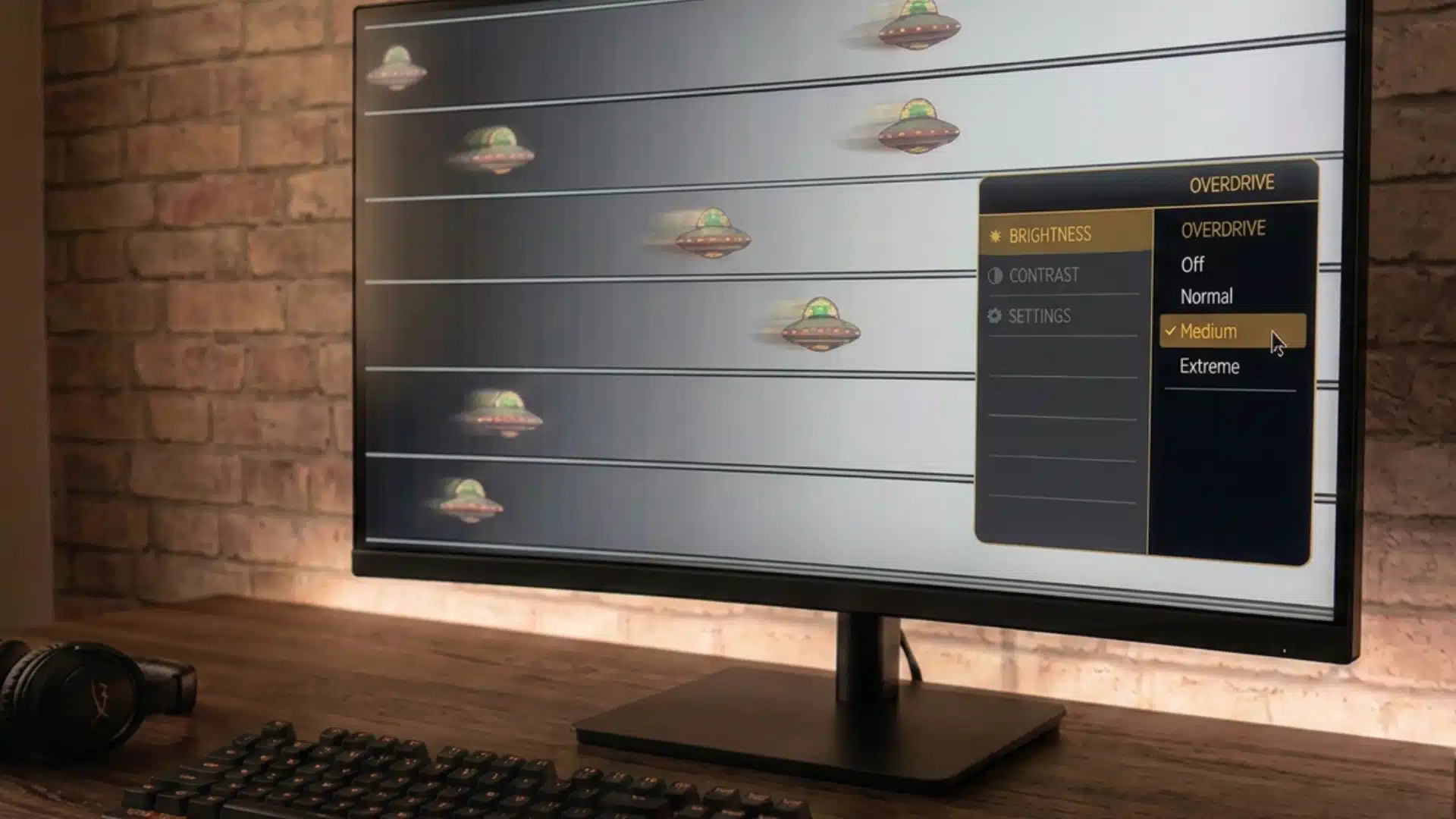
- Open the OSD Menu: Use your monitor’s physical buttons and find a setting labeled Overdrive, Response Time, Trace Free, or OD.
- Choose a Middle Setting: Start with Normal or Medium rather than selecting the strongest option right away.
- Test Fast Motion: Play a fast-paced game or use an online ghosting test to see how clearly moving objects appear.
- Adjust the Overdrive Level: Increase it if you notice ghosting, or lower it if bright or dark halos appear around moving objects.
A quick test helps find the right overdrive setting, giving you clear motion without distracting halos or repeated adjustments later.
Best Overdrive Settings by Panel Type
There is no single overdrive level that works perfectly on every monitor. Panel type, refresh rate, and the monitor’s own tuning all affect how much overdrive you actually need.
- VA Panels: Start with a Medium or Fast setting. VA panels can have slower transitions, particularly in darker shades, so moderate overdrive may noticeably reduce ghosting.
- IPS Panels: Normal or Medium is usually the safest starting point. Modern IPS panels are already fairly quick, so aggressive overdrive can introduce unnecessary overshoot.
- TN Panels: Low or Normal is often enough because TN panels generally have fast native pixel transitions.
- High Refresh Gaming: Try Normal or Fast and test moving objects carefully. Avoid the highest setting unless it clearly improves motion without halos.
- Everyday Use: Normal or a lower setting usually provides a good balance between clean movement and minimal overshoot.
The best setting is ultimately the lowest level that removes noticeable ghosting without introducing inverse ghosting or bright trails.
Does Overdrive Cause Input Lag?
Overdrive on its own does not add input lag, since it only changes how a pixel transitions between colors and never touches how fast your system reads a button press.
Some monitors do add a frame or two of processing delay, but that usually comes from a separate feature bundled into the same OSD menu, like black frame insertion or a motion interpolation mode, not from overdrive itself.
On my own 240Hz panel, switching between Normal and Extreme overdrive shows no difference on an input lag tester, while turning on a separate backlight strobing mode adds several milliseconds every time.
If a monitor feels laggier only with overdrive turned up, check whether that setting is tied to another image processing feature in the OSD before blaming overdrive for it.
How Overdrive is Changing on Newer Monitors?
Monitor overdrive is getting easier to manage as newer displays handle more of the adjustment automatically.
- Adaptive Overdrive: Some newer monitors change pixel voltage based on the current refresh rate.
- Variable Refresh Rate Support: This helps when refresh rate shifts during gameplay instead of staying fixed.
- Cleaner Motion: Adaptive systems can reduce blur and overshoot across a wider refresh range.
- Less Manual Tuning: Users may not need to switch between settings like Normal, Fast, or Extreme as often.
- Better Buying Feature: Checking for adaptive or variable overdrive is useful if you want smoother motion with less setup work.
This is the same logic behind matching frame rate to your panel’s refresh headroom for any competitive setting, not just overdrive.
As this feature becomes more common, monitor motion settings should feel simpler and more reliable for everyday gaming.
Conclusion
A good overdrive setting can make fast motion look cleaner without changing anything else about your monitor.
I prefer starting with a balanced option rather than the highest level, because it gives you room to judge ghosting and overshoot.
If you have been asking what is overdrive on a monitor or what does overdrive do on a monitor, the key is simple: it helps pixels transition faster, but only when the setting suits your panel.
Spend a few minutes testing Normal, Medium, or similar options during fast movement, and keep the one that looks cleanest. Once it is set correctly, you can leave it alone.
Have you tested overdrive on your monitor yet? Share your settings and results in the comments below.
Frequently Asked Questions
Should I Have Overdrive on or off on My Monitor?
Leaving overdrive on at a moderate setting is usually best for fast-moving content like gaming, since it reduces ghosting. Turning it off suits slower content like browsing or reading, where motion clarity matters less, and there is no overshoot risk. The right choice depends on what you are using the monitor for, not a fixed rule.
Which Overdrive Mode is Best for a Monitor?
A Medium or Normal setting is typically the safest starting point, since Extreme modes often introduce visible overshoot on many panels. The best mode varies by monitor and panel type, so testing with fast-motion content or a ghosting test tool is the most reliable way to confirm which level looks cleanest on your specific display.
Does Overdrive Increase FPS?
No. Overdrive only changes how fast a pixel transitions between colors, and it has no effect on frame rate. FPS depends on your GPU’s output and the monitor’s refresh rate, both of which are separate from the overdrive setting entirely. Overdrive can make fast motion look smoother, but it does not add frames.
How High Should My Overdrive Be on My Monitor?
Start at a middle setting like Normal or Medium rather than the maximum. If you notice blur or ghosting trailing behind moving objects, raise it a level. If you start seeing bright or dark halos instead, that is overshoot, so back it down until the trailing disappears without new artifacts showing up.