I had no idea the color codes Minecraft used were already built into the game until I spent an embarrassing amount of time looking for a mod to do it.
Once I found the § character, everything changed.
One symbol before a digit or letter, and the renderer switches colors instantly across signs, configs, and command blocks. The surface problem tripped me up the longest.
The same code that works perfectly in server.properties gets silently filtered in the Java chat field, and nobody warns you about that upfront.
Keep reading, and you will find the full color table, formatting modifiers, reset habits, and where MiniMessage fits in, all drawn from what actually worked for me.
What are Minecraft Color Codes?
Minecraft color codes are a built-in formatting system that lets you change the color of text in-game. No mods, no cheats, just a native feature the game has had since early Java Edition.
The way it works is simple: the § character acts as an escape signal to the renderer.
When it sees §, it reads the next character and looks it up against a 16-color palette mapped to digits 0–9 and letters a–f.
Here’s the part worth knowing early: that color attribute doesn’t stop at one word. It sticks to every character after it until you explicitly reset it with §r or drop in a new code.
You’ll notice § typed directly into Java Edition chat produces nothing visible.
That’s intentional, not broken. Minecraft processes color codes natively in server configs, command blocks, and /tellraw, just not the chat field.
The Complete Minecraft Color Code List (All 16 Colors)
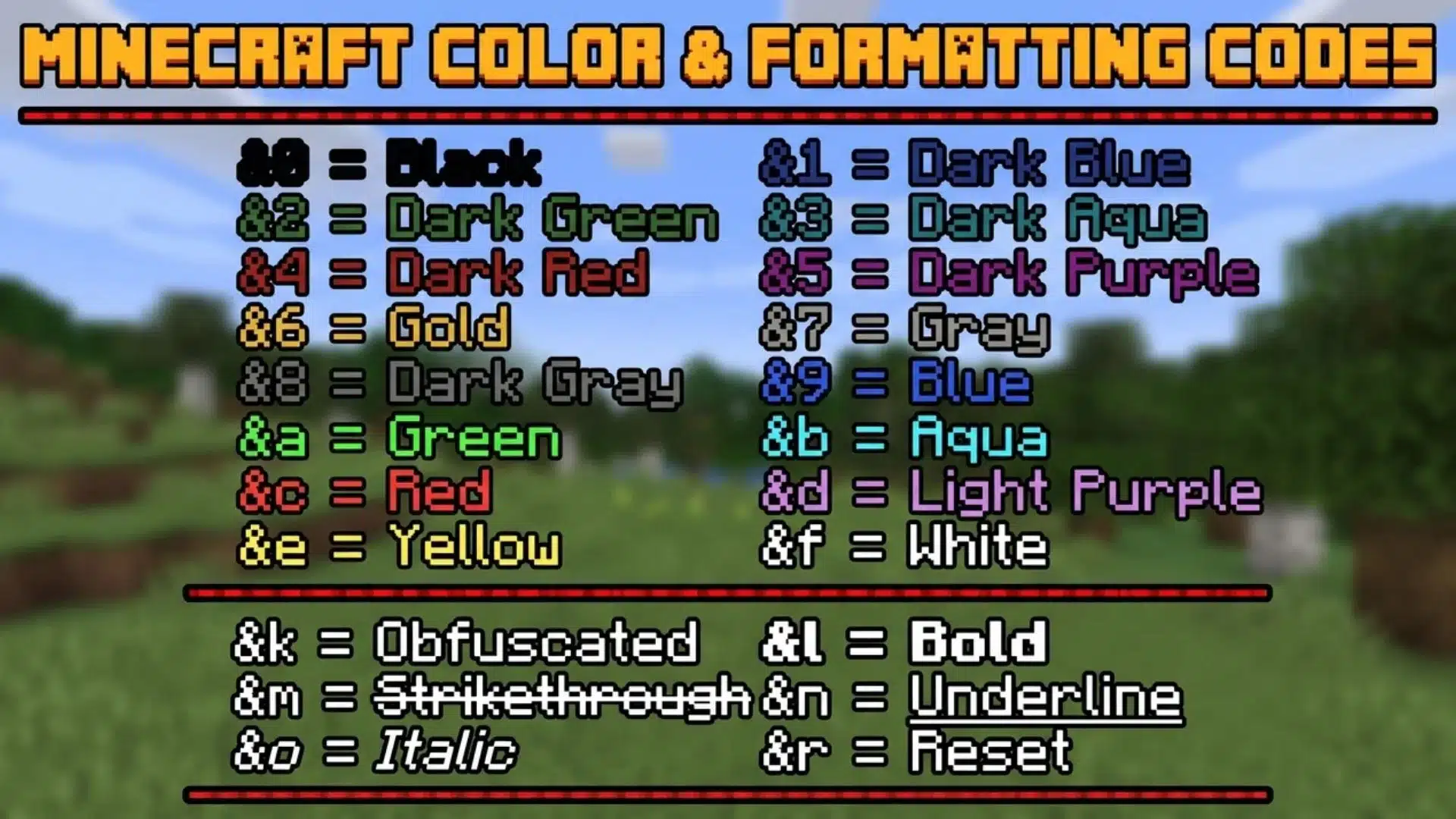
Once you know thecolor codes Minecraft gives you, the next question is which ones actually work for your situation. Here’s how I group them in practice:
Standard Color Codes
Minecraft’s color codes answer the same question every time someone asks about them: which of the 16 options actually fits a given use case.
Each code maps to a § character, an & shorthand for plugin use, an internal name, and a single hex digit.
| § Code | & Shorthand | Internal Name | Hex Digit |
|---|---|---|---|
| §0 | &0 | black | 0 |
| §1 | &1 | dark_blue | 1 |
| §2 | &2 | dark_green | 2 |
| §3 | &3 | dark_aqua | 3 |
| §4 | &4 | dark_red | 4 |
| §5 | &5 | dark_purple | 5 |
| §6 | &6 | gold | 6 |
| §7 | &7 | gray | 7 |
| §8 | &8 | dark gray | 8 |
| §9 | &9 | blue | 9 |
| §a | &a | green | a |
| §b | &b | aqua | b |
| §c | &c | red | c |
| §d | &d | light_purple | d |
| §e | &e | yellow | e |
| §f | &f | white | f |
A couple of things worth flagging from personal experience:
- §0 (black) disappears on dark backgrounds: It’s completely invisible on Minecraft’s default dark chat background. The code works fine; it just blends in. Use it only on signs or light backgrounds.
- §7 and §8 look nearly identical: Gray and dark_gray are easy to mix up until you place them side by side.
- &9 and &6 come up constantly: Blue and Gold show up in server rank prefixes more than any other pair, so they’re worth memorizing early.
One thing I got wrong early on: the & shorthand is not a vanilla Minecraft character.
It only works because plugins like EssentialsX intercept it and translate it to §. Type & in a vanilla config and nothing happens.
Color Code Quick Reference by Use Case
Different situations call for different codes, and this is the breakdown that holds up in practice:
| Use Case | Recommended Codes | Why |
|---|---|---|
| Signs and readable text | §a, §b, §e, §f | Bright, high contrast on dark backgrounds |
| Server MOTD | §6, §9, §d | Distinctive and readable in the server list |
| Subtle or secondary text | §7, §8 | Low-key, good for less important info |
| Warnings or alerts | §c, §4 | Red tones read as urgent immediately |
| Ranks and prefixes | §6, §b, §5 | Gold, aqua, purple feel premium |
The internal name strings like dark_red or gold matter beyond the table. You’ll need them when writing /tellraw commands or data pack JSON.
Bright codes like §e and §f work best on dark backgrounds. On a light sign background, §f (white) disappears entirely, same problem as §0 on dark chat.
Once you have these 16 codes mapped in your head, everything else in Minecraft text formatting starts clicking into place a lot faster than you’d expect.
Minecraft Formatting Codes: Bold, Italic, Obfuscated, and Reset

Minecraft formatting codes are six § codes that modify text attributes like weight, style, and visibility. They use the same escape mechanism as color codes, but target appearance instead of hue.
1. The Six Formatting Codes
Minecraft gives you six formatting codes that modify how text looks without changing its color. They plug into the same § escape system you already know from color codes.
| § Code | & Shorthand | Effect | Behavior Notes |
|---|---|---|---|
| §l | &l | Bold | Thickens text weight |
| §o | &o | Italic | Slants text right |
| §n | &n | Underline | Adds an underline beneath text |
| §m | &m | Strikethrough | Draws a line through text |
| §k | &k | Obfuscated | Rapidly flickering random glyphs |
| §r | &r | Reset | Clears all active color and format attributes |
§k does not encrypt or hide text. It just swaps characters for flickering random glyphs client-side. The underlying string stays fully readable in the source.
§r is the most underused code on this list. Skipping it is the single most common cause of unrelated text quietly inheriting colors nobody meant to apply to it.
The & shorthand only works where a plugin like EssentialsX is actively translating it. In vanilla configs, it does nothing, which often confuses new server owners.
2. Stacking Formatting Codes
Stacking is where most people run into problems. Each formatting code adds an attribute layer without canceling anything that came before it, and that piles up fast.
| Scenario | What Happens |
|---|---|
| §l then §o | Bold and italic both active simultaneously |
| §6 then §l | Gold color with bold applied on top |
| No §r at end | All active attributes bleed into following text |
| §r mid-string | Wipes every active color and format at that point |
Without §r, every active attribute bleeds into all text that follows, including lines that were never meant to be formatted.
Ending every formatted string with §r without exception avoids this entirely.
3. Combining Color and Formatting
Order matters more than most guides admit. Color code always goes first, formatting second, then your text, then §r to close.
| Order | Example | Result |
|---|---|---|
| Correct | §6§lThis is bold gold text§r | Renders cleanly across versions |
| Incorrect | §l§6This is bold gold text§r | Inconsistent rendering across Minecraft versions |
Reversing the order does not always break output visibly, but it produces inconsistent rendering across Minecraft versions and is a common source of formatting bugs that are hard to track down after the fact.
Stacking multiple formatting codes after the color works fine.
§6§l§o This is bold italic gold§r renders correctly across most setups without any issues.
Every stacked attribute gets wiped simultaneously the moment §r appears at the end of the string. Getting this habit right is what separates clean server text from color-bleeding, broken-looking chat lines.
Where and How to Apply Minecraft Color Codes (Chat, Signs, MOTD, Commands)?

Where you apply a color code matters more than the code itself, because the same § character gets treated completely differently depending on the surface.
The failure is almost always about placement, not a wrong code. Minecraft’s client intentionally blocks § in the chat field to prevent formatting abuse.
But the server-side rendering engine still processes § fine when it comes from a config file, plugin, or command.
The input surface determines whether § reaches the renderer or gets filtered before arrival. This is why /tellraw works without a plugin: it injects formatted JSON directly into the render pipeline.
Players who already lean on popular Minecraft mods for server customization will recognize the same logic, since most formatting plugins hook into this exact pipeline.
1. In Chat (Java Edition)
Typing § directly into Java Edition chat produces nothing. The client filters it out before it reaches the renderer. This is intentional behavior, not a bug with your code.
For vanilla chat colors, /tellraw is your cleanest option since it bypasses the chat field entirely. For persistent colored prefixes across your server, EssentialsX with & shorthand is what I use.
2. On Signs and Books
You cannot type § directly onto a sign in Java Edition. Copy-paste it instead. On Windows, use Alt + 0167; on Mac, use Option + 6 to produce §.
Bedrock Edition handles this differently. On some Bedrock platforms, § works natively on signs without any workaround.
Chat formatting on Bedrock remains more restricted than Java regardless.
3. In Server MOTD (server.properties)
The server.properties file is one of the cleanest places to use color codes. You type § directly into the MOTD line, and it renders correctly in the server list.
A working example: motd=§6Welcome to My Server§r. Gold text, reset at the end. No plugin needed, no workaround required whatsoever.
For anyone setting this up for the first time, a game server hosting guide is worth checking alongside this, since the MOTD line lives in the same config most hosts expose in their control panel.
4. In Command Blocks and /tellraw
Command blocks support § codes directly in most text fields. For /tellraw, colors are defined using named keys inside a JSON text component rather than § codes.
A basic example: /tellraw @a {“text”: “Hello”, “color”: “gold”}. For complex strings, § codes still work directly inside the text value field of the JSON component.
5. In Item Names and Lore (Anvil / Data Pack)
Coloring item names via anvil in Vanilla 1.21 Java requires a data pack supporting the item_name component. Typing § into the anvil rename field alone does not work.
On servers running EssentialsX, & codes in the anvil rename field work directly.
For data pack workflows, define formatted names in JSON. MiniMessage is the modern standard on Paper servers from 1.20 onward.
Once you know which surface you are working on, color-coded failures become easy to diagnose, and the fixes are almost always straightforward.
MiniMessage and Hex Colors: Color Codes on Modern Minecraft Servers
MiniMessage is a tag-based text formatting system used on modern Paper and Spigot servers. It replaces § codes and unlocks the full 16.7 million RGB hex color spectrum.
This section only applies if you are running a Paper or Spigot server with Adventure API support. Vanilla servers, Fabric without mods, and Bedrock do not support MiniMessage at all.
A common mistake when moving to a Paper server is sticking with § codes out of habit.
On modern Paper 1.16+ servers, legacy § formatting can produce stripped or completely broken output.
MiniMessage Tag Syntax
MiniMessage wraps text in opening and closing tags instead of prefixing it with § codes. The structure feels different at first but becomes intuitive once you write a few formatted strings.
- Named color tags carry over cleanly: Tags like
<red>and<gold>map directly to the same 16-color palette as § codes, so switching doesn’t lose anything from the legacy color range. - Hex colors go further: The format
<color:#RRGGBB>text</color>takes a six-digit hex value, and this is where MiniMessage goes well beyond what § codes can do. - Formatting tags follow the same pattern:
<bold>text</bold>and<italic>text</italic>work exactly as the names suggest. - Close every tag deliberately: According to MiniMessage’s own formatting documentation, unclosed tags are auto-closed by default, but that behavior changes under strict mode or on older Adventure builds, so relying on it instead of closing tags yourself is what actually causes broken output across different plugin setups.
Once you internalize the open-and-close structure, MiniMessage syntax is actually more readable than § codes. Named tags make formatted strings far easier to scan and debug.
Legacy § vs. MiniMessage: When to Use Each?
The choice comes down to server software, not preference: legacy § codes for vanilla, Bukkit, and older Spigot, and MiniMessage for anything running the Adventure API.
- Legacy fits older setups: § codes are the right choice for vanilla, Bukkit, and older Spigot servers. MiniMessage is built for Paper 1.16+ and modern plugins running the Adventure API.
- Hex is MiniMessage-only: Hex color support is exclusive to MiniMessage via the
<color:#RRGGBB>format. There is no equivalent in the legacy § system at all. - Never mix the two: Mixing § codes and MiniMessage tags in the same string on a Paper server produces unpredictable output or silent failures. Pick one system and use it consistently.
Paper’s deprecation stance on legacy § formatting is actively evolving.
Verify the current position before building any server workflow or published guide around legacy codes.
If you are on a modern Paper server, MiniMessage is worth learning properly. Full hex color control makes § codes feel noticeably limited almost immediately after you start using it.
Conclusion
Minecraft color codes come down to one symbol, sixteen colors, and six formatting options once the confusion clears away.
The trick that saves the most time is remembering that the surface matters more than the code itself. Chat blocks it, signs need a small workaround, and server files accept it without any fuss.
Add §r at the end of every formatted string, and you skip the most common mistake beginners make.
If you run a Paper server, learning MiniMessage next opens up full hex colors and makes your text stand out even further.
Try coloring your next sign or server message today and watch it render exactly the way you planned.
Frequently Asked Questions
Do Minecraft Color Codes Work the Same Way in Bedrock as in Java?
No, not identically. Both editions use the same sixteen § color codes, but Java blocks typing § directly into chat while Bedrock allows it on signs. Java Edition relies on commands or plugins for chat and sign colors instead of direct input. Bedrock also has one exclusive code, §g, for Minecoin Gold, with no Java equivalent.
Can I Use Color Codes in a Minecraft Server MOTD?
Yes, and it is one of the most practical uses of the whole system. Server administrators can add color codes directly to the MOTD line in server.properties, and they render correctly in the multiplayer server list. This works well for seasonal themes and announcements. On Paper servers, MiniMessage tags replace legacy codes in the MOTD.
Where Can I Type § Color Codes in Vanilla Java Edition?
Vanilla Java only accepts § in specific places: server.properties, pack.mcmeta, splashes.txt, language files, world titles, server names, and commands such as /tellraw and /title, including inside data packs. Typing § directly into chat, signs, or item names does nothing in vanilla. Anywhere else requires a plugin or an external tool.
Do Color Codes Work Inside /tellraw and Data Pack JSON Commands?
Yes, but the syntax changes. Instead of § codes, /tellraw and data pack JSON use named color keys, such as “color”: “gold”, inside the JSON text component. These internal names, like dark_red or gold, also apply to team colors and dyed leather armor, so learning them pays off beyond simple chat formatting.