Discord’s overlay is easy to ignore until it starts covering something you actually need to see. It can be useful when you want to chat without leaving your game, but that convenience can quickly turn into a distraction.
Knowing how to turn off Discord overlay is not always as simple as flipping one setting. In some cases, it stays visible, only affects certain games, or turns out to be coming from another app entirely.
Here, you’ll see how to disable it properly and what to check if it refuses to disappear.
What Is the Discord Overlay?
The Discord overlay is an on-screen layer that appears over supported games while Discord runs in the background. It can show voice activity, chat messages, notifications, and a few Discord controls without making you leave the game.
That sounds useful, but it can also create problems. Popups may cover parts of the screen, voice icons can sit over game elements, and notifications can pull your attention away during a match.
The overlay can feel unnecessary if you use a second monitor, check Discord between rounds, or only need voice chat in the background. In those cases, extra screen elements may add more clutter than value.
Some games can also behave differently with multiple overlays running at once. If Discord gets in your way, turning it off or limiting what it shows is usually the better option.
Note: Discord’s Game Overlay is available on Windows 10 and 11 only. It does not work on macOS or Linux.
How to Turn Off Discord Overlay: Remove, Mute, or Disable It Permanently
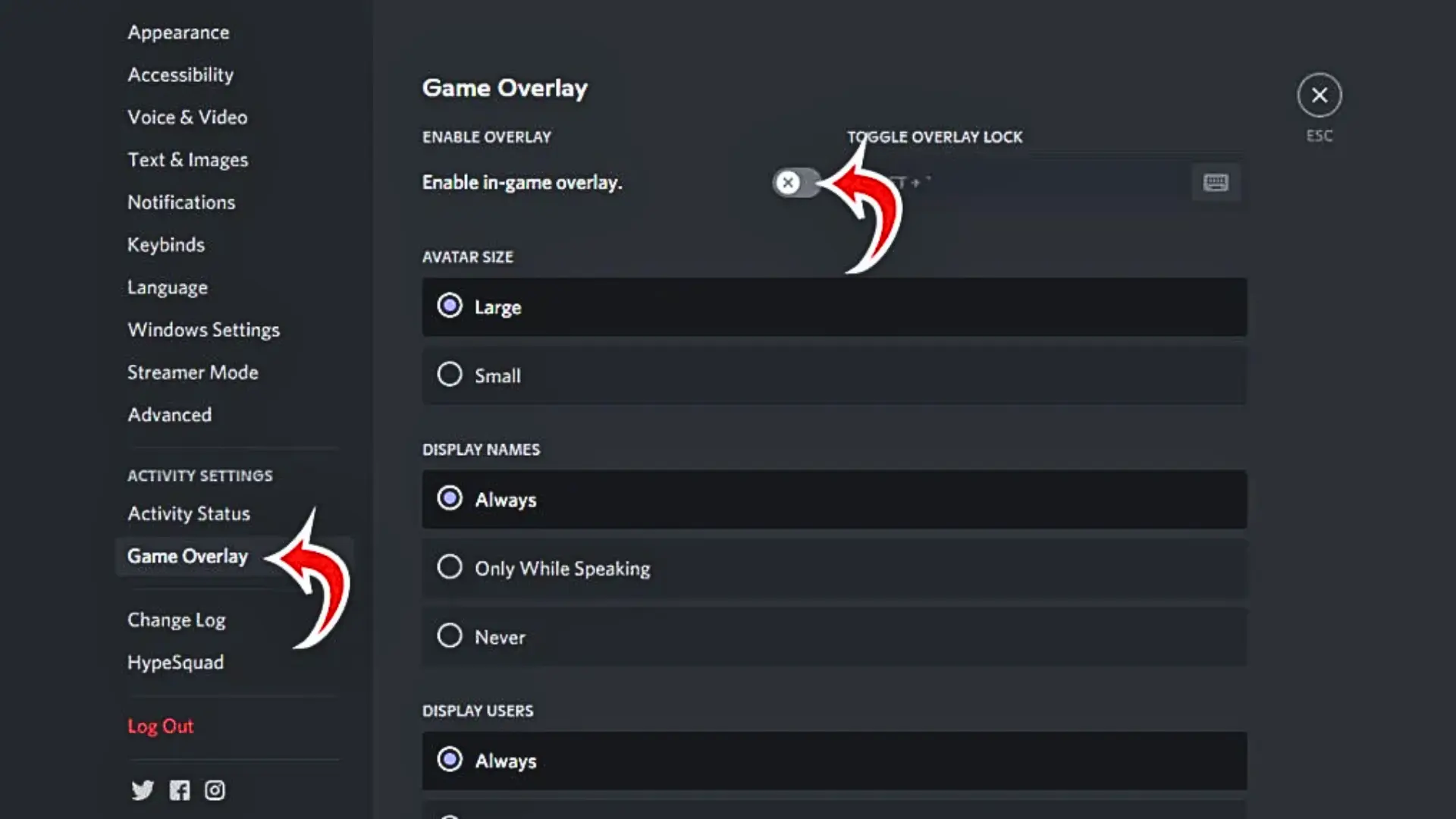
You can turn off the overlay for every game, disable it for one specific game, mute only the parts that distract you, or hide it quickly while playing. All of these options are found in Discord → User Settings → Overlay.
1. Disable Discord Overlay for Every Game
- Open Discord on your computer.
- Click the gear icon next to your username in the bottom-left corner. This opens User Settings.
- In the left menu, scroll down to Activity Settings.
- Click Game Overlay.
- Find the Enable Overlay option and turn it off.
- Turn the switch off.
Once this is disabled, Discord will stop showing its overlay in every game you launch.
2. Disable Discord Overlay for a Specific Game
If the overlay only causes problems in one game, you do not need to turn it off everywhere. I have found this is often the better option if you still use Discord features in your other games.
- Open Discord and go to User Settings.
- Select Activity Settings, then open Game Overlay.
- Scroll down to the list of detected games.
- Find the game where you want to remove the overlay.
- Turn off the switch next to that game.
If Discord’s overlay only bothers you in one game, disabling it there lets you keep the feature available for your other games. This way, you can enjoy a cleaner screen without turning off the overlay everywhere.
3. Turn Off Discord Chat Notifications and Voice Icons Only
Sometimes the overlay itself is useful, but certain parts get in the way. You can turn off specific features while keeping the rest.
- Open User Settings.
- Go to Activity Settings and select Game Overlay.
- Under User Settings → Game Overlay, enable or disable Messages to control Discord messages that appear during gameplay.
- Under User Settings → Game Overlay, adjust the voice display options to control how users, names, and avatars appear during voice chats.
- Turn off the option you do not want.
This option works well if you want to keep the Discord overlay but remove the parts that distract you. Adjust the message and voice settings to keep only the features you actually need.
4. Hide It Quickly With the Discord Overlay Hotkey
If you do not want to change Discord’s main overlay settings, you can hide specific overlay windows while playing. The overlay hotkey gives you quick access to these controls without leaving your game.
- Press Shift +
** to open the Discord overlay. The **key is usually located below the Esc key and to the left of the 1 key. - The Discord overlay widget will appear.
- Click the blue pin icon on the widget.
Unpinning a window hides that specific overlay window in the game until you pin it again. It will appear again the next time you start the game. This is only a quick session fix. It does not change your main Discord overlay settings.
Why the Overlay Keeps Showing Up After You Turn It Off
If you turned off the Discord overlay but still see something on your screen, one of these things is usually the reason:
- Restart the Game: If the game was already open when you changed the Discord setting, the change may not show right away. Close the game fully, then open it again.
- Make Sure It Is Actually Discord: Windows Game Bar, Nvidia GeForce Experience, and the Steam platform also have their own game overlays. They can look very similar to Discord’s overlay.
- Look at Discord’s Game List: Open Game Overlay settings and find your game. If your game is not detected by Discord, you can open it and use Add it! under Registered Games to add the running application manually.
- Test the Setting You Changed: If you disabled the overlay for one game, open that game and see if it still appears. If you only turned off voice icons or chat popups, test that specific feature.
If the overlay still appears after restarting the game and checking Discord’s settings, it is probably coming from another app.
Conclusion
Discord overlay settings can be changed in a few simple ways, whether you want to disable it completely, remove it from one game, or hide specific notifications. You also learned how to check why the overlay may still appear after being turned off.
If you have been wondering how to turn off the Discord overlay because it interrupts your games, the fix usually only takes a minute. Try the steps that match your setup and get back to a cleaner gaming experience.
If you run into any issues or have another Discord tip to share, leave a comment below and let me know.
Frequently Asked Questions
How do I permanently turn off the Discord overlay?
Go to User Settings, then Activity Settings, then Game Overlay. Toggle “Enable in-game overlay” off. That removes it everywhere for good. To remove it from just one game instead, expand the game list in that same menu and disable it there. If a game was already open, close and relaunch it for the change to apply.
How do I turn the Discord overlay back on?
Open User Settings, go to Activity Settings, and select Game Overlay. Switch “Enable in-game overlay” back on. If you’d disabled it for one game only, expand the game list and re-enable the switch next to that game. The change applies the next time you launch it.
Why does the Discord overlay keep popping up when I press Shift?
Shift and the tilde key are Discord’s default hotkeys for the overlay widget. Pressing it, on purpose or by accident, brings the widget up even with the setting on. Click the blue pin icon to dismiss it for that session. You can also change the keybind in Game Overlay settings.
What is the Discord overlay hotkey?
By default, it’s Shift plus the tilde key, the one under Escape. It opens and closes the overlay widget during a game. This only affects that session. It doesn’t touch the permanent “Enable in-game overlay” setting. You can reassign it from the Game Overlay section of User Settings.