You start a game, turn the camera, and suddenly notice a line cutting across the screen. That distracting effect is screen tearing, and it can make smooth gameplay feel rough.
That is where variable refresh rate (VRR) comes in. It lets a compatible monitor or TV adjust its refresh rate to better match the frames your PC or console sends.
But should you leave it on all the time? The answer is usually yes, although some setups can run into flicker, brightness changes, or signal issues.
I’ll explain whether to leave variable refresh rate on or off, how VRR works, and when switching it off can make sense.
What Is Variable Refresh Rate (VRR)?
Variable refresh rate, or VRR, is a display technology that lets a monitor or TV change its refresh rate to better match the frame rate produced by a PC or console.
A fixed 60Hz display refreshes 60 times per second, even when a game is producing 47, 52, or 58 frames per second, which is why picking the right refresh rate for your monitor matters before VRR even enters the picture.
With VRR enabled, a compatible display can adjust its refresh timing as the game’s frame rate changes. VRR does not increase FPS or make a slow game run faster.
Instead, it helps the display present the frames your system is already producing more smoothly.
Variable Refresh Rate On or Off? The Quick Answer
For most players, turn VRR on. It is especially useful when your game’s frame rate changes frequently and stays within the display’s supported VRR range.
| Gaming Situation | Best Starting Setting | Why |
|---|---|---|
| Frame rate rises and falls | On | The display can adjust its refresh timing to follow changing frame output. |
| You notice screen tearing | On | VRR can greatly reduce or eliminate tearing within its supported range. |
| You play supported console games | On | Compatible consoles and displays can work together to provide smoother motion. |
| You see VRR flicker or brightness changes | Test Off | Some displays can show visible brightness fluctuations with VRR. |
| The screen briefly goes black | Test Off | A connection or compatibility problem may be involved. |
| One game behaves badly with VRR | Test Off | A game-specific problem may make VRR less useful for that title. |
| FPS stays well above the display’s maximum refresh rate | Test Both | Competitive players may prefer the latency characteristics of their specific setup with VRR disabled. |
For most gaming setups, VRR is a good starting point. If your display shows flicker, black screens, or other issues, compare both settings and keep the one that works best with your hardware.
Why Use VRR for Gaming?
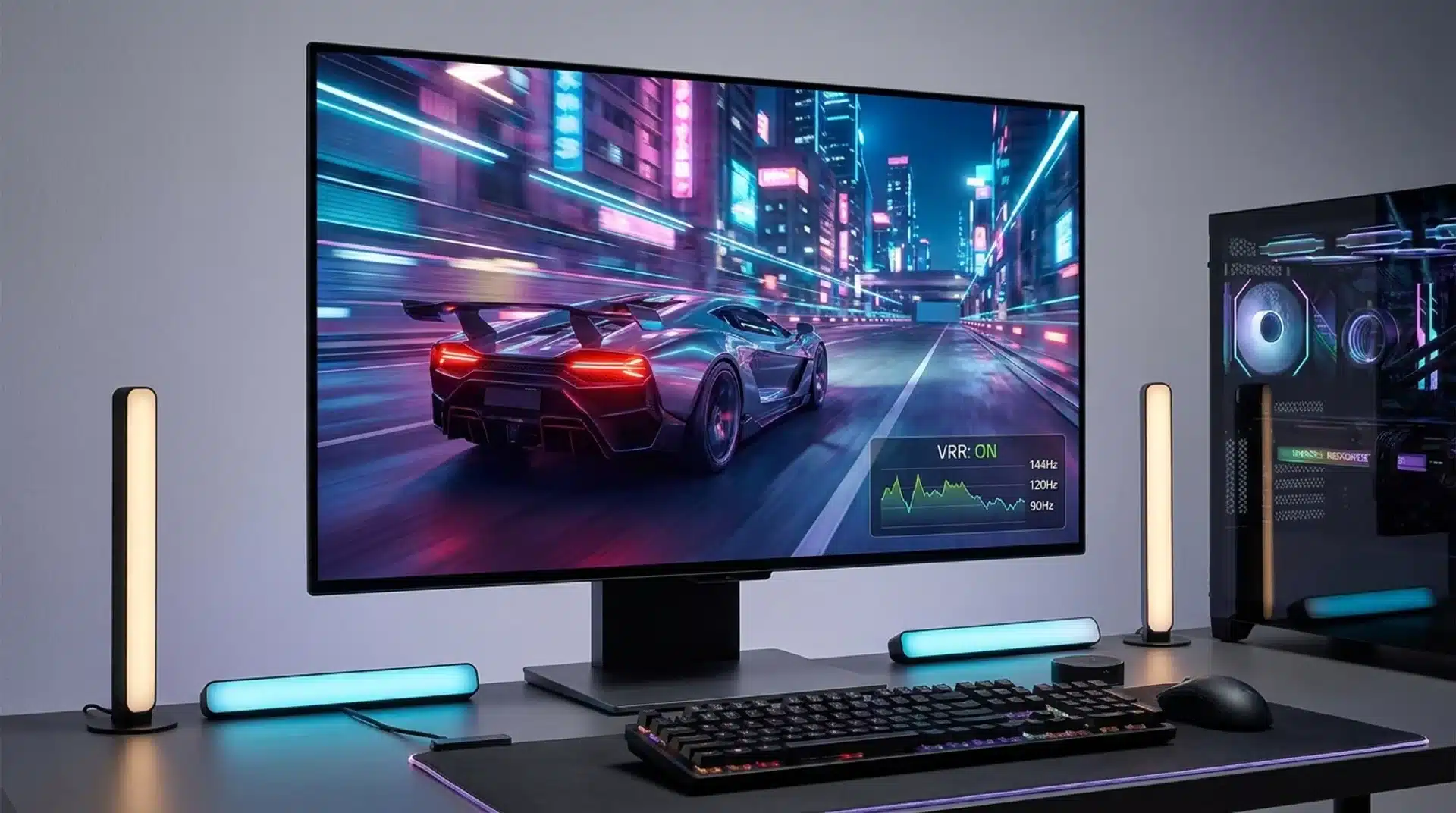
VRR helps solve the timing mismatch between a game’s frame output and a display’s refresh cycle. Your graphics card or console may produce frames at changing intervals, while a fixed-refresh display continues updating on a set schedule.
Reduces Screen Tearing
Screen tearing happens when parts of different frames appear on the screen at the same time. It is often easiest to notice during a fast camera turn, especially around straight edges such as walls, roads, windows, or buildings.
VRR can reduce or eliminate this tearing when the game’s frame rate remains within the display’s supported VRR range. The display adjusts its refresh timing so it is better synchronized with the incoming frames.
Makes Variable Frame Rates Look Smoother
Game performance rarely stays at one exact frame rate.
A title running around 60 FPS may drop to 55 FPS during a busy scene and climb back to 60 FPS when the scene becomes less demanding, and part of that dip can trace back to safe CPU temperature ranges being pushed under sustained load.
VRR allows the display to adjust its refresh rate along with those changes.
This does not prevent the FPS drop, but it can make the change look smoother and less distracting than using a fixed refresh rate. VRR works best when the frame rate remains inside the display’s VRR range.
If performance falls too low or rises above the maximum supported range, other settings may be needed.
When Should You Turn VRR Off?
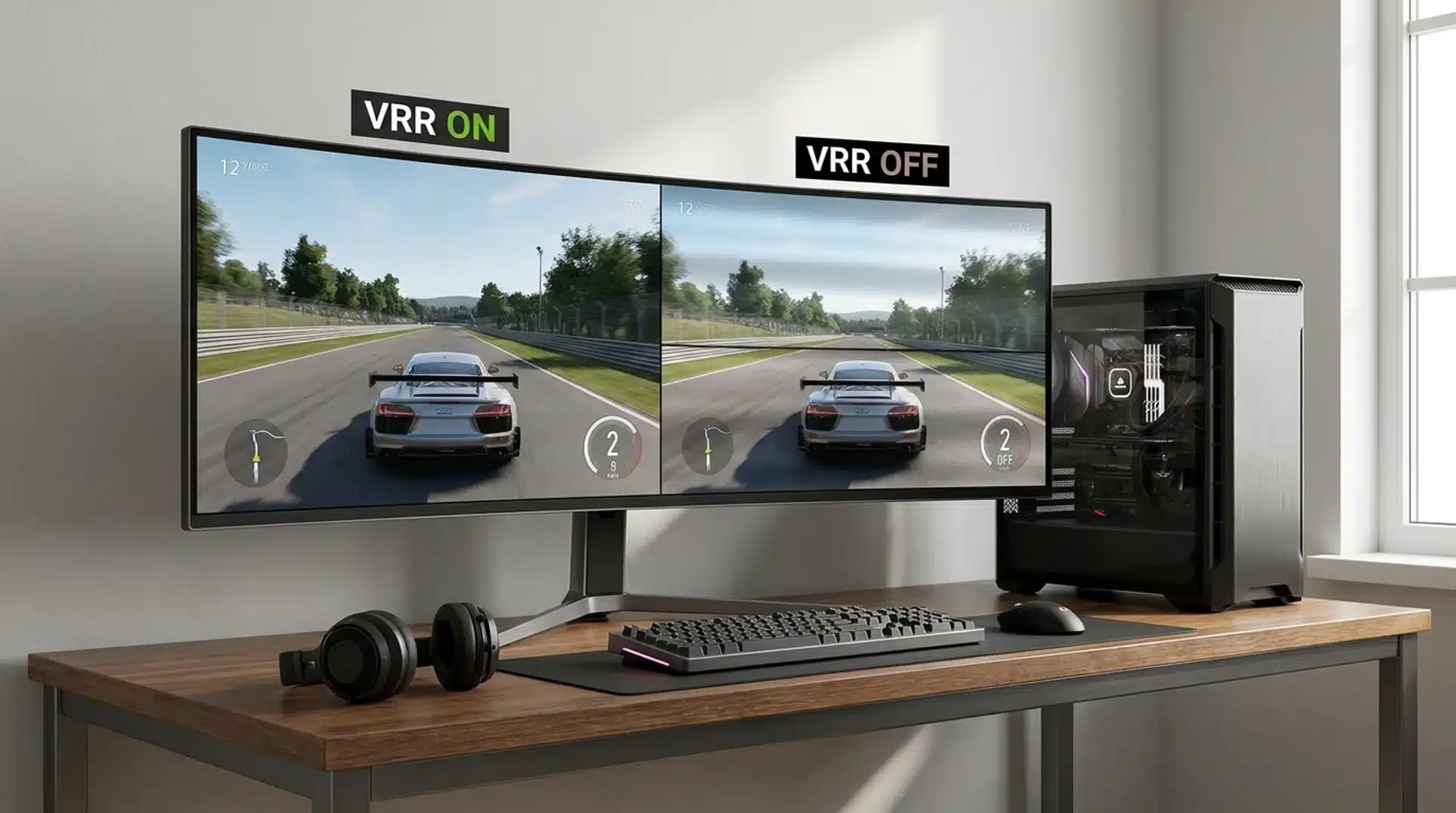
VRR is a strong default, but there are situations where turning it off can make sense. The most important reason is a repeatable problem that disappears when VRR is disabled.
1. VRR Flicker or Brightness Changes
Some OLED and VA displays can show visible brightness changes when the frame rate moves around, particularly during dark scenes or rapid changes in performance. This behavior is commonly called VRR flicker.
If the screen repeatedly flashes, pulses, or changes brightness during the same game scene, disable VRR and repeat the test.
If the problem disappears, the display’s VRR behavior may be responsible. The effect varies by panel and display model, so a VRR setting that works perfectly on one monitor may not look the same on another.
2. The Display Loses Its Signal
A brief black screen can indicate a connection or compatibility problem. The cable, HDMI or DisplayPort port, graphics driver, display firmware, receiver, or VRR implementation can all play a role.
VRR is not automatically the cause just because the problem disappears when you disable it. Try another supported cable or port, update the relevant software or firmware, and test a direct connection between the gaming device and display.
If the black screen only occurs with VRR enabled and disappears consistently when it is disabled, keeping VRR off may be the practical choice.
3. A Game Behaves Badly With VRR
A particular game can behave differently from the rest of your library. You might see flicker, unusual animation, menu problems, or other display issues while other games work normally.
If your graphics software or console provides game-specific settings, disable VRR for that title instead of changing the system-wide setting.
This lets you keep VRR enabled for games that benefit from it while avoiding a problem with one specific title.
4. You Compete at Very High, Stable Frame Rates
Competitive players who consistently run games at very high frame rates may care more about latency than the benefits VRR provides.
If your FPS stays well above your monitor’s maximum refresh rate, test VRR on and off using the same frame cap, graphics settings, resolution, and game scene.
Do not disable VRR simply because another player claims it is always faster. The best setting depends on your hardware, game, synchronization settings, and personal priorities.
What Is the VRR Range?
Every VRR display has a supported refresh-rate range, such as 48Hz to 144Hz. When a game runs at 75 FPS, a compatible display can adjust its refresh rate to around 75Hz, helping reduce tearing and uneven motion.
If FPS falls below the minimum, some displays use Low Framerate Compensation (LFC) to repeat frames and keep VRR working.
For example, AMD says a compatible 60–144Hz FreeSync display can show a 40 FPS signal at 80Hz by repeating frames. If FPS rises above the maximum, VRR cannot match every frame.
A frame cap can help keep FPS within the display’s supported range.
How to Turn VRR On and Check That It Works
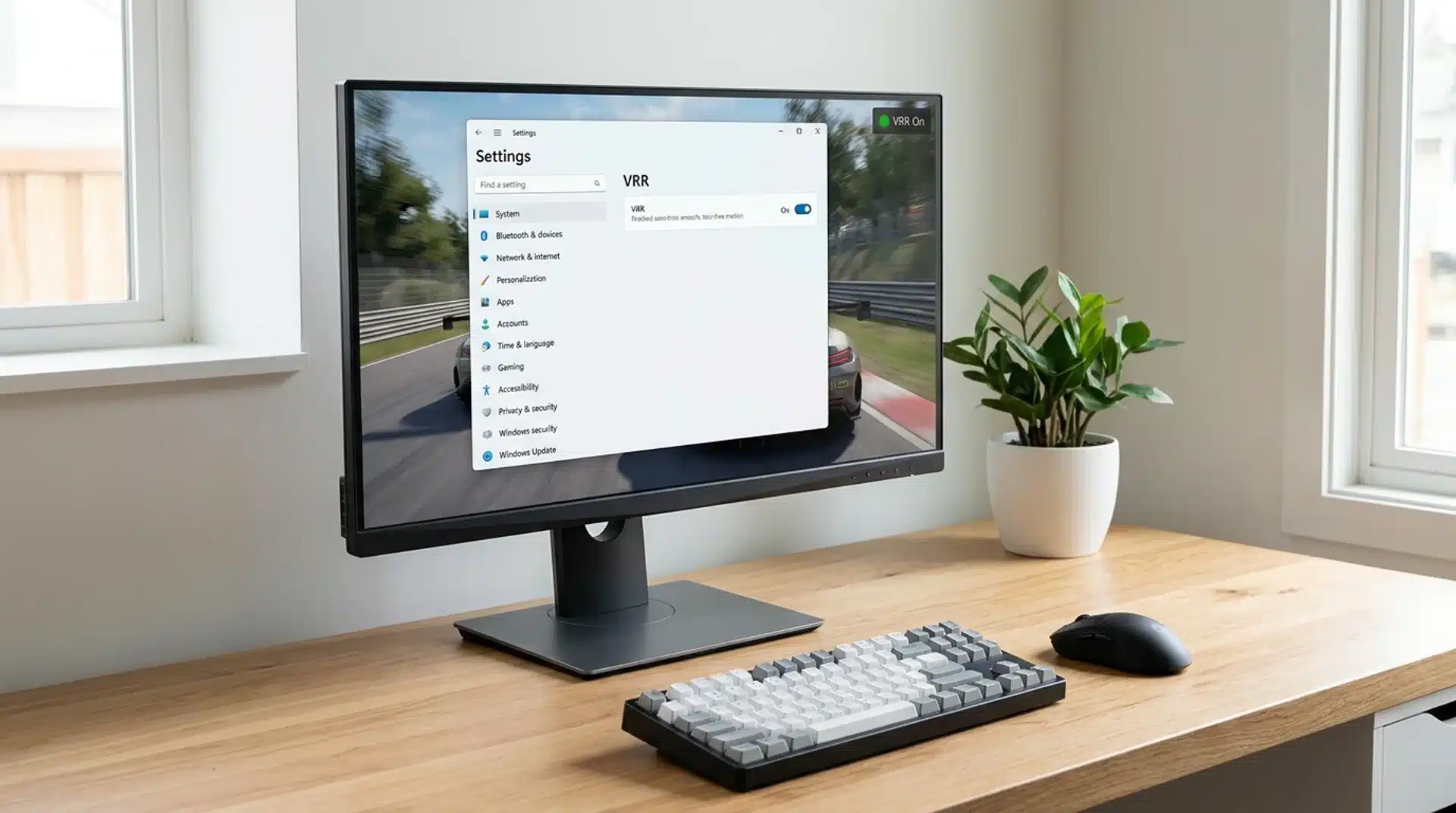
VRR may involve more than one setting. Your monitor or TV may have its own Adaptive-Sync or VRR option, while your PC, graphics driver, or console may have another setting that controls compatible features.
Your cable, connection type, resolution, and selected refresh rate can also affect what your setup supports.
1. VRR on Windows 11
On Windows 11, start by checking the display’s capabilities and refresh rate, and if frame rates already feel inconsistent, it helps to first run through the basics of optimizing your gaming pc before touching any VRR settings.
- Open Settings > System > Display > Advanced display.
- Check the available refresh-rate information and VRR support reported for the display.
- Open your monitor’s on-screen menu and enable Adaptive-Sync, FreeSync, G-SYNC Compatible, or a similarly named option when available.
- Open your NVIDIA, AMD, or Intel graphics software and check the available synchronization settings.
- Select the intended resolution and highest supported refresh rate.
- Start a game and look for tearing, flicker, black screens, or other display problems.
The exact options depend on your monitor, GPU, driver, connection, and VRR technology.
2. VRR on Xbox Series X|S
Xbox provides a built-in option for compatible displays.
- Open Settings > General > TV & display options.
- Open Video modes.
- Turn on Allow variable refresh rate when your TV or monitor supports it.
- Check 4K TV details to see which display features the console detects.
- For 4K at 120Hz, make sure the TV, cable, HDMI port, and other hardware support the required bandwidth and features.
Start a supported game and check for smooth motion, tearing, flicker, or signal problems.
3. VRR on PS5
PS5 provides a VRR setting for compatible TVs and monitors.
- Open Settings > Screen and Video > Video Output.
- Set VRR to Automatic.
- If needed, check Apply to Unsupported Games to test VRR with games that do not have official VRR support.
- If a game develops visual problems with the unsupported-games option, turn that option off for a cleaner result.
The available VRR experience depends on the display, game, resolution, refresh rate, and HDMI connection.
Can VRR and V-Sync Work Together?
Yes. VRR and V-Sync can work together, and using both can be useful when you want VRR to handle changing frame rates while preventing frames from exceeding the display’s maximum refresh rate.
VRR works within its supported refresh-rate range. If FPS rises above that range, V-Sync or a frame cap can help prevent tearing, depending on the hardware and software configuration.
The ideal setup differs between NVIDIA, AMD, Intel, and console systems. Features such as NVIDIA G-SYNC, AMD FreeSync, Reflex, frame caps, and V-Sync can interact differently depending on the game and hardware.
If you use a PC, follow recommendations for your GPU and display instead of applying one universal V-Sync rule.
That’s a Wrap
For most gaming setups, variable refresh rate on or off has a simple answer: leave VRR on.
It can reduce screen tearing and make changing frame rates look smoother when your display supports the feature properly. Still, I would not treat it as a rule for every monitor, TV, or game.
Flicker, brightness changes, black screens, or other compatibility problems can make VRR not the better choice.
Competitive players with very high, stable frame rates may also prefer to test both settings. Try VRR with your usual games and compare the results using the same settings.
Have you noticed a difference with VRR on or off? Share your experience in the comments.
Frequently Asked Questions
Does Variable Refresh Rate Increase FPS?
No. VRR does not increase FPS or create additional frames. It adjusts the display’s refresh timing to better match the frames your PC or console already produces.
Is VRR Good for 60 FPS Gaming?
Yes. VRR is useful when frame rates fluctuate around 60 FPS, as long as they remain within the display’s supported VRR range. It can reduce tearing and improve motion smoothness.
Should I Leave VRR On for Console Games?
For most supported console games, yes. VRR can synchronize a compatible display’s refresh rate with the console’s output. Turn it off if it causes repeatable flicker, visual problems, or compatibility issues.