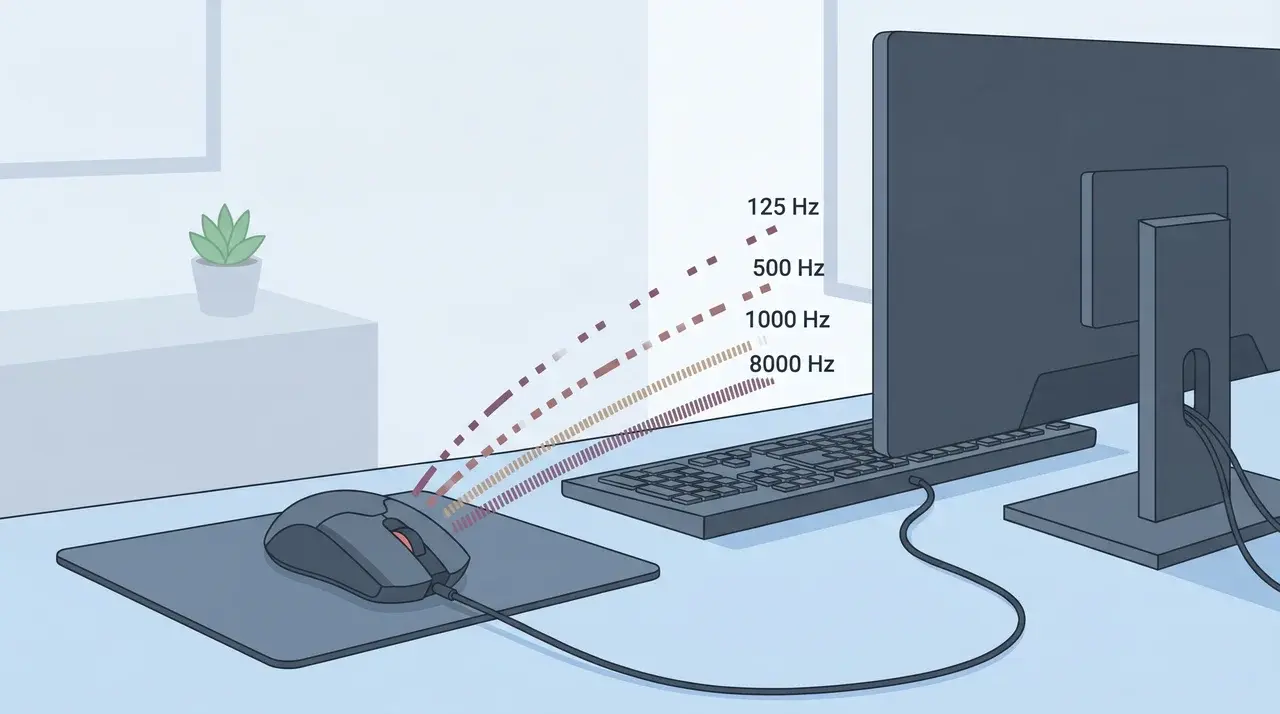
Your mouse can feel fast or slow, but the reason is not always the sensor or DPI. A small number called the polling rate can change how quickly your clicks and movements reach your PC.
I used to ignore this setting, but learning what the polling rate on a mouse is helped me understand why some mice feel more responsive than others.
From basic work to competitive gaming, this setting affects the way your mouse communicates with your computer.
Knowing what those Hz numbers mean can help you choose the right option without guessing or chasing unnecessary upgrades, making your setup more comfortable and reliable.
What is the Polling Rate on a Mouse?
Mouse polling rate is the number of times per second a mouse sends movement and button data to your computer, measured in Hertz (Hz).
Each polling rate has a matching delay between reports. For example, 1000 Hz = 1 millisecond (ms), 500 Hz = 2 ms, 250 Hz = 4 ms, and 125 Hz = 8 ms.
The mouse does not send data as a constant stream. Instead, it checks in at regular intervals and reports its current position and button states. Between those reports, the computer only knows what the last update said.
A higher polling rate shortens the time between reports, while a lower polling rate increases the gap between reports.
This report cycle is what the polling rate measures, and understanding that timing helps explain why different polling rates affect performance.
What Do the Common Polling Rate Values Actually Mean?
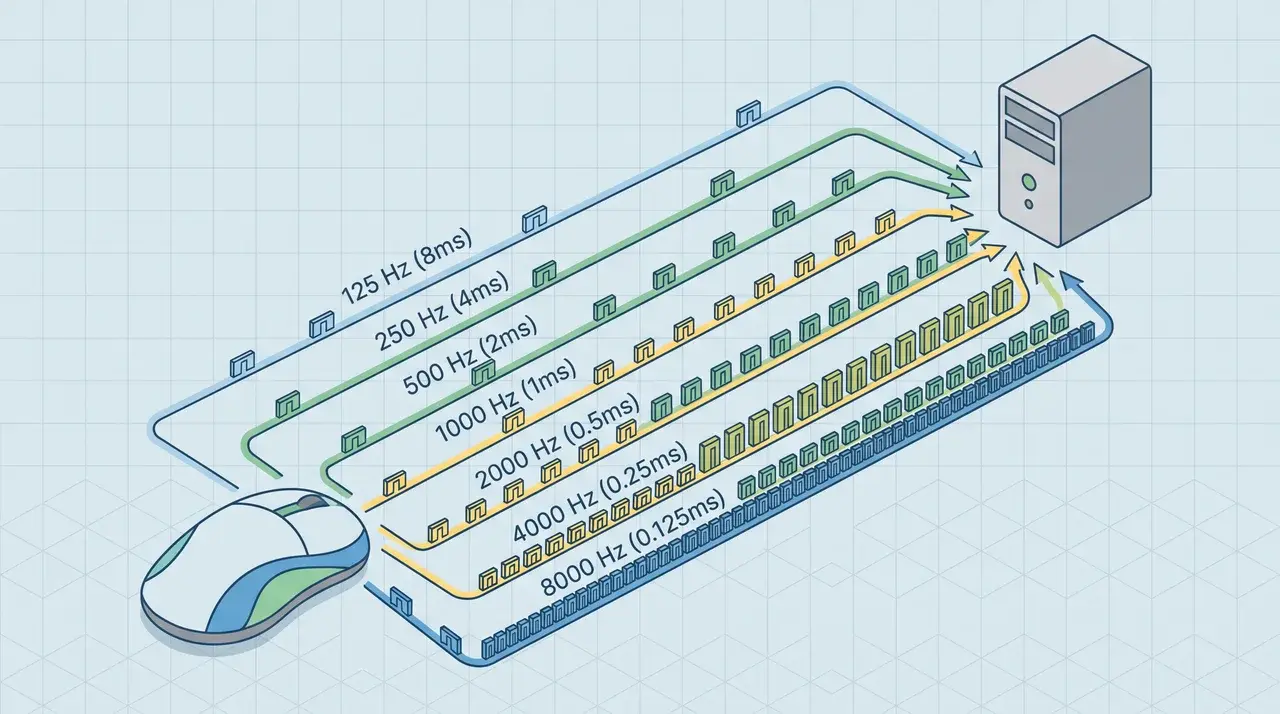
Mouse polling rates determine how often your mouse sends data to your computer.
Lower rates send fewer updates, while higher rates provide more frequent reports with shorter delays. The best choice depends on your usage, hardware, and performance needs.
1. 125 Hz to 500 Hz
Polling rates between 125 Hz and 500 Hz are suitable for everyday computer use, including browsing, writing, and office tasks. A 125 Hz mouse sends an update every 8 milliseconds, while a 500 Hz mouse sends updates every 2 milliseconds.
These settings provide smooth cursor control while keeping CPU workload low. They are also useful for wireless mice because lower polling rates usually consume less battery power.
2. 1000 Hz
A 1000 Hz polling rate sends mouse data to your computer every 1 millisecond, which is why it became a common standard for gaming mice. It provides fast, consistent input without creating a noticeable workload on most modern systems.
For many gamers, 1000 Hz offers a strong balance between responsiveness and stability. It works well for casual players and competitive gamers using the most current gaming setups.
3. 2000 Hz to 8000 Hz
Polling rates from 2000 Hz to 8000 Hz send mouse reports more frequently, reducing the time between updates compared with 1000 Hz. These settings can provide small improvements in input response, but the difference is harder for most users to notice.
Higher rates also require more CPU processing and may affect performance on some systems. They are mainly useful for high-end setups with powerful hardware and high-refresh-rate monitors.
Mouse Polling Rate vs DPI: What’s the Difference?
Polling rate and DPI are often confused because both affect how a mouse feels. However, they control completely different parts of mouse performance.
Understanding the difference makes it much easier to choose the right settings for gaming and everyday use.
| Mouse Polling Rate | DPI (Dots Per Inch) |
|---|---|
| Measures how often the mouse sends data to the computer. | Measures how far the cursor moves per unit of physical movement. |
| Measured in Hertz (Hz). | Measured in DPI. |
| Affects input update frequency and latency. | Affects cursor sensitivity and speed. |
| Common values: 125, 250, 500, 1000, 2000, 4000, 8000 Hz. | Common values: 400–3200 DPI (gaming mice often support much higher). |
| Higher values reduce the time between mouse reports. | Higher values make the cursor move farther with less hand movement. |
Polling rate and DPI work together, but changing one does not change the other. For the best experience, choose a polling rate your system can handle and a DPI that feels comfortable for your games or daily tasks.
Why Higher Polling Rates Can Hurt Performance?
A higher polling rate means the mouse sends data to the computer more often. Every report requires a small amount of CPU processing.
While each update is tiny, sending thousands more reports per second can increase CPU workload on some systems. At 1000 Hz, the CPU processes 1,000 mouse updates per second. At 8000 Hz, that number jumps to 8,000.
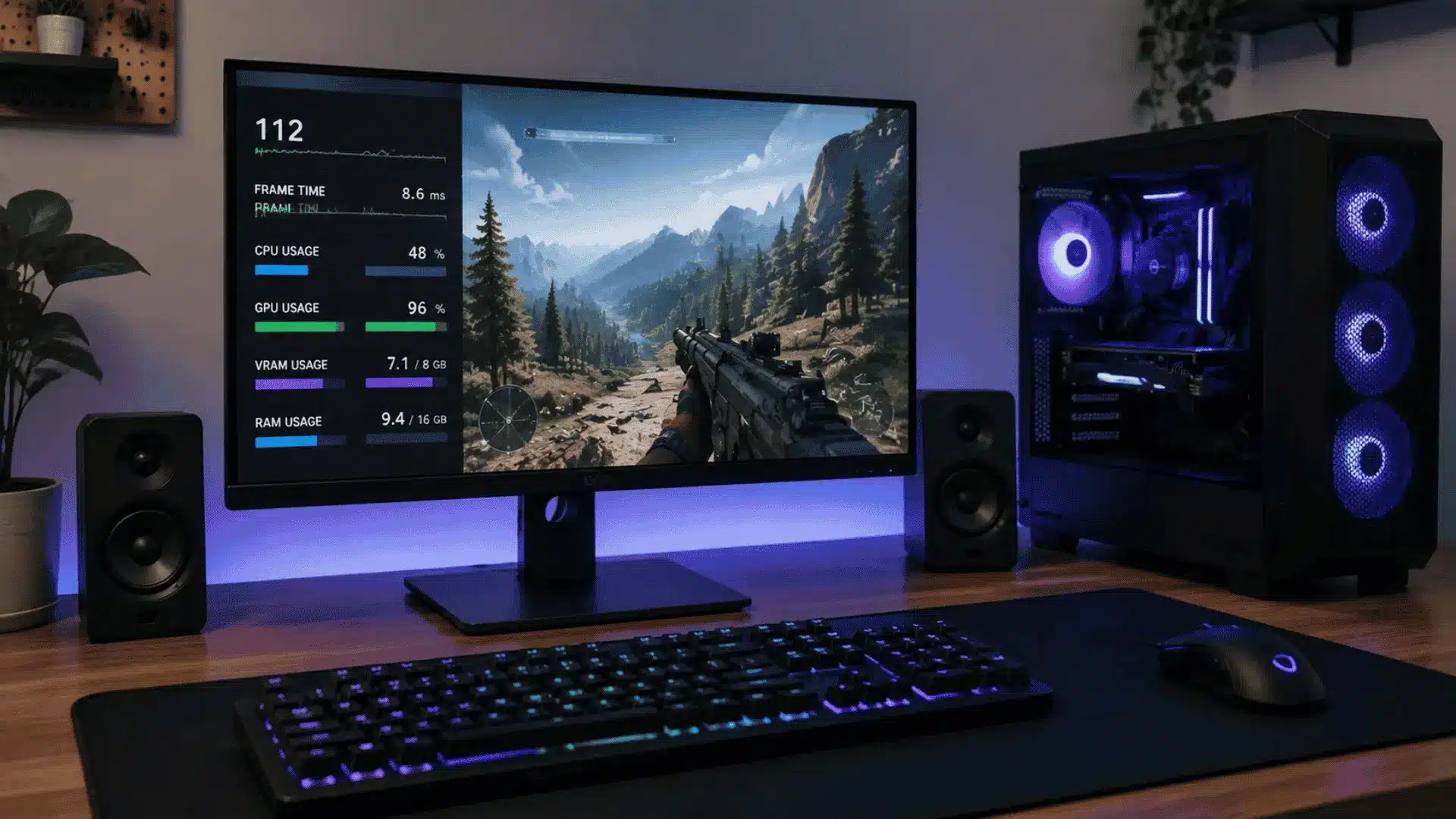
During gaming, the CPU is already handling tasks such as game logic, physics, networking, and frame rendering. Processing thousands of additional mouse reports can add extra workload, especially on systems already close to their performance limits.
The key issue is not the polling rate itself. Performance depends on whether the rest of the system can keep up with the additional stream of mouse reports.
Mouse updates, CPU scheduling, GPU rendering, and monitor refresh rates all operate on separate timing cycles. Even if a mouse sends thousands of updates every second, the display can only show information when a new frame is rendered.
When the processor, game engine, or USB subsystem struggles to handle those extra reports efficiently, frame delivery can become less consistent.
Instead of creating a smoother experience, extremely high polling rates can contribute to the following on some systems:
- Uneven Frame Timing: Frames arrive at irregular intervals.
- Micro-Stutters: Brief interruptions in smooth motion.
- Inconsistent Cursor Feel: Mouse movement may seem less stable despite the higher report rate.
This is why 4000 Hz and 8000 Hz settings sometimes perform worse on lower-end systems or PCs already operating close to their hardware limits.
What Polling Rate Should You Use?
The best polling rate depends on how you use your mouse and how powerful your system is. Office work, casual gaming, and competitive gaming all need different levels of speed and stability.
For most people, the goal is not to choose the highest number. It is to choose the setting your computer can handle without added stutter or wasted battery.
Other gaming peripherals, such as the Razer Huntsman Tournament Edition, focus on reducing input delay through features like fast switches and low-latency response, but keyboard input performance is separate from mouse polling rate.
Basic Desktop Use: 125 Hz to 500 Hz is usually enough for browsing, writing, emails, and general work. These lower rates send fewer updates, which can also help battery life on wireless mice.
Casual Gaming: 500-1000 Hz is a good range. It keeps movement responsive without placing too much extra load on the system.
Most Gaming Setups: 1000 Hz is the safest choice. It gives a 1 ms report interval, which is already fast enough for most players and avoids the extra CPU demand of much higher rates.
Competitive Gaming: 1000 Hz is still the best default for most systems. Going above it only makes sense if you have a strong CPU, a high-refresh monitor, and stable frame timing.
Very High Polling Rates: 2000 Hz, 4000 Hz, and 8000 Hz should be tested rather than used by default. If they make movement feel smoother without causing stutter, they may be worth using. If not, return to 1000 Hz.
Wired mice usually handle high polling rates more consistently. Wireless mice can still perform very well, but battery life and connection stability matter more at higher polling rates.
How to Check and Change Your Mouse Polling Rate?
Mouse polling rate is usually changed through manufacturer software such as Logitech G HUB, Razer Synapse, or SteelSeries GG.
1. Change the Polling Rate Through Mouse Software
If your mouse uses dedicated software, follow these steps:
- Open the software that supports your mouse.
- Go to the Mouse, Performance, or Polling Rate section.
- Select your preferred polling rate.
- Apply or save the change.
Common choices include 125 Hz, 250 Hz, 500 Hz, and 1000 Hz.
Some mice do not require software. Instead, they use onboard button combinations to switch polling rates. The exact method varies by model, so check the user manual or manufacturer documentation.
2. Verify the Current Polling Rate
After making a change, it is a good idea to confirm that the new setting is active.
You can test your mouse using:
- Browser-Based Tools: Websites such as ClickSpeedTester.com.
- Desktop Utilities: Software like MouseTester.
Move the mouse during the test and review the reported polling rate. If the measured value matches your selected setting, the change has been applied successfully.
Conclusion
Now that I understand what the polling rate on a mouse is, I can see why this small setting matters for gaming and daily use.
A higher number is not always the best choice, because your hardware and personal needs decide what works well. The right polling rate gives you smooth control without adding extra strain to your system.
I hope these tips help you make smarter choices about mouse settings.
Share your thoughts in the comments and tell me which polling rate you use and why. Your experience can help other readers find settings that match their own gaming style and preferences.
Frequently Asked Questions
Does Mouse Polling Rate Affect FPS?
Mouse polling rate does not directly increase or decrease FPS. However, very high polling rates can add to the CPU workload. On weaker systems, this extra work may contribute to lower frame consistency or occasional stuttering.
Can a High Polling Rate Improve Aim in Games?
A higher polling rate can reduce the delay between mouse movement and system updates. The improvement is measurable, but most players see larger gains from practice, stable frame rates, and a quality mouse sensor.
Does Polling Rate Affect Cursor Movement on the Desktop?
Yes. A higher polling rate allows the cursor position to update more frequently. On high-refresh displays, movement can appear slightly smoother, though the difference becomes harder to notice above 1000 Hz.
Do All Mice Support Adjustable Polling Rates?
No. Many gaming mice allow polling rate adjustments, but some office and budget models use a fixed polling rate. The available options depend on the mouse hardware and firmware.